If you’ve ever wondered why some files end with .docx, .pdf, or .jpg, you’re not alone. These are called file extensions, and they play a vital role in how your computer recognizes and opens files. In this article, we’ll explain what file extensions are, how to view them, how to change them, and why they matter.
Whether you’re new to using a PC or just curious about file types, this tutorial is your starting point for mastering file management and extension safety.
🔍 What is a File Extension?
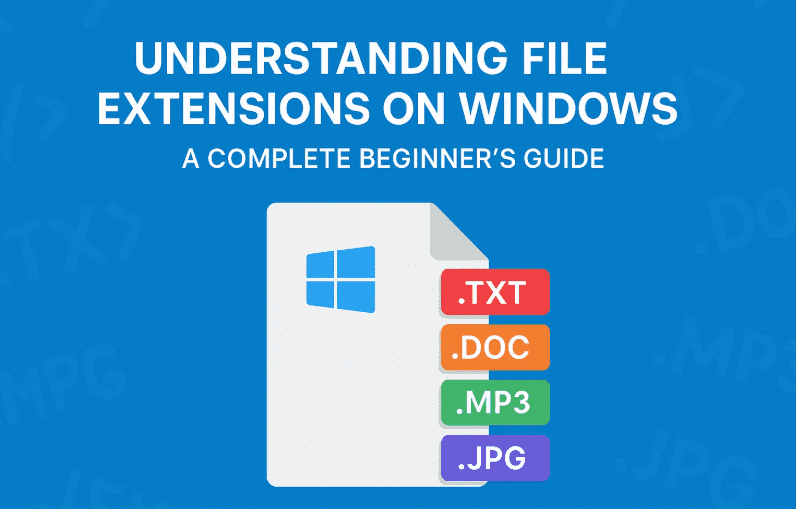
A file extension is a suffix at the end of a file name that tells your operating system what type of file it is and what program should open it. For example:
.docxis a Microsoft Word document.pdfis a Portable Document Format file.jpgor.pngare image formats.mp3is an audio file
Each file extension corresponds to a certain type of data and determines how the file behaves when you open it.
📁 Default Windows Folders and File Types
When you open File Explorer on a Windows PC, you’ll see folders like:
- Documents – for Word, PDF, and text files
- Downloads – where downloaded files are saved by default
- Pictures – for image files
- Videos – for video files
- Music – for audio files
Saving files in the appropriate folders helps you stay organized and locate them quickly.
👁️ How to View File Extensions in Windows
By default, Windows hides file extensions. Here’s how to make them visible:
🧭 Steps:
- Open File Explorer (
Windows + E). - Click on the View tab at the top.
- Go to Show > File name extensions.
- ✅ Check this box to enable it.
Now, you’ll see the full file name including the extension (e.g., document.docx, image.png, song.mp3).
🧪 Identifying File Types
Once extensions are visible, you can:
- Right-click any file and select Properties.
- Look under “Type of file” to see its format.
- Also, see what program is associated with it (e.g., Notepad, Word, VLC).
This helps you confirm you’re working with the right file type before opening or sharing it.
🔄 Changing a File Extension: When & How
Yes, you can change a file extension, but you need to be careful!









🧭 Steps to Rename a File Extension:
- Right-click the file → click Rename.
- Change the extension part (e.g.,
file.txt→file.docx). - Hit Enter.
- Windows will prompt: “If you change a file name extension, the file might become unusable.”
Click Yes only if you’re sure.
⚠️ Caution:
Changing a file extension doesn’t actually convert the file’s format. For example, renaming a .txt file to .docx won’t magically turn it into a Word document—it might just become unreadable or give you strange characters when opened.
💡 Example: Opening Files with Different Apps
You can also open a file with a different app:
- Right-click the file → Open with → Choose another app.
- You can select Notepad, Word, or other programs.
- Choose Always or Just once.
Keep in mind:
- A Word document opened in Notepad will likely show gibberish.
- A
.jpgimage opened in a text editor won’t display an actual image.
🔐 Why You Should Always Show File Extensions
There’s an important security reason for always displaying extensions.
🔒 Prevent Malware Risks:
Malicious files may disguise themselves by using double extensions. For example:
- A virus might be named
invoice.pdf.exe. - If extensions are hidden, you’ll only see
invoice.pdfand mistakenly think it’s safe.
So, always keep extensions visible and never open suspicious files, especially from unknown sources.
🛡️ Safety Tips for File Handling
- ✅ Only download files from trusted sources.
- 🛡️ Install antivirus software to scan files before opening them.
- ❌ Avoid opening unknown file types, especially if received via email or messaging platforms.
- ♻️ Back up important files so you can restore them in case of corruption.
❓ Frequently Asked Questions (FAQ)
Q1: Can I convert a file by changing its extension?
No. Renaming .txt to .pdf doesn’t change the file’s format. Use file converter tools instead.
Q2: How do I know which program opens a certain file?
Right-click the file → Properties → Look for the “Opens with” section. You can also change the default app from there.
Q3: What are the most common file extensions?
.docx– Word Document.xlsx– Excel Spreadsheet.pptx– PowerPoint Presentation.pdf– Portable Document Format.jpg/.png– Image Files.mp3– Audio File.mp4– Video File.exe– Executable Application (Be cautious)
🏷️ Tags
file extensions, windows file types, change file extension, view extensions in Windows, file explorer, document formats, rename file types, file security, open file with, identify file format
🔖 Hashtags
#FileExtensions #WindowsTips #FileManagement #DocumentSafety #CyberSecurity #FileExplorer #BeginnersGuide #PCBasics #FileTypes #TechTips
🔚 Final Thoughts
Understanding file extensions is more than just a technical detail—it’s a crucial part of working smart and staying secure on your computer. Always keep file extensions visible, know what they represent, and never open unfamiliar formats without caution.
By learning these basics, you take a step toward becoming more confident and secure in managing your digital workspace.
Disclaimer: This guide is intended for educational purposes. Changing file extensions improperly may result in file corruption or data loss. Always back up important files and consult IT support if unsure.








