The Nintendo Switch 2 is more than just an upgraded console—it’s a powerhouse of features waiting to be unlocked. Whether you’re new to the Nintendo ecosystem or a seasoned Switch veteran, this guide walks you through the most valuable tips, hidden features, and game-enhancing tricks that’ll take your Switch 2 experience to the next level.
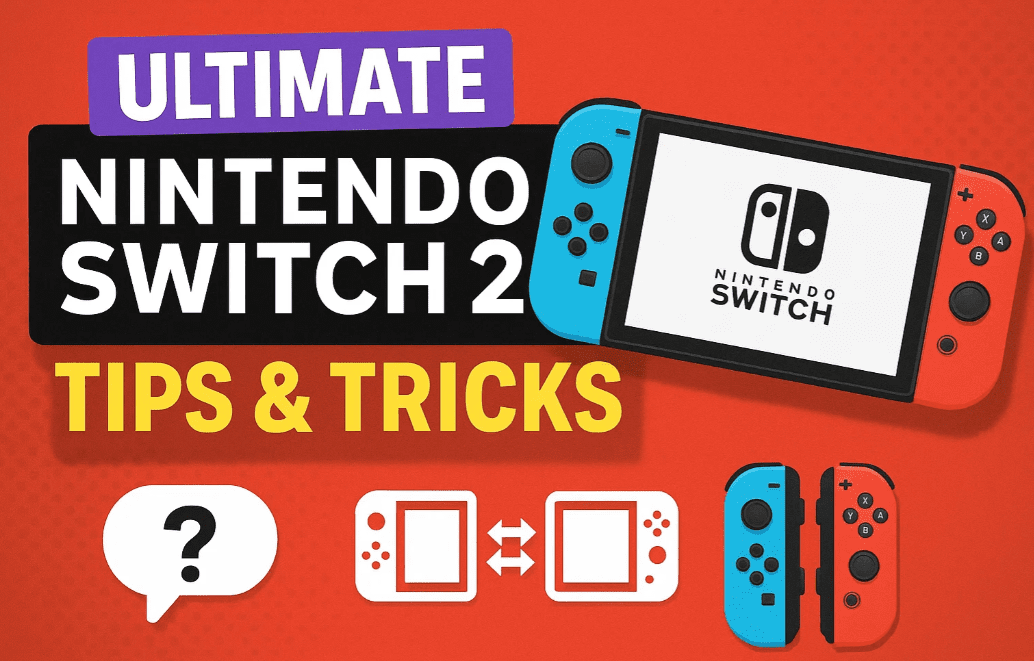
Okay, so first off, let’s start off with some fun tricks you can do with these new Joy-Cons.
🎮 Joy-Con Hacks: Never Lose a Controller Again
Locate Lost Joy-Cons:
- From the Home screen, go to Controllers > Search for Controllers.
- Tap on a connected controller to make it vibrate.
- Bonus Tip: Tap and hold on the controller icon to make it vibrate AND ring, making it easier to locate.
- Use one Joy-Con to find the other: Select the missing one using the stick and hold either the A button or top triggers to activate sound and vibration.
🖱️ Joy-Con Mouse Mode
Transform Joy-Cons into a Mouse:
- Attach the Joy-Con grip to the controller.
- Navigate to Settings > Controllers and Accessories.
- Choose mouse sensitivity: Fast, Default, or Slow.
- Works with either the left or right Joy-Con.
- Make sure Controller Vibration is turned on for immersive feedback.
⚡ Speed Up Game Launches
- Go to Settings > Users.
- Toggle Skip Selection Screen on.
This bypasses the user select screen and directly launches the game.
🎧 Use Wireless Audio
- Head to Settings > Bluetooth Audio.
- Pair with AirPods, Galaxy Buds, or any Bluetooth speaker.
Note: This feature was missing from earlier models, so it’s a welcome addition.
🔋 Display Battery Percentage
Navigate to Settings > System, and toggle Console Battery to ON. Now you’ll always see the battery percentage on screen.
🎛️ Fun Button Tricks You Didn’t Know
- Sleep Mode Sound Effects: When unlocking from sleep, each button press makes a different sound!
- Swap A and B Buttons:
Settings > Controllers and Accessories > Enable “Swap A/B”.
This mirrors Xbox/PlayStation controller behavior. - Quick Settings Menu: Press and hold the Home button to adjust brightness and volume.
- Screenshot & Recording:
- Press to capture a screenshot.
- Hold to record last 30 seconds of gameplay.
- Zoom Functionality:
Settings > Accessibility > Enable “Zoom”.
Double-tap Home, then use X/Y to zoom and joystick to navigate.
🎮 How to Share Digital Games with Friends
Nintendo now allows digital game sharing via Family Groups:
Steps:
- On your browser, go to accounts.nintendo.com.
- Log in, go to Family Group, and Invite a Friend using their Nintendo account email.
- On your Switch:
- Go to your virtual game card.
- Select Lend to Family Group Member.
- Ensure both consoles are on the same Wi-Fi.
- Tap Lend to share the game.
- The shared game returns to you after 14 days automatically.
🖥️ TV & Dock Settings You Must Enable
- Enable 4K Output:
Settings > Display > TV Resolution > Set to 4K (if compatible). - 120Hz Output: Boost frame rates for smoother gameplay (works with 1440p or lower).
- Match TV Power State: TV turns on automatically when Switch is docked.
🔌 Switch 2 Battery Tips & USB-C Tricks
- Comes with two USB-C ports (top and bottom) – use either for charging.
- Stop Charging at 90%:
Settings > System > Enable battery limit to increase battery longevity. - Switch Charges Your Phone:
Plug your phone into the Switch via USB-C to juice it up on the go.
👫 Dual Player Setup (Two Methods)
Traditional Joy-Con Split Play:
- Launch a game like Mario Kart.
- Remove Joy-Cons and press L + R on each to activate multiplayer.
New GameShare Multiplayer:
- Launch a supported game like Split Fiction.
- Select Play Local Wireless > GameShare.
- Friend selects Join GameShare on their Switch.
- Start game — both play simultaneously using one shared copy!
📸 Bonus Tips
Auto Upload Screenshots
- Open Gallery > Settings > Enable “Auto Uploads”.
- Download the Nintendo Switch app on your phone.
- Sign in to sync your screenshots and clips for easy sharing.
Watch YouTube on Switch
- Visit eShop and install YouTube (free).
- YouTube is being optimized for Switch 2 and will soon run seamlessly.
Console Lock for Security
- Go to Settings > System > Console Lock.
- Set a passcode using touchscreen input.
- Secures your saves and prevents unauthorized use.
Common Questions
Q: Can I use Joy-Cons as a mouse in all games?
A: Mouse functionality is mainly for navigation and supported games or apps.
Q: What happens when my shared game returns?
A: After 14 days, the game is no longer playable on your friend’s device, and it reverts back to your Switch.








Q: Does Zoom affect gameplay?
A: No, it’s a display feature only and doesn’t interfere with the actual gameplay.
⚠️ Disclaimer
Some features mentioned such as 4K output and 120Hz support may require a compatible display. Game sharing via GameShare or family group requires an active Nintendo account and internet connection. Always keep your device updated for the best experience.
🔗 Useful Links
📦 Tags:
nintendo switch 2, joy-con tricks, switch game sharing, switch hidden features, switch bluetooth audio, switch tv dock settings, switch 4k, switch 120hz, switch battery tips, switch game tips, switch multiplayer
📣 Hashtags:
#NintendoSwitch2 #SwitchTips #JoyConTricks #GameShare #NintendoGames #SwitchMultiplayer #SwitchSettings #GamingTips #SwitchDock #SwitchFeatures
Let us know which of these Nintendo Switch 2 tricks was your favorite or if you discovered any new ones!








