If you’re using an AMD Radeon graphics card and want to boost your gaming experience, optimizing the Radeon Software is a must. This detailed guide walks you through the best settings and optimizations available in the AMD Radeon Adrenalin software to ensure you get smoother gameplay, better frame rates, and fewer stutters.
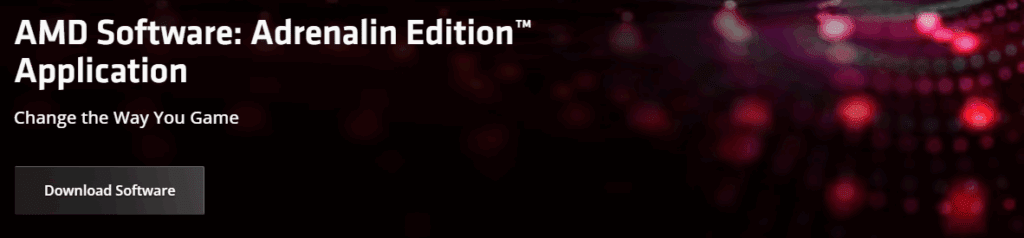
📥 Step 1: Download and Install AMD Radeon Software
To begin with, if you haven’t already installed the AMD Radeon Software:
- Open your preferred browser.
- Search for AMD Radeon Software or visit the official link:
👉 https://www.amd.com/en/products/software/adrenalin.html - Click on Download Software and complete the basic installation.
Once installed, right-click anywhere on your desktop and select AMD Software from the context menu to launch the dashboard.
🔄 Step 2: Update the AMD Software
Keeping the software updated ensures optimal hardware performance and access to the latest features:
- Inside the AMD Software dashboard, look to the right under Driver & Software.
- Click Check for Updates.
- If a new version is available (e.g., 24.7.1), click Download.
- Let the update complete before moving forward.
🧹 Step 3: Clear Shader Cache
Clearing shader cache can significantly reduce stuttering and frame drops:
- Navigate to Gaming → Graphics from the top menu.
- Scroll down and click Advanced.
- Scroll to the bottom and click Reset Shader Cache → Confirm with OK.
🖥️ Step 4: Optimize Display Settings
Go to the Display tab and adjust the following:
- AMD FreeSync: Enable if supported by your monitor. It helps prevent screen tearing.
- Virtual Super Resolution: Disable it to avoid unnecessary GPU load.
- GPU Scaling: Enable it for better scaling of lower-resolution content.
- Integer Scaling: Optional. Enable if you want crisp pixel scaling for low-res games.
- Color Depth: Set to 8 BPC.
- Pixel Format: Leave as default.
- Custom Color: Enable if supported.
- Increase Saturation to ~120 for more vibrant visuals.
🎮 Step 5: Configure Graphics Settings
Navigate to the Graphics section and follow these recommended settings:
- Graphics Profile: Select Performance for best gaming results.
- Radeon Super Resolution: Enable to boost FPS.
- Radeon Anti-Lag: Enable to reduce input lag.
- Radeon Boost: Disable.
- Radeon Chill: Disable.
- Radeon Image Sharpening: Optional. Enable and set sharpness to 80–85.
- Enhanced Sync: Enable to stabilize FPS and avoid tearing.
⚙️ Step 6: Advanced Graphics Settings
Click on Advanced under Graphics settings:
- Frame Rate Target Control:
- Enable it and set the value just one point below your monitor’s refresh rate.
For example:- 60Hz → Set to 59 FPS
- 90Hz → Set to 89 FPS
- 120Hz → Set to 119 FPS
- Enable it and set the value just one point below your monitor’s refresh rate.
To check your monitor’s refresh rate:
- Right-click on the Windows Start button → Settings.
- Go to System → Display → Advanced Display.
- See your refresh rate and adjust the FPS accordingly.
- Anti-Aliasing: Set to Use Application Settings.
- Anti-Aliasing Method: Multi-Sampling.
- Morphological Anti-Aliasing: Disable.
- Anisotropic Filtering: Disable.
- Texture Filtering Quality: Set to Performance.
- Tessellation Mode: Select AMD Optimized.
🔁 Final Step: Restart Your PC
Once all the above settings are applied:
- Save the settings.
- Restart your computer.
- Launch your favorite game and enjoy the improved performance.
📝 Final Thoughts
These optimizations offer a great balance between performance and visual quality. If you notice any issues or want to fine-tune further, you can always revisit the AMD Software and tweak settings based on your preferences.







Disclaimer: Performance gains may vary depending on your GPU model, monitor, and game-specific requirements. These settings are general recommendations for most users but may need adjustments based on individual configurations.
🔗 Useful Link
🔖 Tags:
amd radeon optimization, gaming performance tips, radeon software settings, amd adrenalin, gpu settings, amd driver update, shader cache, fps boost, gaming optimization, graphics card settings
📢 Hashtags:
#AMDRadeon #GamingTips #FPSBoost #RadeonSettings #PCGaming #AdrenalinSoftware #GamingOptimization #GraphicsCard #AMDOptimization #ShaderCache #GPUSettings








