Have you ever thought about using your old laptop for something more useful than just gathering dust on a shelf? What if that same laptop could become your personal cloud storage system — accessible from your mobile, tablet, or TV, all without paying for Google Drive or Dropbox?
In this detailed guide, we’ll walk through how to transform an old Windows laptop into a fully functional home cloud storage system, so you can store, access, and stream your personal media (like wedding videos, party footage, family photos, and documents) across multiple devices — safely within your own home network.
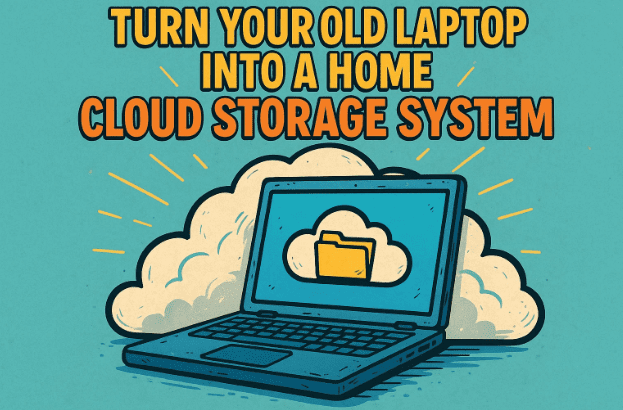
1. 🌥️ Introduction: Why Create a Home Cloud?
With growing data usage — 4K videos, family photos, and work backups — commercial cloud services are getting expensive and limited in storage. By building your own home cloud, you gain:
- Full control over your data — no third-party access.
- Unlimited storage (depending on your SSD/HDD capacity).
- No monthly subscriptions.
- Offline streaming within your local Wi-Fi network.
This setup is perfect for:
- Backing up event videos like weddings or parties.
- Storing CCTV footage or creative projects.
- Sharing large files between PCs, phones, or TVs at home.
Let’s now see what you’ll need to make this happen.
2. 🧰 What You’ll Need Before Starting
Before setting up, gather a few basic tools and devices. Don’t worry — most are probably lying around your house.
Required Hardware:
- Old Laptop or PC — Windows 10, 11, or even 7 works fine.
- It will act as your server.
- Preferably connect it directly to your router via Ethernet for stable speed.
- External SSD or Hard Drive — 500 GB to 2 TB is ideal.
- Use an SSD if possible, for faster file transfer and reliability.
- Example: Crucial SSD.
- Wi-Fi Router — All devices must connect to the same router.
- Mobile or Tablet — To access files remotely within the network.
- (Optional) Smart TV or Android TV — For streaming media directly.
Recommended Software:
- VLC Media Player (for TV or mobile access)
👉 Download VLC - Built-in File Explorer (Windows)
- Built-in File Manager (Android/Samsung phones)
Now that everything’s ready, let’s start the actual setup.
3. 🖥️ Step 1: Preparing Your Old Laptop
Let’s start by preparing your old laptop to act as a dedicated home server.
- Make sure it has Windows 10 or higher, though even Windows 7 will work.
- Create or log in with a Microsoft Account — this makes sharing and permissions easier.
- Keep your laptop connected to power 24/7, especially if the battery is weak or removed.
- To reduce wear, remove the battery and use direct power if possible.
- Clean up unnecessary files so the system runs faster.
If your laptop screen turns off automatically, don’t worry — we’ll configure it later so that the system stays awake even when the lid is closed.
4. 💾 Step 2: Setting Up Your External Drive or SSD
Once your laptop is ready, connect your external storage drive.

- Plug in your Crucial SSD or any other brand into a USB port.
- Open File Explorer → This PC.
You should now see your new drive listed (e.g., “D:” or “E:” drive). - Confirm that your SSD is detected and formatted to NTFS (for large files).
- Give the drive a recognizable name, like “HomeCloud.”
If you only want to share one specific folder instead of the entire drive, you can do that too — we’ll show both methods next.
5. 🔗 Step 3: Sharing Your Drive or Folder on the Network
Here comes the main step — sharing your drive or folder so other devices can access it over Wi-Fi.
To share the entire drive:
- Right-click the drive → Properties.
- Go to the Sharing tab.
- Click Advanced Sharing → check “Share this folder.”
- In the “Share Name” field, you can leave it as “D” or rename it.
- Click Permissions → select Full Control → Apply → OK.
You’ve now shared your drive on the local network.
Let’s refine permissions next so your account can access it securely.
Assigning Permissions to Your User Account
- In the same Sharing tab, click Add → then Advanced → Find Now.
- Select your account name (the one you logged in with).
Example: “Anand Kumar” or your Microsoft email. - Click OK → then Full Control again → Apply → OK.
That’s it — your laptop is now acting as a mini-server with shared storage.
6. 🌐 Step 4: Adjusting Network and Sharing Settings
Now that your folder is shared, let’s ensure other devices can connect without repeated password prompts.
Steps:
- Open Control Panel → Network and Sharing Center.
- Click Change advanced sharing settings.
- Expand All Networks.
- Turn ON “Public Folder Sharing.”
- Turn OFF “Password Protected Sharing.”
This ensures:
- Devices on the same Wi-Fi network can access files directly.
- No password prompt appears on your mobile or TV.
⚠️ Note:
Keep password protection ON if you live in a shared Wi-Fi environment (e.g., apartment).
For private home use, it’s safe to turn it off.
7. 📱 Step 5: Accessing Files from Mobile Devices
So far, so good — now let’s connect your phone or tablet to the home cloud.
- Ensure both the laptop and mobile are connected to the same Wi-Fi.
- On your Android phone (for example, Samsung Galaxy):
- Open the My Files or File Manager app.
- Tap on Network Storage → Add network storage.
- Your laptop should automatically appear with its name (like “MASTER-PC”).
- Tap to connect. You’ll see your shared drives or folders.
- Browse the files and open any video, photo, or document directly.
You can now stream videos or play songs straight from your laptop drive — without downloading them to your phone!
If you can’t find your drive, try manually entering the IP address of your laptop (e.g., \\192.168.1.12).
8. 📺 Step 6: Accessing Your Cloud Drive on a Smart TV
Let’s take it one step further — streaming your videos directly on a Smart TV.
Here’s how to set it up:
- Connect your TV to the same Wi-Fi network.
- Open the Google Play Store on your TV.
- Search and install VLC Media Player (free and safe).
- Open VLC → go to Browse → Local Network.
- You’ll see your laptop’s name (e.g., “MASTER-PC”).
- Open it, and your shared drive/folders will appear.
Now you can watch your videos, family movies, or backups directly on your TV — no USB drives required!
If you notice buffering during playback:
- Prefer a wired Ethernet connection between the laptop and router.
- Use a 5 GHz Wi-Fi band instead of 2.4 GHz.
- Avoid multitasking on the server laptop.
9. ⚙️ Step 7: Keeping the Laptop Always On (Server Mode)
For your home cloud to work reliably, your laptop should stay on even when the lid is closed or idle. Here’s how to do that safely.
Change Power Settings
- Search “Power & Sleep Settings” in Windows.
- Set “Turn off screen” → Never.
- Set “Sleep” → Never (on both battery and plug-in modes).
- Under “Choose what closing the lid does”, set “Do nothing.”
This ensures the laptop stays running 24/7 as a background cloud server.
Bonus Tip: Keep the System Active Automatically
You can play a muted looping song in Windows Media Player to prevent sleep.
- Open Windows Media Player.
- Play any short MP3 file.
- Set it to Repeat (loop) mode.
- Mute the volume.
Windows will assume the system is active, keeping your home cloud awake indefinitely.
10. 🚀 Tips for Best Performance and Speed
Let’s optimize your setup so it runs efficiently and lasts long.
| Category | Recommendation |
|---|---|
| Connection Type | Use Ethernet cable instead of Wi-Fi for faster streaming. |
| Wi-Fi Band | If Wi-Fi only, use 5 GHz for best stability. |
| Storage Type | Prefer SSD (like Crucial or Samsung) over HDD for reliability. |
| Drive Health | Avoid continuous 24/7 read/write if using HDD. |
| File Formats | Use MP4 or MKV for streaming; avoid RAW 4K footage for smooth playback. |
| Backup | Keep a copy of important data on a second drive or cloud for safety. |
| Security | Keep the router password strong; disable remote access if not needed. |
With this setup, you’ll easily reach transfer speeds of 30–40 Mbps wirelessly, or over 100 Mbps via Ethernet.
11. 💬 Frequently Asked Questions
Q1: Can I access my home cloud from outside my home network?
A: Technically yes, by configuring port forwarding or a dynamic DNS service. However, it’s not recommended unless you know networking security well. This article focuses on safe local access only.
Q2: Can I use macOS or Linux instead of Windows?
A: Yes, both support file sharing (via SMB or NFS). The setup steps differ slightly, but the concept remains the same.
Q3: How much storage should I use?
A: For home media backup, 500 GB is good for short-term needs; 2 TB or higher for long-term archives like weddings, movies, or CCTV footage.
Q4: Is it safe to turn off password protection?
A: Only if all connected devices are trusted and on your private Wi-Fi. Otherwise, keep it on and use your Microsoft account password.
Q5: What if my laptop overheats?
A: Place it on a cooling pad, keep the vents clear, and avoid closing the lid completely during long use.
12. 🏁 Conclusion: Your Own Private Cloud Is Ready
And that’s it! You’ve just converted an old laptop into a fully functional home cloud server — capable of streaming videos, accessing files, and sharing media across all your devices without a single rupee spent on subscriptions.
The next time you want to watch a home video on your TV or phone, you’ll know the data lives securely inside your home — not on a stranger’s cloud server.
So before throwing out your old laptop, give it a second life as your personal digital hub. It’s efficient, private, and deeply satisfying to know that your own tech is doing something smart and sustainable.
#CloudStorage #DIYTech #HomeServer #Windows11 #TechGuide #DataPrivacy #VLC #PersonalCloud #NetworkSharing #OldLaptopReuse
Disclaimer:
This guide is intended for personal, local network use only. Avoid exposing shared drives to the public internet unless you have proper security configurations and understand the risks involved.








