Roku is an incredibly popular streaming device, known for its ease of use and affordability. But what many users may not realize is that Roku devices collect data about your viewing habits and behavior—and in some cases, this information is shared with third-party advertisers. Thankfully, there are several privacy settings you can change to help limit data tracking and even boost your Roku’s performance.
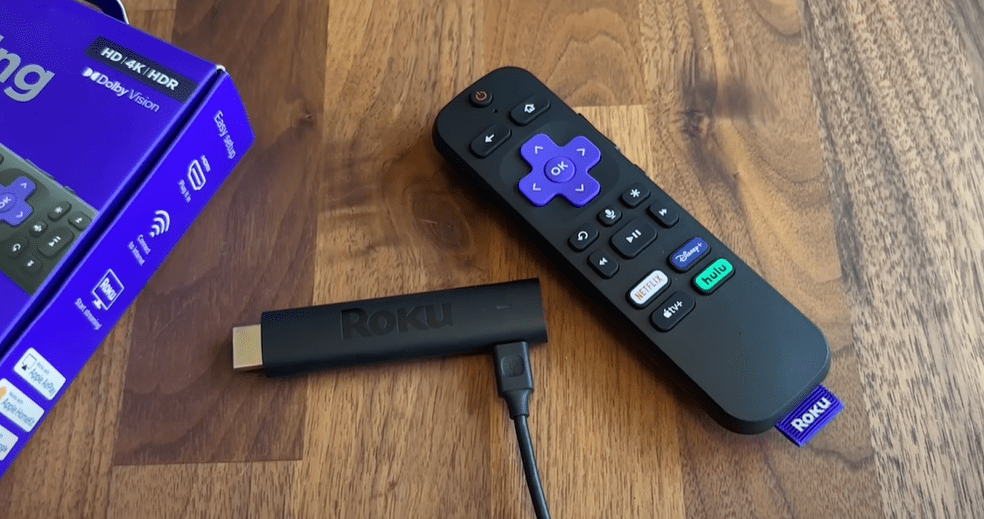
This detailed guide will walk you through the key settings you should adjust to protect your privacy, reduce system lag, and get the best experience from your Roku device.
✅ Step-by-Step: Change These Roku Settings Immediately
Applies to: All Roku devices
Requirements: Roku remote
1. Turn Off Personalized Ads
Path:Home > Settings > Privacy > Advertising
- Select “Limit ad tracking” to stop Roku from using your viewing data to serve personalized ads.
- This reduces profiling based on your activity.
📌 Why turn this off? Personalized ads may seem convenient, but they require Roku to monitor and store information about what you watch, click, and interact with.
2. Disable Voice and Microphone Access
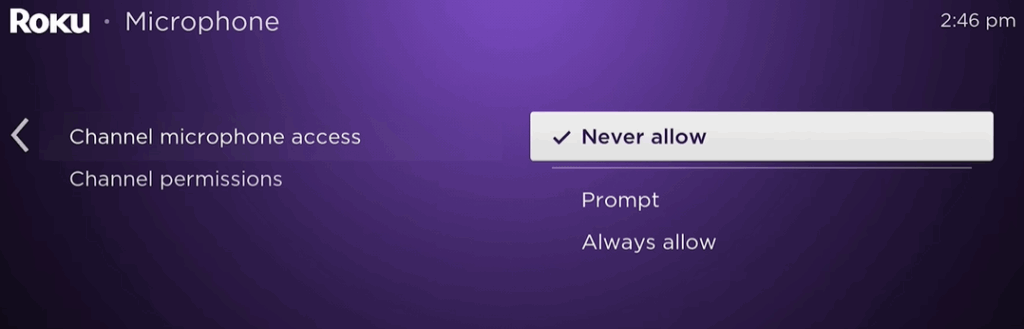
Path:Settings > Privacy > Microphone
- Under Channel Microphone Access, select “Never allow” if you don’t use the remote microphone.
- Also, disable Speech Recognition to prevent your voice data from being stored or analyzed.
📌 Why disable? Voice and microphone features require active listening and data retention, creating a potential privacy concern.
3. Check Bandwidth Saver
Path:Settings > Network > Bandwidth Saver
- Enable Bandwidth Saver if your internet has a data cap.
- Disable if you have unlimited data for smoother performance.
📌 Why change this? This feature stops Roku from streaming if you’re inactive for 4 hours, helping to save data.
4. Customize or Simplify Themes
Path:Settings > Themes
- You can apply a new Theme Pack or simply change the Wallpaper.
- If performance is your priority, use Roku’s default theme or a basic one.
📌 Pro tip: Animated themes can slow down older Roku devices.






5. Manage Screen Savers
Path:Settings > Themes > Screensavers
- You can either choose a simple screensaver or disable it completely.
- Also adjust screensaver start time to reduce lag and conserve resources.
📌 Why disable? Complex screensavers may cause unnecessary lag, especially if your TV already has a built-in one.
6. Turn Off Captions on Replay
Path:Settings > Accessibility > Captions Mode
- Set to Off or adjust to “On replay” if you prefer captions only when using the rewind button.
📌 Why adjust? Prevents unexpected captions from appearing, which can disrupt the viewing experience.
7. Mute Menu Sounds
Path:Settings > Audio > Menu Volume
- Choose Off to mute beeping sounds when navigating menus.
📌 Why mute? For a quieter, distraction-free experience.
8. Tweak the Home Screen
Path:Settings > Home Screen
- Choose which sections to display (e.g., Live TV, Sports, Featured Free).
- Hide the ones you don’t use.
📌 Cleaner UI = Faster Navigation.
9. Avoid Setting Up Payment Methods
Path:Settings > Payment Method
- Avoid adding a credit card to Roku.
- Instead, subscribe to services directly via their websites (e.g., Netflix, Max).
📌 Why avoid it? Subscribing through Roku can complicate cancellation and billing.
10. Enable Auto Power Savings
Path:Settings > System > Power > Auto Power Savings
- Turn this On to automatically shut off Roku after 20 minutes of inactivity.
📌 Why? Saves energy and extends your Roku’s lifespan.
11. Keep Roku Updated
Path:Settings > System > Software Update
- Regularly check for and install updates to fix bugs, improve performance, and secure your device.
12. Use Guest Mode (Optional)
Path:Settings > System > Guest Mode
- Ideal for rentals or shared use.
- Lets guests log in to their own streaming accounts without affecting your main profile.
13. Know When to Factory Reset
Path:Settings > System > Advanced System Settings > Factory Reset
- Use this if you’re giving away your Roku or experiencing issues.
- Also available: Network Reset, Display Settings Reset.
📌 Important: This erases everything and restores factory defaults.
Summary: Clean, Private, and Faster Roku
Adjusting these settings is a great way to protect your personal data, cut out unnecessary background activity, and enjoy a cleaner, more efficient Roku experience.
For more free tips, streaming ideas, and tricks to make the most of your Roku, stay tuned to this article as we continue updating it.
📌 Official Roku Website:
Tags:
Roku privacy settings, how to improve Roku performance, Roku settings to change, disable Roku ads, Roku screen saver lag, Roku microphone privacy, Roku captions, Roku themes, Roku bandwidth saver, Roku factory reset
Hashtags:
#Roku #PrivacySettings #StreamingTips #CutTheCord #RokuTips #RokuPerformance #RokuGuide #SmartTVPrivacy #StreamingDevices #CordCutting







