The world of personal computing is constantly evolving, and perhaps nowhere is this more evident than in storage technology. We’ve all felt the pain of a slow, spinning hard drive. When Solid-State Drives (SSDs) arrived, they were a revelation, banishing the slow, mechanical whirring of their predecessors. But technology never rests, and now, a new champion has emerged to completely redefine speed: the M.2 Non-Volatile Memory Express (NVMe) SSD. These drives aren’t just a little faster; they represent a fundamental shift in how we handle data, pushing the boundaries of what our PCs can do.
If you’ve recently built a new PC, upgraded a laptop, or just scratched your head looking at those tiny stick-like drives on your motherboard, this article is for you. We’re going to dive deep into what makes the M.2 NVMe SSD a revolutionary piece of hardware, why it’s so much faster than the older SATA standard, and what you need to know before you upgrade. Trust me, once you experience NVMe speed, there’s no going back.
Understanding the New Storage Landscape: M.2 and NVMe Explained
When we talk about a storage device, we’re actually talking about two things: its form factor (the physical shape and size) and its interface/protocol (how it connects and communicates with the computer). The confusion often lies in the fact that M.2 and NVMe are often used interchangeably, but they refer to these two distinct concepts.
The Physical Evolution: The M.2 Form Factor
Let’s start with the physical size. Historically, storage drives came in a bulky 3.5-inch size (for desktop hard drives) and then the more compact 2.5-inch size (for laptops and traditional SATA SSDs). M.2, formerly known as the Next Generation Form Factor (NGFF), is a standard for mounting internal expansion cards, and it’s radically different.
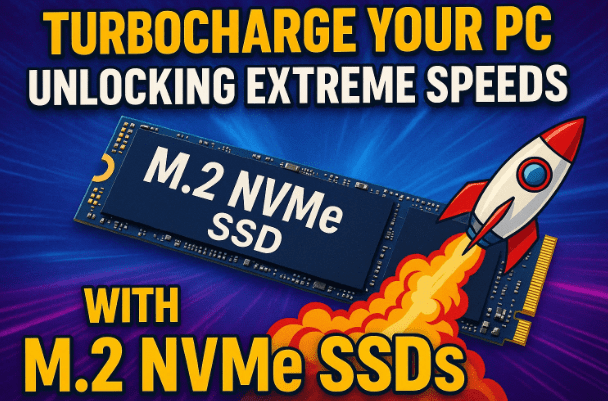
An M.2 SSD looks like a small, slim stick of gum, which makes it perfect for modern, sleek laptop designs and uncluttered desktop builds. It’s a form factor that plugs directly into a dedicated M.2 slot on the motherboard, eliminating the need for separate data and power cables entirely. It’s an elegant, space-saving design that’s a huge step forward in internal component integration.
The Speed Revolution: The NVMe Protocol
Now, here’s where the magic truly happens. While M.2 defines the shape of the drive, NVMe (Non-Volatile Memory Express) is the communications protocol—the set of rules for how the drive talks to the computer. It was specifically developed for SSDs to fully exploit the speed capabilities of flash memory.
Before NVMe, even modern SSDs were bottlenecked by an older protocol called AHCI (Advanced Host Controller Interface). AHCI was developed way back in 2004, primarily for the mechanical spinning hard drives of the time. It was never truly optimized for the parallel, rapid-access nature of flash-based SSDs.
NVMe completely bypasses this legacy roadblock. It’s an interface specification designed to take advantage of the parallelism inherent in solid-state technology, allowing the CPU to communicate with the SSD much more efficiently. It’s the difference between a single-lane road designed for a horse and carriage (AHCI) and a multi-lane, high-speed highway built for modern sports cars (NVMe).
The Core Differentiator: Why NVMe Leaves SATA in the Dust
To truly appreciate the performance leap, we need to compare the two interfaces that dominate the modern storage world: SATA 3.0 (which uses the older AHCI protocol) and M.2 NVMe (which uses the NVMe protocol over a PCIe bus).
The Bottleneck of SATA and AHCI
So far, we’ve established that SATA and its accompanying protocol, AHCI, were the reigning standard for many years, even into the early days of SSDs. Let’s look at the limits they imposed:
- Bus Limitation: SATA 3.0 is a bus—a physical data path—that has a theoretical maximum data transfer rate of 600 Megabytes per second (MB/s). This is a hard limit; no matter how fast your SSD’s flash chips are, they can’t send data faster than the SATA bus allows.
- Protocol Bottleneck (AHCI): The AHCI protocol was a major performance hurdle. It only allows for one command queue with a maximum of 32 commands in that queue. This is a very serial way of processing data requests, which is fine for a mechanical hard drive that has to physically wait for a spinning disk to move, but it severely restricts the parallel potential of an SSD.
The Power of PCIe and NVMe
Now let’s move to the cutting edge. M.2 NVMe drives don’t use the SATA bus at all. Instead, they connect directly to the much faster PCI Express (PCIe) bus.











- The Superior Bus (PCIe): The PCIe bus is what your high-end graphics card uses, and it is exponentially faster than SATA. It provides multiple high-speed lanes for data transfer. An M.2 NVMe SSD typically uses four PCIe lanes (known as x4), and this direct connection to the system’s CPU is what unlocks incredible speed. While the exact speed depends on the PCIe generation (Gen3, Gen4, or Gen5) and the number of lanes, an M.2 NVMe drive using PCIe 3.0 x4 can achieve theoretical speeds of around 3 Gigabytes per second (GB/s). That is roughly 5 times faster than the SATA 600 MB/s limit! The newest Gen4 and Gen5 drives are even faster, hitting speeds well over 7 GB/s and beyond.
- The Optimized Protocol (NVMe): Non-Volatile Memory Express was engineered to take full advantage of this high-speed bus and the parallel architecture of SSDs. This is where the command queue difference truly shines:
- AHCI: 1 queue, 32 commands.
- NVMe: Up to 64,000 queues, with each queue capable of handling up to 64,000 commands!
This parallel architecture means a massive job can be broken down into many smaller jobs that are processed simultaneously, much like a modern multi-core CPU handles multiple threads. It significantly lowers latency (the delay before a data transfer begins) and drastically increases IOPS (Input/Output Operations Per Second), which is the true measure of a drive’s responsiveness. The net result? Your operating system boots faster, applications load instantly, and large files are transferred in a blink.
The Physical Installation: Simple but Crucial Steps
One of the best things about the M.2 form factor is how simple the physical installation is. There are no cables to manage, no drive bays to screw into—it’s incredibly clean.
Before we move on to the actual installation, let’s quickly cover the one absolutely essential check you need to make.
Prerequisite Check: Motherboard Compatibility
This step is arguably the most important. Because M.2 NVMe technology is relatively new, not all motherboards—especially older models—have the necessary support.
Crucially, you must check your motherboard’s specifications to ensure it has:
- An M.2 slot.
- Support for NVMe technology (using the PCIe bus).
It is vital to understand that having an M.2 slot does not automatically mean it supports NVMe. Some older M.2 slots were only designed for M.2 SATA SSDs. These M.2 SATA drives have the small form factor but use the slower SATA bus and AHCI protocol, offering no speed advantage over a traditional 2.5-inch SATA SSD. If you connect an NVMe drive to a SATA-only M.2 slot, it simply won’t work, or your system may not see it.
So, if you’re planning an NVMe upgrade, you must confirm that the slot on your motherboard explicitly supports PCIe NVMe SSDs.
Now that we’ve made sure your system is ready, let’s look at the simple steps for installation.
Step-by-Step Guide for M.2 NVMe SSD Installation
The process for installing an M.2 SSD is refreshingly straightforward:
- Prepare Your Workspace:
- Power Down: Completely shut down your computer and disconnect the power cable.
- Open the Case: Open your PC case (for a desktop) or the access panel (for a laptop).
- Ground Yourself: Touch a grounded piece of metal (like the bare metal of your case) to discharge any static electricity. Static discharge can permanently damage components.
- Locate the M.2 Slot:
- Find the M.2 slot on your motherboard. It’s a thin, keyed slot, usually with a small mounting screw standoff nearby, often labeled with a length like ‘2280’ (which refers to the 22mm width and 80mm length of the most common M.2 size).
- Insert the Drive:
- Hold the M.2 SSD by its edges. Avoid touching the golden connector pins or any of the memory chips.
- Align the notch on the SSD with the key in the M.2 slot.
- Gently insert the drive at a slight angle (usually about 30 degrees) until it is fully seated in the connector. The drive will stand slightly raised from the motherboard.
- Secure the Drive:
- Gently push the raised end of the SSD down until it rests flush with the motherboard at the screw-mounting standoff.
- Secure the drive with the single, small screw provided with your motherboard or SSD. Be careful not to overtighten—you only need to secure it enough to keep the drive flat and stable.
- Final Checks and Closure:
- Verify the drive is securely fastened.
- Close your PC case or laptop panel.
- Reconnect the power cable and boot the system.
That’s it! There are no separate data or power cables to connect. The power is supplied, and the data is transferred directly through the M.2 slot using the high-speed PCIe bus.
Deep Dive: The NVMe Advantage in Command Queuing
So far, we’ve done a good job of covering the fundamental hardware concepts, but to really drive home the speed difference, we need to focus on the genius of the NVMe protocol itself, specifically how it manages data requests. This is the difference between an old-fashioned call center and a highly automated, parallel processing factory.
The AHCI Limitation: A Single Point of Failure
As mentioned, AHCI was only designed to handle one command queue with a maximum depth of 32 commands. Think of a queue as a waiting line for data requests. If the drive is processing a complex task, all other data requests must wait their turn in that single line. This single queue and limited depth became a massive bottleneck for fast SSDs. Furthermore, the architecture required more CPU cycles for the host software to communicate with the drive, increasing CPU overhead and ultimately causing higher latency.
The NVMe Breakthrough: Parallel Processing Power
NVMe’s design philosophy is centered on parallelism. It allows the host software (your operating system) to communicate with the SSD using up to 64,000 separate queues, with each queue capable of holding 64,000 commands.
Let’s break down the implications of this:
- Massive Queue Depth: A theoretical maximum of over 4 billion commands can be queued ($64,000 \text{ queues} \times 64,000 \text{ commands/queue}$). While you’ll never max this out in a consumer PC, it illustrates the sheer capacity for parallel I/O.
- Reduced Latency: By enabling simultaneous operations, the delay between the CPU requesting data and the SSD starting to retrieve it is drastically reduced. The data doesn’t have to wait in a single, long line.
- Lower CPU Overhead: The NVMe protocol is a streamlined, efficient software interface optimized for flash memory. This reduces the work the CPU has to do to manage the I/O, freeing up processing power for other tasks and making the entire system feel snappier.
- Multi-Core Optimization: The parallel nature of NVMe is very similar to how modern multi-core CPUs work with multiple threads. This synergy allows the operating system to send commands to the SSD using multiple CPU cores simultaneously, leading to a much more efficient and faster overall system response.
The combination of the physical speed of the PCIe bus and the protocol efficiency of NVMe is what truly makes these drives the fastest consumer storage available today.
Important Considerations and FAQs Before You Buy
We’ve covered the fundamentals and the installation, so let’s move on to some final thoughts and answer a few common questions. This will ensure you make the right purchasing decision.
Essential Buying Disclaimer and Checks
Before you finalize your purchase, please be absolutely certain about two things.
1. Compatibility is Non-Negotiable:
As stated earlier, you must verify that your motherboard supports M.2 slots that connect via the PCI Express (PCIe) bus and supports the NVMe protocol. Check your motherboard’s manual for the precise specifications of its M.2 slots.
2. M.2 SATA vs. M.2 NVMe:
Don’t be fooled by the M.2 form factor alone. A M.2 SATA SSD uses the same small stick shape but is limited to the $\approx 600\text{ MB/s}$ speed of the SATA 3.0 bus. An M.2 NVMe SSD uses the PCIe bus and is many times faster ($\approx 3\text{ GB/s}$ and up). Always check the product description to ensure it explicitly says NVMe or PCIe GenX (e.g., PCIe Gen 4 x4). If it only says “M.2” and mentions SATA speeds, it is not an NVMe drive. Don’t pay the premium price for an NVMe drive if your system can only run it at SATA speeds, or worse, if the drive is just a slower M.2 SATA model.
Frequently Asked Questions (FAQ)
Here are some common questions people have when considering an NVMe upgrade:
Q1: Will I notice the speed difference between an M.2 NVMe and a standard 2.5-inch SATA SSD in everyday use?
A: For most everyday tasks like web browsing, word processing, and light gaming, the difference in perceived speed (boot-up time, application launch time) between a good SATA SSD and an NVMe SSD is minor, though often still noticeable. The major difference is seen in sequential read/write operations—i.e., when you are loading a massive, texture-heavy game, transferring huge video or photo files, or running heavy professional software like CAD or video editing suites. If you are a content creator, professional, or heavy gamer, the NVMe upgrade is absolutely worth it.
Q2: Do all motherboards have an M.2 slot?
A: No. M.2 technology is relatively new. Most motherboards released in the last few years will have at least one M.2 slot, but older motherboards (e.g., those using chipsets prior to Intel’s Z97 or H170, or older AMD equivalents) may not. If your motherboard lacks an M.2 slot but has an open PCIe slot (e.g., a spare x4 or x8 slot), you can often use an NVMe-to-PCIe adapter card to install an NVMe drive. This uses the same high-speed PCIe lanes, but you need to check your motherboard’s BIOS to ensure it can boot from a drive installed this way.
Q3: What are the main speed numbers I should look for when buying an NVMe SSD?
A: You’ll see two key numbers:
- Sequential Read/Write Speeds: These are the big numbers, often measured in thousands of MB/s. These are the speeds you get when reading or writing one large, continuous file. Look for speeds that are 3,000 MB/s or higher for PCIe 3.0, and 5,000 MB/s or higher for PCIe 4.0.
- IOPS (Input/Output Operations Per Second): This is a better measure of real-world responsiveness. A higher IOPS count means the drive is better at handling the thousands of small, random requests that an operating system constantly makes. Look for IOPS in the hundreds of thousands (e.g., $300,000 \text{ IOPS}$ or more).
Q4: Is there a website for the NVMe protocol or standard body?
A: Yes, the specification is governed by the NVM Express, Inc. organization. Their website is a great resource for detailed specifications and updates on the technology. You can find more information at their official website: https://nvmexpress.org/.
Conclusion: A Game Changer in PC Performance
We’ve covered a lot of ground, from the sleek M.2 form factor to the revolutionary NVMe protocol and the blistering speed of the PCIe bus. The move from the legacy SATA/AHCI standard to M.2 NVMe is one of the most significant upgrades you can make to your computer today. It’s not just about bigger numbers in a benchmark; it’s about eliminating the storage bottleneck that has constrained computing performance for years.
If you’re ready for a system that boots in seconds, loads games and applications instantaneously, and handles massive files without breaking a sweat, the M.2 NVMe SSD is the essential upgrade you’ve been waiting for. Just remember that crucial compatibility check, and you’ll be enjoying that lightning-fast performance in no time!
#NVMeSSD #M2Storage #PCIE #TechUpgrade #ComputerSpeed #NVMeExplained #StorageSolutions #PCBuild #FastStorage