Fedora 42 KDE Edition has officially graduated from a spin to a full-fledged Fedora release, bringing the powerful KDE Plasma 6.3 desktop environment. Packed with performance enhancements, customization options, and a sleek design, Fedora 42 KDE is an excellent choice for both KDE enthusiasts and newcomers.
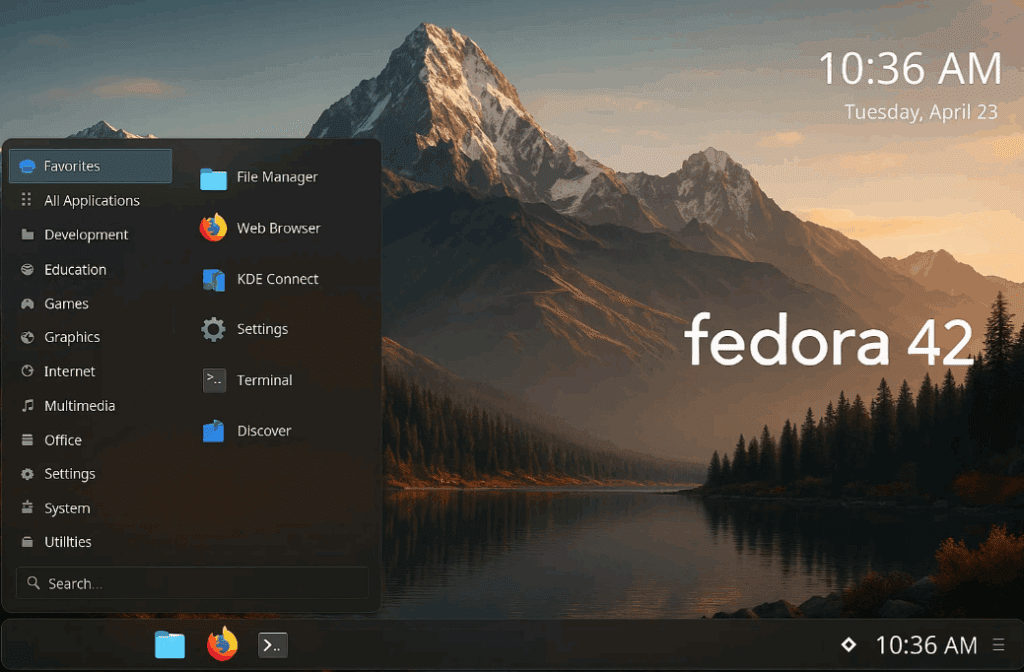
In this guide, we’ll walk through:
- Installing Fedora 42 KDE
- Essential post-installation updates
- Enabling third-party repositories (RPM Fusion)
- Installing Nvidia drivers & multimedia codecs
- Customizing KDE Plasma for a modern look
- Enhancing the terminal with ZSH & Starship
Step 1: Installing Fedora 42 KDE
Boot from Live USB:
- Download the Fedora 42 KDE ISO from getfedora.org
- Create a bootable USB using Balena Etcher or Ventoy
- Boot into the live environment and select “Install to Hard Drive”
Installation Steps:
- Select your preferred language
- Choose your disk (automatic partitioning recommended)
- Enable root account (optional)
- Create standard user with admin privileges
- Begin installation and reboot when complete
Step 2: Post-Installation Setup
- Update the System:
sudo dnf update -y - Enable RPM Fusion Repositories:
sudo dnf install https://download1.rpmfusion.org/free/fedora/rpmfusion-free-release-$(rpm -E %fedora).noarch.rpm
sudo dnf install https://download1.rpmfusion.org/nonfree/fedora/rpmfusion-nonfree-release-$(rpm -E %fedora).noarch.rpm - Install Multimedia Codecs:
sudo dnf install gstreamer1-plugins-{bad,good,ugly}
sudo dnf install ffmpeg - Install Nvidia Drivers (If Applicable):
sudo dnf install akmod-nvidia
sudo dnf install xorg-x11-drv-nvidia-cuda
Reboot after installation
Step 3: Customizing KDE Plasma
- Apply a Global Theme:
- Open System Settings → Appearance → Global Theme
- Download and apply Orchis Dark theme
- Set matching Plasma Style, Window Decorations and Icons
- Customize the Panel:
- Right-click panel → Edit Panel
- Remove default widgets
- Add Application Menu and Global Menu
- Adjust opacity and size
- Enable Desktop Effects:
System Settings → Workspace Behavior → Desktop Effects
Enable Wobbly Windows and Magic Lamp effects
Step 4: Enhancing the Terminal
Install ZSH & Oh-My-ZSH:
sudo dnf install zsh
chsh -s $(which zsh)
sh -c "$(curl -fsSL https://raw.githubusercontent.com/ohmyzsh/ohmyzsh/master/tools/install.sh)"
Add Plugins:
git clone https://github.com/zsh-users/zsh-autosuggestions ~/.oh-my-zsh/custom/plugins/zsh-autosuggestions
git clone https://github.com/zsh-users/zsh-syntax-highlighting ~/.oh-my-zsh/custom/plugins/zsh-syntax-highlighting
Edit ~/.zshrc:
plugins=(git zsh-autosuggestions zsh-syntax-highlighting)
Install Starship Prompt:
curl -sS https://starship.rs/install.sh | sh
Add to ~/.zshrc:
eval "$(starship init zsh)"
Apply Catppuccin Mocha preset:
starship preset catppuccin-mocha > ~/.config/starship.toml
Final Thoughts
After these tweaks, Fedora 42 KDE transforms into a fast, beautiful, and highly functional desktop. The combination of Plasma 6.3’s refinements and custom terminal enhancements makes it a joy to use daily.
Useful Links:








- Fedora Official Site: getfedora.org
- RPM Fusion: rpmfusion.org
- KDE Store: store.kde.org
Tags: Fedora42, KDEPlasma, LinuxCustomization, OpenSource, TechGuide
Hashtags: #Linux #Fedora #KDE #OpenSource #TechTutorial #Customization








