If you’re someone who loves personalizing your desktop, giving it a fresh and dynamic look, then you’ll absolutely enjoy what we’re covering today. Static wallpapers are great—but what if your background could come alive with subtle animations or even full-blown videos? That’s exactly what Live Wallpapers Plus lets you do!
In this article, we’ll explore how to install, use, and customize your desktop using this free app available on the Microsoft Store. We’ll break down each step with helpful insights, tips, and even answer a few frequently asked questions.
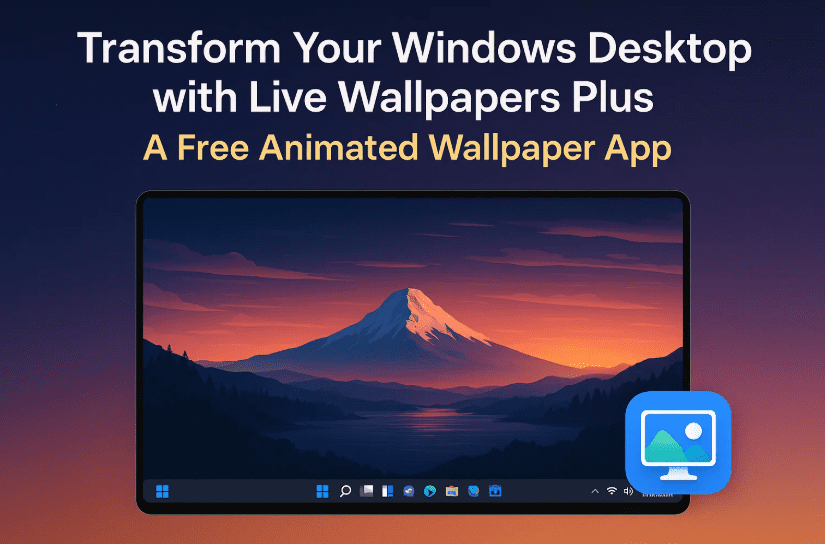
🌀 What is Live Wallpapers Plus?
Live Wallpapers Plus is a lightweight app that allows Windows users to set live, animated, or video wallpapers directly on their desktop. It supports multiple formats including MP4, and you can even add your own custom files.
Developed by Perrow Software, it’s the same team behind Taskbar Plus—another handy Windows customization tool. This wallpaper app blends beauty with simplicity, making it easy to use while offering stunning results.
✅ Features of Live Wallpapers Plus (Free Version)
Before we dive into the steps, let’s first take a look at what you can expect from this app:
- A library of animated wallpapers sorted by categories like nature, travel, abstract, and more.
- Ability to add your own wallpapers, including static images or MP4 videos.
- Control over sound volume for wallpapers that include audio.
- Option to select which monitor displays the live wallpaper (great for multi-screen setups).
- Basic settings like launch at startup, system tray icon visibility, and UI animations.
Now that we’ve covered the exciting features, let’s move on to how you can set it all up.
🛠️ How to Install Live Wallpapers Plus from Microsoft Store
Let’s walk through the installation process step by step. Don’t worry, it’s quick and beginner-friendly!
Step 1: Open Microsoft Store
- Click the Start Menu on your taskbar and search for “Microsoft Store.”
- Open the store and go to the search bar at the top.
Step 2: Search for the App
- Type Live Wallpapers Plus in the search bar.
- Make sure you choose the one by Perrow Software with the correct app icon.
Step 3: Click Get or Install
- Once located, click the blue Get or Install button.
- The app will download and automatically install on your system.
🔗 Direct link to Microsoft Store:
👉 https://apps.microsoft.com/store/detail/live-wallpapers-plus/9N9DWXPC3FJJ
🎨 Exploring the Interface and Choosing a Wallpaper
Now that it’s installed, let’s play around with it and add some flair to your desktop!
Here’s what you’ll see when you open the app:
- A collection of sample wallpapers.
- Category filters like “Nature,” “Travel,” or “Live.”
- A display selection tool (handy for dual monitors).
- Basic settings panel including options to:
- Launch at system startup
- Show or hide the tray icon
- Enable or disable UI animations
- Adjust sound volume for live wallpapers
🎧 Tip: Some wallpapers include ambient sounds. You can control the volume using the built-in slider.
✨ Let’s Try a Live Wallpaper
So far, we’ve set things up nicely! Let’s now apply an animated wallpaper to see the magic in action.


- Click on any wallpaper preview.
- Hit the three-dot menu and choose:
- Preview – Opens the wallpaper in a new window without applying it.
- Set as Wallpaper – Simply double-click to apply it instantly.
- Edit – Change the wallpaper name or description.
- Delete or Share – If you no longer want it or wish to send it to someone.
- Your desktop will update with the new animated background.
🪐 Example: Try the Alien Planet wallpaper to see a full-screen animation with subtle movement.
📁 Adding Your Own Wallpaper or MP4 Video
Feeling creative? You can easily add your own media. Let’s explore how.
To Add a Custom Wallpaper:
- Click Add Your Own.
- Select an image or video file from your PC (e.g., a scenic JPEG or an MP4 loop).
- Optionally, rename it.
- It will now appear in your wallpaper library for future use.
🎥 Adding Video as Wallpaper:
- Choose any local MP4 file.
- It will play directly as your desktop wallpaper, and if the video has audio, you’ll hear it too.
- You can toggle volume or change to another wallpaper anytime.
💡 Performance Tip: Does It Affect System Performance?
Live wallpapers can use extra CPU or GPU resources depending on the animation or video. If you’re on a lower-end PC or laptop:
- Open Task Manager while running a wallpaper.
- Observe your CPU or GPU usage—if it’s too high, consider switching to a lighter wallpaper or static background.
💻 Pro Tip: You can disable effects in the UI or choose wallpapers without audio for a lighter experience.
❓Frequently Asked Questions (FAQs)
Q1: Does Live Wallpapers Plus work on Windows 10 and 11?
Yes, it works seamlessly on both Windows 10 and Windows 11.
Q2: Can I use it on multiple monitors?
Absolutely! You can choose which display shows the wallpaper or keep different wallpapers for different monitors.
Q3: Is this app safe to use?
Yes. It’s published on the official Microsoft Store and developed by Perrow Software, a verified developer.
Q4: How do I revert to my default wallpaper?
You can either go to the Personalization settings from your desktop or simply go to the wallpaper’s Edit menu and hit Cancel to reset.
Q5: Does the app start automatically when Windows boots?
Only if you enable “Start with Windows” in the settings.
🎯 Final Thoughts
Live Wallpapers Plus is a fantastic way to breathe new life into your Windows desktop. It’s free, easy to use, and gives you a creative edge with animated visuals and even video wallpapers. While it might use a bit more system power, especially with high-res videos, the ability to personalize your space with just a few clicks makes it totally worth it.
So go ahead—install it, try a few animated backgrounds, or add your own creative twist. Your desktop will never feel the same again!
🔖 Tags:
live wallpapers, animated desktop, windows customization, free wallpaper app, video background, mp4 desktop wallpaper, windows personalization, perrow software, taskbar plus
📢 Hashtags:
#LiveWallpapers #WindowsCustomization #AnimatedWallpapers #Windows11Tips #VideoWallpaper #DesktopPersonalization #TechTools #MicrosoftStoreApps
Disclaimer: This article is for informational purposes only. Live Wallpapers Plus is a third-party app available on the Microsoft Store. Always download from official sources and monitor performance if using animated content on low-spec machines. The author is not affiliated with Perrow Software.








