Whether you’re new to macOS or a seasoned user, the Terminal can unlock powerful features and hidden tools right at your fingertips. In this article, we’ll walk you through the top 50 Terminal commands every Mac user should know — from fun tricks to serious power-user tools. Get your Mac ready and follow along!
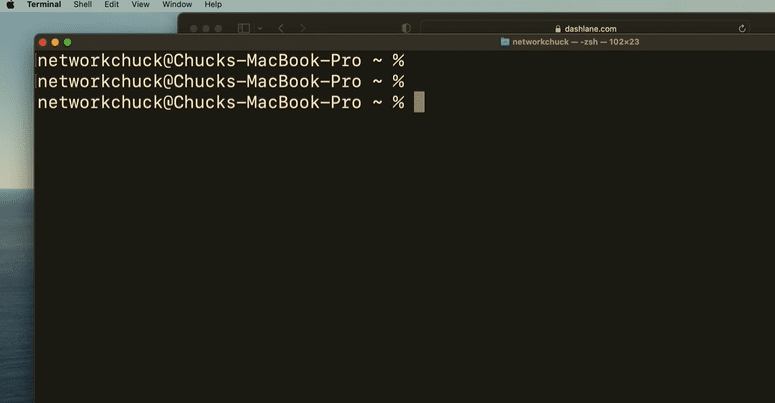
🖥️ Launching the Terminal
Before diving in, here’s how to launch the Terminal:
- Press
Command + Spacebarto open Spotlight. - Type
Terminaland hit Enter.
Welcome to the world behind your Mac’s GUI!
🗣️ Make Your Mac Talk
Try this fun trick:
say Hello, I am your Mac!
Your Mac will say the words out loud. Kids (and adults) love this one!
🔐 View Saved Wi-Fi Passwords
Your Mac stores all your previously connected Wi-Fi passwords. Retrieve them like this:
security find-generic-password -ga "WiFiNetworkName"
To copy the output directly to your clipboard, use:
security find-generic-password -ga "WiFiNetworkName" | pbcopy
📋 Paste as Plain Text (Bonus Mac Tip)
Not exactly a Terminal command, but a lifesaver:
To paste without formatting:Command + Option + Shift + V
☕ Keep Your Mac Awake
Prevent your Mac from sleeping using:
caffeinate
Keep the Terminal open while it’s running. To stop it, press Control + C.
📸 Screenshot Like a Pro
- Full screen:
Command + Shift + 3 - Selected area:
Command + Shift + 4 - Clipboard capture:
Command + Control + Shift + 4
Customize screenshot names and types using:










defaults write com.apple.screencapture name "MyScreenshot"
defaults write com.apple.screencapture type jpg
defaults write com.apple.screencapture location ~/Screenshots
killall SystemUIServer
📥 View Your Download History
Yes, macOS keeps a record! Use this command to view it:
sqlite3 ~/Library/Application\ Support/com.apple.LaunchServices.QuarantineEventsV2 "select * from LSQuarantineEvent"
To clear it:
rm ~/Library/Application\ Support/com.apple.LaunchServices.QuarantineEventsV2
🔑 Change Your Password in Terminal
Change your user password directly with:
passwd
📂 Navigating Directories
- Go to a folder:
cd foldername - Go back home:
cd - See files:
ls - See your path:
pwd - Who are you:
whoami
📁 File Management
- Move files:
mv source destination - Copy files:
cp source destination - Advanced copy:
ditto source destination
💾 System Info
- Disk usage:
df -h - See processes:
ps -ax - View system stats:
top - Kill a process:
kill -9 PID
📜 Learn About Commands
Use the man command to learn:
man nano
Press Q to exit the manual.
🌐 Check Network & Internet Tools
- Ping a website:
ping example.com - IP address:
ifconfig | grep inet - Trace route:
traceroute example.com - DNS info:
dig example.com
⚙️ Use Terminal Shells
- Check current shell:
echo $SHELL - Switch shell:
bash zsh
🕒 Check Uptime
See how long your Mac has been on:
uptime
🧠 View Terminal History
history
🚫 Disable Gatekeeper (Advanced Users Only)
Allows installing apps from unidentified developers:
sudo spctl --master-disable
🍺 Install Homebrew (The Package Manager)
Homebrew is essential. Install it with:
/bin/bash -c "$(curl -fsSL https://raw.githubusercontent.com/Homebrew/install/HEAD/install.sh)"
🎮 Fun with Terminal
After installing Brew, try these:
- Matrix Effect:
brew install cmatrix cmatrix - ASCII Aquarium:
brew install ascii-aquarium ascii-aquarium - ASCII Art:
brew install toilet toilet HelloWorld - Play Tetris:
brew install samtay/tui/tetris tetris
🐍 Web Server with Python
Start a quick web server:
python3 -m http.server
Browse to http://<your-ip>:8000
📴 Shutdown or Restart from Terminal
- Shutdown:
sudo shutdown -h now - Restart:
sudo shutdown -r now
🧬 Use Touch ID with sudo (Advanced and Cool!)
- Edit the sudo file:
sudo nano /etc/pam.d/sudo - Add this line below the first comment:
auth sufficient pam_tid.so - Save and exit:
Control + X, thenY, thenEnter
Now you can use Touch ID instead of typing your password for sudo.
🎉 Wrapping Up
These commands barely scratch the surface, but they open up a world of efficiency and power. Bookmark this article and practice these commands to become a Terminal ninja. Whether you’re managing files, tweaking system settings, or just having fun with ASCII art, your Terminal is your superpower.
📌 Tags:
mac terminal, macos commands, terminal tricks, mac productivity, terminal guide, mac tips, terminal shortcuts, developer tools, command line, shell commands
📣 Hashtags:
#macOS #terminal #commandline #MacTips #DeveloperTools #ShellCommands #TechTips #MacBook #macOSTricks #Productivity







