If you’re a Windows 10 or Windows 11 user, chances are you’ve encountered your fair share of system hiccups—be it performance lags, connectivity issues, system crashes, or hard drive failures. While many rely on third-party tools or tech support, Windows already comes equipped with a powerful built-in tool that can resolve most issues—the Command Prompt (CMD).
In this article, you’ll learn how to troubleshoot and repair your Windows PC using several useful command-line tools. These techniques will help you fix common problems such as corrupted system files, network issues, hard disk errors, unresponsive applications, and Microsoft Store glitches.
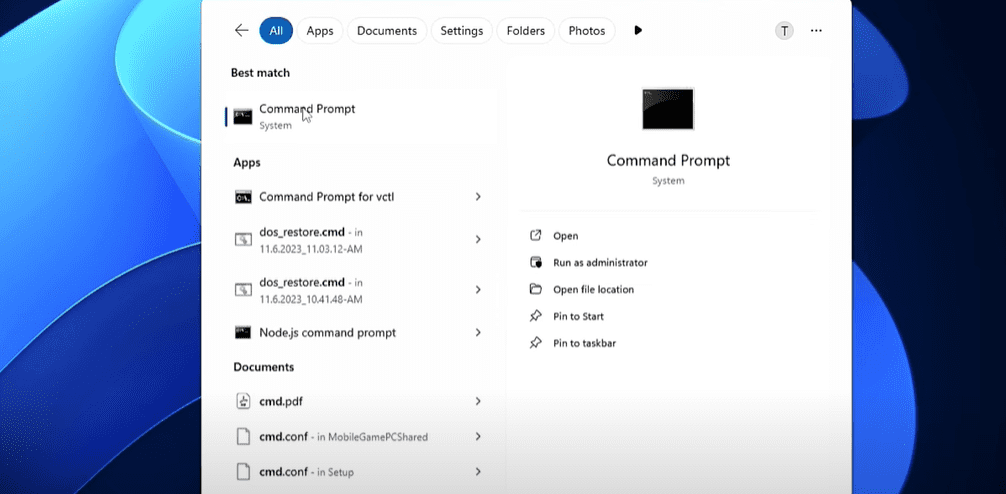
🛠️ How to Open Command Prompt as Administrator
To get started with advanced commands, you need elevated privileges:
- Click on the Start Menu or press the Windows key.
- Type
cmdorCommand Prompt. - Right-click on Command Prompt and choose Run as administrator.
1. 🔧 Repair Corrupted System Files Using SFC
System File Checker (SFC) scans for corrupted or missing system files and repairs them automatically.
Command:
sfc /scannow
Steps:
- Open CMD as administrator.
- Type the command above and press Enter.
- Wait until the scan reaches 100%. It will inform you if issues were found and repaired.
This command is very helpful when you’re experiencing frequent crashes, blue screens, or unexplained slowdowns.
2. 🩺 Restore Windows Health Using DISM
If SFC doesn’t resolve your issues, use DISM (Deployment Imaging Service and Management Tool) to repair the Windows image.
Command:
DISM /Online /Cleanup-Image /RestoreHealth
Steps:
- Run CMD as administrator.
- Enter the command and press Enter.
- After completion, it’s recommended to run the SFC command again to ensure complete file integrity.
3. 🌐 Fix Network Connectivity Issues
If your internet is slow, disconnecting, or completely dropping, CMD can help you reset your IP and DNS settings.










Release Current IP:
ipconfig /release
Renew IP Address:
ipconfig /renew
Flush DNS Cache:
ipconfig /flushdns
Reset TCP/IP Stack (Use only if other commands don’t work):
netsh int ip reset
Steps:
- Run each command in order.
- Restart your PC (and router if needed) after completing all commands.
These steps often fix issues where websites don’t load or Wi-Fi keeps disconnecting.
4. 💽 Scan and Repair Hard Disk Errors
The Check Disk (CHKDSK) utility inspects and repairs drive issues such as bad sectors, lost clusters, and file system errors.
Command:
chkdsk C: /f /r
Explanation:
C:is the drive to scan (change it if your OS is on a different drive)./ffixes errors./rlocates bad sectors and recovers readable data.
Steps:
- Run the command.
- If prompted, type Y to schedule the scan on next reboot.
- Restart your PC to begin the scan.
5. ❌ Force Quit Unresponsive Applications
When Task Manager fails to end an unresponsive app, CMD can terminate it forcefully.
Command:
taskkill /im notepad.exe /f
Steps:
- Replace
notepad.exewith the process name you want to kill. - Run CMD as administrator.
- Hit Enter to terminate the process.
This is particularly useful for stubborn applications that freeze your screen or stop responding.
6. 🛒 Troubleshoot Microsoft Store Issues
If the Microsoft Store fails to open or download apps, resetting it can help.
Command:
wsreset.exe
Steps:
- Run CMD as administrator.
- Enter the command and hit Enter.
- The Microsoft Store will reset and reopen automatically.
This command clears the Store cache and can resolve various app update or installation problems.
Final Thoughts
Using Command Prompt might seem intimidating at first, but once you’re familiar with it, it becomes an essential part of your Windows troubleshooting toolkit. Whether it’s fixing system files, resolving network issues, or terminating frozen apps, these commands can save you time and effort.
Bookmark this article for future reference whenever you run into Windows troubles.
⚠️ Disclaimer
This article is intended for users with basic knowledge of Windows operating systems. While these commands are safe when used correctly, misuse may cause system instability. Proceed with caution and ensure you have backups if you’re modifying system-level settings.
Tags:
windows troubleshooting, windows command prompt, sfc scannow, dism restore health, fix internet issues windows, check disk errors, wsreset windows store, windows 11 tips, windows 10 fixes, cmd tricks
Hashtags:
#Windows #CMD #Troubleshooting #Windows11 #Windows10 #TechTips #SystemFix #NetworkIssues #MicrosoftStore #CommandPrompt







