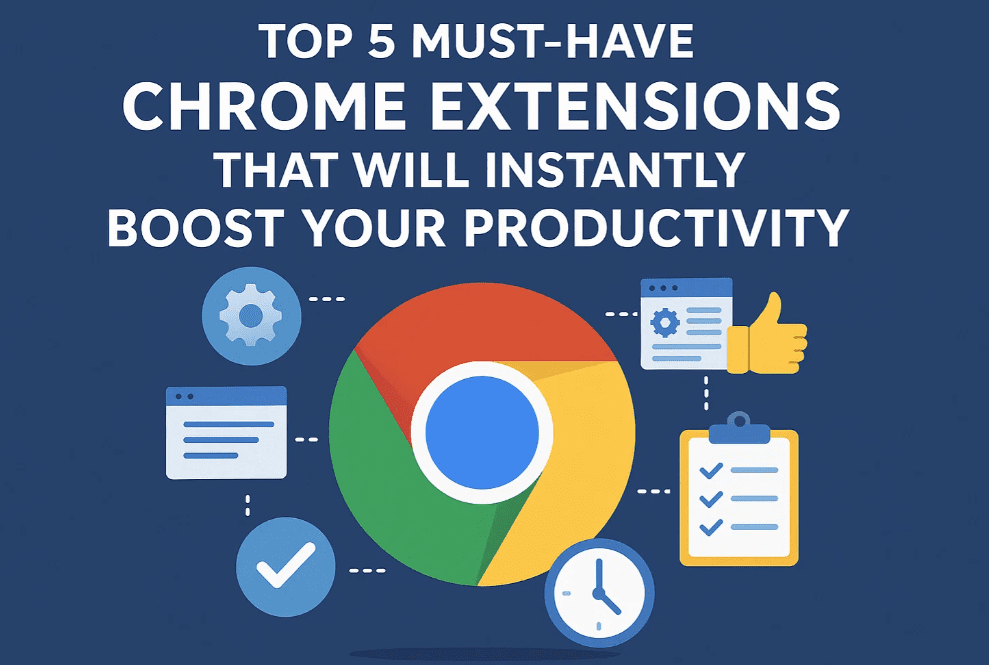
Are you a long-time Google Chrome user but still feel like you’re missing out on features others seem to enjoy? You’re not alone! Many users are unaware of the powerful Chrome extensions that can take their browsing and working experience to the next level. In this blog post, we’ll walk you through 5 incredible Chrome extensions that will enhance your workflow, save time, and reduce eye strain — all for free.
Let’s dive in!
1. Printer Friendly & PDF
Use Case: Want to print a clean version of a website without ads or sidebars? This tool is your best bet.
Why You Need It:
- Removes unnecessary elements like ads, sidebars, and popups
- Converts webpages to PDF
- Allows you to email, print, or save clean content
How To Use:
- Go to the Chrome Web Store.
- Search for “Printer Friendly & PDF.”
- Click “Add to Chrome.”
- Pin the extension for easy access.
- Visit any article or webpage and click on the extension icon.
- You’ll see a cleaner version of the page for printing or saving as a PDF.
This is especially useful for office use when you need content without the clutter.
2. Awesome Screenshot & Screen Recorder
Use Case: Need to take screenshots, annotate them, or record your screen? This all-in-one tool does it all.
Why You Need It:
- Take full-page, visible part, or custom screenshots
- Record your screen (desktop, tab, or webcam)
- Annotate with arrows, circles, and text
- Save as PNG or PDF
How To Use:
- Add “Awesome Screenshot & Screen Recorder” from the Chrome Web Store.
- Sign in using your Google account.
- Click the extension icon and choose Capture or Record.
- Select your desired screen or window.
- Download the screenshot or video.
Perfect for educators, YouTubers, and office presentations.
3. Volume Master
Use Case: Struggling with low volume on some websites or laptop speakers?




Why You Need It:
- Boosts volume up to 600%
- Adjusts audio per tab
- Ideal for videos and music on low-volume devices
How To Use:
- Search “Volume Master” on the Chrome Web Store.
- Add to Chrome and pin it.
- Open any video (e.g., YouTube) and click the extension icon.
- Drag the volume slider as needed.
This one is a game-changer if you work in a noisy environment or have weak speakers.
4. Super Dark Mode
Use Case: Reduce eye strain during night-time browsing.
Why You Need It:
- Automatically converts websites to dark theme
- Reduces blue light exposure
- Works even on websites that don’t have built-in dark mode
How To Use:
- Add “Super Dark Mode” from the Web Store.
- Enable it via the extension icon.
- Enjoy darker tones across websites, including Google, YouTube, etc.
If you’re a night owl or frequently browse in low light, this is a must-have.
5. Print Online with Printly
Use Case: Want to take a screenshot and annotate it like a pro?
Why You Need It:
- Annotate directly on web pages
- Draw arrows, shapes, and add notes
- Capture and save annotated screenshots instantly
How To Use:
- Search “Printly” in the Web Store.
- Install and pin the extension.
- Open any webpage, click the Printly icon.
- Use the toolbar to annotate.
- Download your marked-up screenshot.
Great for educators, support teams, and online explainers.
Tags:
chrome extensions, productivity tools, google chrome tips, screen recorder, screenshot extension, dark mode chrome, pdf converter chrome, audio booster chrome
Hashtags:
#ChromeExtensions #ProductivityTools #GoogleChromeTips #ScreenshotTools #DarkMode #AudioBooster #PrintFriendly #AwesomeScreenshot
Disclaimer: This post is intended for educational purposes. Always download Chrome extensions from the official Chrome Web Store to avoid security risks.








