Hi everyone!
Whether you’re new to Windows 11 or have been using it for a while, there are always little tricks and hidden features that can make your experience faster, smoother, and more enjoyable. In this article, I’ll walk you through 10 essential Windows 11 tips and tricks that every user should know. These features are designed to improve usability, help with multitasking, and keep your system running efficiently.
So, grab a coffee (or chai ☕), and let’s make your Windows 11 journey smarter and easier!
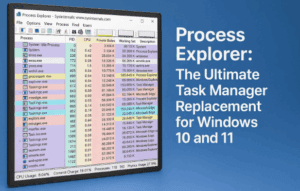
💻 1. Check Your PC Specs Using Task Manager
Before diving deep into settings or installing new apps, it’s always good to understand your system’s capabilities. Knowing your PC specs helps with performance checks, compatibility, and troubleshooting.
Let’s begin with checking the most essential details:
- Right-click the Taskbar and select Task Manager
- Click on the Performance tab
- Here you’ll find real-time stats about:
- CPU speed and uptime
- RAM (Memory) usage
- Disk activity
- GPU performance
💡 You can also press Ctrl + Shift + Esc to open Task Manager directly.
📌 2. Pin Your Favorite Apps to the Start Menu
Want quick access to your most-used apps without cluttering your desktop? Pinning them to the Start menu is a clean and effective way.
Let’s move on to personalizing your Start menu:
- Click the Windows icon on your taskbar
- Select All apps
- Right-click any app you want
- Choose Pin to Start
To remove it later, right-click the app again and select Unpin from Start.
⌨️ 3. Enable and Customize the Touch Keyboard
If you’re on a touchscreen laptop or tablet, the Touch Keyboard is incredibly useful. Let’s make typing without a physical keyboard easy and fun.
Here’s how you can enable and customize it:
- Right-click the taskbar and choose Taskbar Settings
- Scroll to Personalization > Taskbar behaviors
- Turn on Touch Keyboard
A keyboard icon will appear in your taskbar. Click it to type. You can even:


- Click the gear icon to change layout: Default, Small, or Split
- Use Handwriting mode to write using a stylus or finger
🔕 4. Turn Off Annoying Notifications
Notifications can be helpful but also quite distracting. Luckily, you can take control over what shows up and when.
Let’s silence the noise:
- Go to Start > Settings > System > Notifications
- Toggle off Notifications to disable all
- Or scroll down and manage notifications by app
📂 To stop notifications from File Explorer:
- Open This PC
- Click the three dots (⋯) > Options
- Go to View tab
- Uncheck Show sync provider notifications
- Click Apply
📁 5. Add Useful Folders to the Start Menu
So far, we’ve cleaned up distractions. Now, let’s add convenience by including your favorite folders directly in the Start menu for faster access.
Here’s how to do it:
- Open Settings > Personalization > Start > Folders
- Toggle on the folders you use often: Documents, Downloads, Pictures, etc.
Now, these folder icons will appear at the bottom of your Start menu for one-click access.
🎙️ 6. Use Voice Typing with Punctuation
This one’s a game-changer for writers, students, and anyone who prefers speaking over typing.
Here’s how to activate voice typing:
- Open any text app like Notepad
- Press Windows + H to launch the dictation bar
- Start speaking — Windows will automatically type your words
And yes, it even adds punctuation intelligently!
🖥️ 7. Hide or Show Desktop Icons Instantly
Feeling overwhelmed by too many icons? Or maybe you want them back? You can toggle them easily.
Let’s declutter (or re-clutter):
- Right-click anywhere on the desktop
- Go to View
- Toggle Show Desktop Icons
Uncheck it to hide all icons or check it again to bring them back.
🚀 8. Disable Startup Apps for Faster Boot Times
Nobody likes a slow boot. Startup apps can delay your system launch. Let’s trim the fat and make your PC boot faster.
Here’s the quick fix:
- Right-click the taskbar and select Task Manager
- Go to the Startup Apps tab
- Right-click any unnecessary app and click Disable
Do this for apps you don’t need running at startup, like Spotify, Skype, or Adobe Updater.
✍️ 9. Enable Autocorrect and Text Suggestions
Typing faster and error-free can save time and boost productivity. Great for both casual users and fast typers.
Let’s turn it on:
- Go to Settings > Time & Language > Typing
- Toggle on:
- Show text suggestions when typing
- Autocorrect misspelled words
This works system-wide, including in Notepad, browsers, and Office apps.
🧠 10. Use Multiple Desktops for Better Organization
If you’re juggling work, gaming, school, or personal tasks — this feature is perfect. Create separate desktops for each activity.
Here’s how:
- Click the Task View icon (or press Windows + Tab)
- Click + New Desktop
- Right-click a desktop to rename it (e.g., Work, Gaming, Study)
- You can even set different wallpapers for each one
- Use Windows + Ctrl + Left/Right to switch desktops instantly
🌙 Bonus Tip: Enable Dark Mode or Custom Colors
Want a sleeker look or less eye strain? Dark mode is your friend.
Here’s how to enable it:
- Go to Settings > Personalization > Colors
- Choose:
- Dark for everything
- Light for bright mode
- Custom to mix (e.g., Dark Explorer + Light apps)
This is especially useful during night-time work sessions or for a minimalist aesthetic.
❓FAQ: Windows 11 Tips & Tricks
Q: Are these tips safe to use on all Windows 11 PCs?
Yes, all these features are part of Windows 11’s default settings and don’t require third-party apps.
Q: Can I undo any changes if I don’t like them?
Absolutely. Each setting can be toggled on or off easily in Settings or Task Manager.
Q: Is voice typing available offline?
It depends. Some features may need internet access to improve accuracy, especially for punctuation.
✅ Final Thoughts
And there you have it—10 powerful yet easy-to-use tips and tricks to enhance your Windows 11 experience. Whether you’re customizing the Start menu, speeding up boot times, or enjoying voice typing, there’s something here for everyone.
If you found any of these tips helpful, share this article with your friends or coworkers. And if you want a Part 2 with even more Windows 11 secrets, let us know!
Until next time, stay curious and stay passionate about tech! 💡
Tags: windows 11 tips, windows 11 tricks, task manager, dark mode, startup apps, voice typing, multiple desktops, file explorer, personalization, productivity
Hashtags:
#Windows11 #TechTips #PCProductivity #WindowsHacks #DarkMode #TaskManager #VoiceTyping #DesktopCustomization
🔗 Useful Resources:
👉 Windows 11 Help & Learning – Microsoft
👉 Download Windows 11 – Official Microsoft Page
👉 More guides at DTPtips.com








