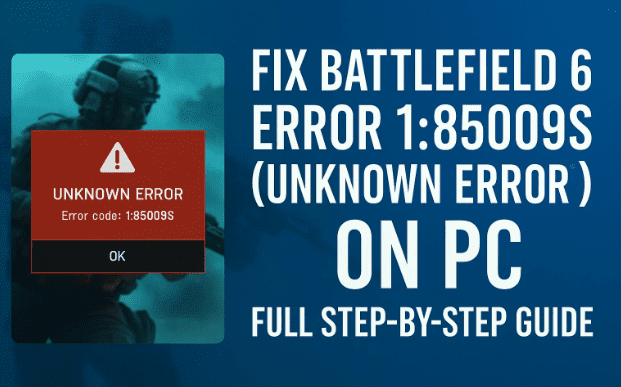
There’s nothing more frustrating than sitting down to play Battlefield 6 on your PC and being greeted with the dreaded “Error 1:85009S — Unknown Error.” This issue has been bothering many players since the game’s latest updates, often appearing right before joining a match or during the game’s startup.
The good news is — it’s not a dead end. The error is commonly linked to network configuration problems, corrupted game cache, or connectivity issues between the EA App, Steam, and game servers. Fortunately, there are several reliable fixes that can get you back into the action quickly.
In this detailed guide, we’ll go through all the tested methods to fix the Battlefield 6 error 1:85009S — from resetting DNS settings to refreshing your network stack. Let’s dive right in and bring your Battlefield experience back to normal.
⚠ 1. What Causes Error 1:85009S in Battlefield 6?
Before fixing it, let’s understand why this error appears in the first place. Error 1:85009S is a general network or connectivity failure that prevents Battlefield 6 from establishing a stable connection with the EA servers.
Some of the most common causes include:
- 🌐 Corrupted network settings — especially DNS and TCP/IP configurations.
- 🧩 EA App or Steam connection bugs that break online validation.
- ⚙️ Faulty or outdated network drivers on your Windows PC.
- 🚫 Firewall or antivirus interference, blocking Battlefield’s online access.
- 💾 Corrupted game cache files from previous updates.
Now that we know what’s behind it, let’s move on to the step-by-step solutions.
🌍 2. Fix 1: Change Your DNS Settings (Google or Cloudflare DNS)
Sometimes, the problem lies not in your connection itself but in how your DNS server resolves EA’s online addresses. Switching to a reliable public DNS, such as Google (8.8.8.8, 8.8.4.4) or Cloudflare (1.1.1.1, 1.0.0.1), often resolves this error instantly.
Let’s go step-by-step through the process.
🧭 Steps to Change DNS Settings:
- Press Windows + R on your keyboard, type
control, and press Enter to open Control Panel. - Navigate to Network and Internet → Network and Sharing Center.
- On the left side, click Change adapter settings.
- Double-click on your active network connection (either Wi-Fi or Ethernet).
- Click Properties.
- Scroll down and select Internet Protocol Version 4 (TCP/IPv4) → then click Properties again.
- In the next window, select Use the following DNS server addresses and enter:
- Preferred DNS server: 8.8.8.8
- Alternate DNS server: 8.8.4.4
- Click OK to apply changes.
💡 Tip: If Google DNS doesn’t fix the issue, try switching to Cloudflare DNS instead:
- Preferred DNS: 1.1.1.1
- Alternate DNS: 1.0.0.1
Once done, restart your PC and try launching Battlefield 6 again. If the issue persists, proceed to the next fix.
⚙️ 3. Fix 2: Refresh Network Configuration Using Command Prompt
If changing the DNS didn’t help, the issue might lie deeper — within your network cache or IP stack. Thankfully, Windows provides built-in tools to repair them easily through Command Prompt.









We’ll reset key components like DNS cache, IP configuration, and DHCP settings to ensure Battlefield 6 connects cleanly to EA servers.
🧭 Steps to Refresh Network Stack:
- Click the Start menu and type cmd.
- Right-click on Command Prompt → select Run as Administrator.
- If asked for confirmation, press Yes.
- In the Command Prompt window, type these commands one by one, pressing Enter after each:
ipconfig /release ipconfig /renew ipconfig /flushdns - Once all commands execute successfully, type
exitand hit Enter. - Restart your PC to apply the new configuration.
These commands force Windows to discard old, potentially corrupted IP data and rebuild a fresh connection profile — which often resolves the 1:85009S error.
🔁 4. Fix 3: Reset All Network Adapters in Windows
If you’ve come this far and the error still persists, don’t worry — you’re doing great. The next step involves resetting all network adapters and restoring your system’s networking components to their default state.
This method is particularly effective if Battlefield 6 is unable to connect even after DNS and IP repairs.
🧭 Steps to Reset Network Adapters:
- Click Start → Settings → Network & Internet.
- Scroll down and select Advanced network settings.
- Under More settings, find Network reset.
- Click Reset now to start the process.
- A confirmation prompt will appear — click Yes.
- Wait for Windows to automatically remove and reinstall all network adapters.
- Restart your PC when prompted.
After reboot, reconnect to your Wi-Fi or Ethernet, launch Battlefield 6, and check if the issue is gone.
Note: Network reset removes saved Wi-Fi networks and VPN adapters, so you may need to re-enter Wi-Fi passwords afterward.
💡 5. Alternative Tips to Prevent This Error in the Future
Once you’ve fixed the problem, here are a few good habits to prevent it from returning in the future:
- ✅ Update your EA App or Steam client regularly. Outdated launchers can cause validation errors.
- 🧩 Verify your game files through Steam or EA App — this ensures no corrupted files remain.
- 🌐 Avoid unstable Wi-Fi networks. Prefer a wired connection for online multiplayer.
- 🔥 Whitelist Battlefield 6 in your antivirus or firewall software to prevent accidental blocking.
- 🧱 Disable VPNs while playing, as they may route traffic inefficiently and cause authentication failures.
By maintaining a healthy connection and keeping your software updated, you’ll minimize the chance of seeing this dreaded error again.
❓ 6. FAQ: Battlefield 6 “Unknown Error” Explained
Q1: What does “Error 1:85009S” mean in Battlefield 6?
It’s a network error that occurs when the game can’t communicate properly with EA servers due to DNS issues, blocked ports, or broken configurations.
Q2: Does reinstalling Battlefield 6 fix this issue?
Not always. Most of the time, it’s caused by network conflicts, not corrupted game files. Try the DNS and CMD fixes first.
Q3: Should I contact EA support?
Yes, if all the above fixes fail. You can visit help.ea.com and open a support ticket with your error logs.
Q4: Will changing DNS affect other apps or games?
No. Using public DNS like Google or Cloudflare is safe and can actually improve connection speed and reliability.
Q5: Is it safe to reset network settings?
Yes, but you’ll need to reconnect to your Wi-Fi network afterward. The process is entirely safe and often recommended by Microsoft for persistent connection issues.
🧭 7. Final Thoughts and Recap
So far, we’ve covered all the proven ways to fix Battlefield 6 Error 1:85009S (Unknown Error) — from changing DNS servers to completely resetting the network stack.
Here’s a quick recap of what you can do:
- Change DNS to Google or Cloudflare.
- Reset IP and DNS using Command Prompt.
- Use Windows’ built-in Network Reset feature.
- Restart your PC after each major change.
Following these steps should resolve the issue in most cases. And remember — stable connectivity is key for smooth gameplay, especially in multiplayer shooters like Battlefield 6.
If you still face the issue after applying all methods, visit the EA Help page for personalized troubleshooting.
⚠ Disclaimer
The steps provided in this article are safe for standard Windows 10 and Windows 11 users. However, make sure to back up any important network configuration details before performing a network reset. If you’re on a managed or corporate network, consult your system administrator before making these changes.
#Battlefield6 #Error85009S #GamingFix #Windows11 #EAGames #NetworkError #Troubleshooting #BattlefieldFix







