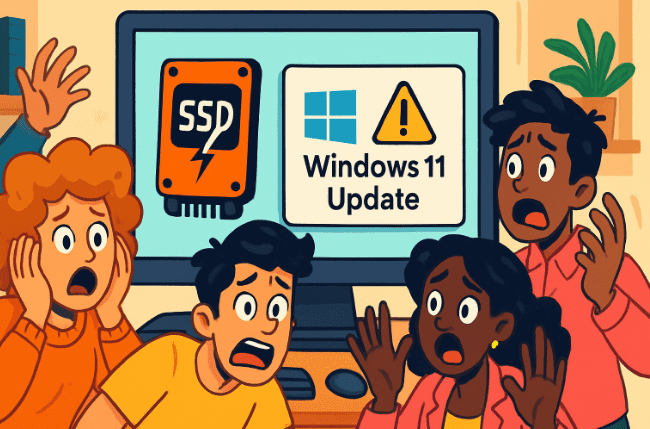
The PC world never seems to rest—if anything, it churns out surprises with alarming frequency. Just when you think things couldn’t get more complicated, a Windows 11 update comes along that could potentially break your SSD, corrupt your critical data, and turn simple tasks like installing a game into a nightmare. Today, I’ll break down exactly what’s happening with the latest Windows updates, explain how to check if you’re affected, and guide you step-by-step through safeguarding your files before disaster strikes.
This guide isn’t just a dry technical breakdown—I’ll add insights, human experiences, and clarifications wherever it helps. Let’s do this together, making sure no step goes unexplained and that you walk away empowered, not overwhelmed.
1. Setting the Stage: What’s the Trouble with Windows 11 Updates?
Modern computing seems like a game of chance at times. Windows updates are supposed to make things better, but sometimes they do just the opposite. Recently, users started reporting issues with their solid-state drives (SSDs) after installing updates KB5063878 and KB5062660 for Windows 11. Those not in the preview (or beta) program usually see KB5063878, while preview users are hit with KB5062660.
So, what’s really going on? These updates seem to be causing serious issues with certain NVMe SSDs, especially those using Phison controllers. You might not notice any problems right away, but when you transfer large chunks of data—think installing a new game or copying important files—the affected drive can disappear from Windows entirely. Some users have seen their systems crash, experience blue screens, or worse, face data corruption.
Let’s move forward with a closer look at how this bug shows up!
2. Symptoms and Risks: What Happens When Your Drive Vanishes?
Imagine you’re downloading a massive new game or moving a pile of work documents. Suddenly, your computer crashes, your SSD vanishes from Windows, and you’re left staring at a blue screen. It’s not just annoying—it can lead to permanent data loss.
Here’s what’s currently known about this bug:
- The issue mainly rears its head when writing around 50GB or more of data. That could be any hefty file install, update, or transfer.
- The effect worsens if your SSD is over 60% full.
- Sometimes, restarting your system makes the drive visible again. But in a few scary cases, the drive does not reappear or data is lost forever.
- These problems started showing up in the last few days and have been confirmed by Phison, though Microsoft hasn’t formally recognized them as of now.
If you’re running a Windows machine and regularly install games, transfer videos, or work with large datasets, you need to proceed with caution.
3. Which SSDs Are Actually At Risk?
Let’s take a pause and sort out who’s most vulnerable. The root cause lies in a kernel-level Windows update affecting certain SSD controllers—especially the Phison PS5012-E12. This controller is popular and found across many brands, but other controllers are implicated as well.
Before you worry, here’s a rundown (with a little extra info):
SSDs Confirmed As Affected
- Western Digital Blue (500GB, 2TB): Recovered after reboot.
- Western Digital Red SA 500 (1TB): Recovered after reboot.
- Western Digital Blue SA5701 (1TB): Recovered after reboot.
- WD Blue SA5102 (2TB): Did NOT recover after reboot in one test—a serious risk.
- Corsair MP510 (960GB), Corsair Force MP600 (2TB): Recovered after reboot; all sizes potentially affected due to shared controller.
- SK hynix Platinum P41 NVMe: Recovered after reboot.
- Crucial P3 Plus NVMe, AData Legend 800 (2TB), HP FX7000 (2TB), XPG SX8200 Pro (2TB): Most recovered after reboot, but risk is still present.
- SanDisk Extreme Pro M.2, ADATA SP580: Scattered user reports—pay close attention if you own these.
- Kioxia Xeria Plus G4, Kioxia M.2 SSDs: Mainly found in enterprise setups; servers running these may face massive issues.
- SSDs using InnoGrit or Maxio controllers: Newer reports suggest these might also be hit, though Phison remains the main culprit.
Controllers at-risk:
- Phison PS5012-E12 (Wide market share!)
- InnoGrit
- Maxio
A moment here: if your drive isn’t on this list, don’t exhale just yet. This is early data—more drives may be affected as testing continues!









4. Drives Currently Tested as Unaffected
Let’s relieve some anxiety for a moment. Testing by sites like Tom’s Hardware and WCCFTech shows some SSDs aren’t struck by this Windows bug, even under heavy loads.
SSDs That Did NOT Fail in Recent Tests
- Samsung 990 Pro, 980 Pro, 870 EVO
- Western Digital Black SN7100
- WD Blue SA510 (1TB) (oddly, 2TB version is affected!)
- Seagate FireCuda 530 (1TB and 2TB)
- Solid GM P44 Pro
- Crucial T700
- SanDisk SSD 240GB (A rare old model!)
Keep in mind, results can change as updates and conditions evolve. If your drive is not on the “affected” list, you’re probably fine, but extra caution never hurts.
5. Real-World Headaches: How This Bug Confuses Users
If you’re here, you might have experienced some frustrating moments lately. Here’s a scenario:
You try to install a new AAA game from Steam. The installer chugs along, hits that ~50GB mark, and—bam!—your PC blue screens. You reboot, and sometimes the SSD reappears. Other folks have been chasing imaginary RAM problems, checking CPU and overclocking settings, suspecting Expo or XMP memory profiles. But the culprit? This update.
Take comfort—you’re not alone. Countless users and tech forums are lighting up with stories just like this. Let’s make sure you know how to fix it before it can do real harm.
6. How to Check If Your SSD Is Affected
It’s time for some detective work—let’s walk through each step carefully.
Step 1: Identify Your SSD
- Open the Device Manager (Press Windows + X, then choose “Device Manager”).
- Expand “Disk drives” and note the model name/number of your SSD.
- Look up your drive’s controller (manufacturer and model)—refer to the specs on your vendor’s website if needed.
Step 2: Check for Affected Windows Updates
- Go to Settings > Windows Update > Update history.
- Scroll down to “Quality updates.”
- Look for KB5063878 or KB5062660.
- KB5063878 (standard release)
- KB5062660 (Windows Insider/preview builds)
So far, so good? If you find either update installed, and have a listed controller/SSD, you’re at elevated risk.
7. Recommended Immediate Actions: Undo the Update!
Alright, let’s move to the critical part—uninstalling the updates before catastrophe.
Step-by-Step: How to Roll Back the Errant Update
Before you start, make sure you back up your data. Use an external drive or cloud solution just in case.
- Go to Settings > Windows Update > Update history.
- Click “Uninstall updates.”
- Find update KB5063878 or KB5062660 in the list.
- Click Uninstall.
- Restart your computer.
This process removes the problematic update. Most users with affected SSDs find their drives return to normal operation after this fix. If you continue having trouble, consider consulting your SSD vendor’s support site for firmware updates or additional guidance.
Extra tip: Consider disabling automatic updates temporarily, to avoid the same update sneaking back in.
Go to Settings > Windows Update > Advanced options > Pause updates.
8. Why Is This Happening? Exploring the Cause
For those who want a deeper technical insight, here’s what’s likely occurring:
The Windows update tinkers with the kernel-level storage subsystem, interacting with certain SSD controllers in ways that break compatibility. Under heavy write loads (large installs, big file transfers), the drive’s firmware and system kernel can “desynchronize,” causing the drive to disappear completely, sometimes without leaving a trace.
While most drives come back after a forced reboot, some do not. In rare, worst-case scenarios, you could lose data (or worse, the drive’s partition table). Remember, Phison isn’t the only controller in the game—others like InnoGrit and Maxio are now showing similar problems.
9. Pro Tips for Staying Safe During Update Turmoil
Let’s add some practical, actionable advice for keeping your PC and data healthy:
Before making system changes, always create a backup.
Monitor tech news sites for update advisories—Tom’s Hardware, WCCFTech, etc.
Prefer manual Windows updates over automatic, so you can review potential issues before installing.
Frequently check SSD vendor websites for firmware patches.
So far, we’ve navigated treacherous waters together. The next step: ongoing vigilance and troubleshooting strategies!
10. Frequently Asked Questions (Q&A)
Q: Is this issue limited to Windows 11?
A: So far, the bug has mainly affected Windows 11 updates, particularly KB5063878 and KB5062660. Windows 10 users haven’t reported widespread problems… yet.
Q: Can affected SSDs be permanently damaged?
A: It’s rare but possible. Data corruption and partition loss could occur if the update is not removed. Back up your files regularly, and reach out to SSD manufacturers if symptoms persist.
Q: Will my SSD work once I uninstall the update?
A: In most cases, yes—the drive returns to normal function after Windows is restarted post-uninstall. However, if data is lost, you may need file recovery tools or professional assistance.
Q: How do I know what controller my SSD uses?
A: Check the “Disk Drives” entry in Device Manager and search the SSD model online for specifications. Most vendors publish controller info.
Q: What if my SSD isn’t listed as affected?
A: Stay cautious. With expanding reports, more models may be implicated. Uninstall the updates if possible, and back up data as a precaution.
11. A Human Touch: Stories from the Community
Let’s connect with real experiences.
Many PC users are discovering random crashes when moving or installing large files. People have chased the wrong scapegoats—suspecting RAM, CPU, or graphics cards—only to realize (sometimes too late) that their SSD was the problem. Forums and tech help centers are filled with stories of frustration, lost photos, or corrupted projects.
- “I’ve been fighting blue screens for days—thought it was bad RAM till I saw this article!”
- “My SSD disappeared during a Steam install—rebooting fixed it, but now I’m nervous.”
- “Backed up everything as soon as I heard about the update. Thank you!”
Please, if you’ve experienced this, share which drives and symptoms you faced in the comments. The more real-world data we collect, the faster the community can respond.
12. What Microsoft and SSD Vendors Are Doing (Or Not Doing)
Right now, Phison (the main controller vendor) is actively communicating with Microsoft. Microsoft, for its part, hasn’t officially acknowledged the problem—sometimes issues like this are quietly fixed down the line. SSD brands (Western Digital, Corsair, SK hynix, etc.) encourage users to monitor their support channels for new firmware or recovery advice.
Here’s the official SSD manufacturer websites for quick reference:
Always check these for the latest firmware or advisories on major issues.
13. The Bigger Picture: Is This a Sign of Things to Come?
Technology moves fast, sometimes too fast for comfort. Kernel-level updates and wide controller diversity mean that bugs like this may become more common as drives and operating systems evolve.
- Always verify update compatibility before installing.
- Read tech news—even non-affected users can learn from data-driven community alerts.
14. Final Checklist: Protect Your SSD Today
Let’s recap smart practices going forward:
- Identify your SSD and its controller.
- Check for affected updates (KB5063878, KB5062660).
- Uninstall those updates if present.
- Back up your key data immediately.
- Turn off automatic updates temporarily.
- Watch for firmware updates from your SSD vendor.
- Share your experience to help others.
Remember, it only takes one overlooked bug to wreak havoc on your digital life. Prevention now saves heartbreak later!
We’ve covered everything step-by-step. Feeling confident? Now, just stay vigilant and share what you learn!
Tags
Windows11, SSD, update bug, Phison, NVMe, data corruption, kernel update, troubleshooting, PC, Microsoft, storage, firmware, WD, Corsair, SKhynix, Crucial, backup, ITsupport, quality update, system crash
Hashtags
#Windows11 #SSD #UpdateBug #Phison #NVMe #DataCorruption #KernelUpdate #Troubleshooting #PC #Microsoft #Storage #Firmware #WD #Corsair #SKhynix #Crucial #Backup #ITsupport #SystemCrash
Disclaimer:
This article is for informational purposes only, based on early public reports and technical analyses. Always back up personal and work files before performing system changes, and consult official vendor support sites for up-to-date responses and patches. The situation may evolve as vendors and Microsoft update their advisories and solutions.
For latest product news and updates, visit Microsoft Windows Official Website and your SSD manufacturer’s support portal.








