Your Windows 11 PC should be fast, secure, and reliable—but out-of-the-box settings don’t always deliver. This step-by-step guide covers startup optimization, security hardening, privacy controls, and system maintenance to maximize performance and protection.

🚀 Part 1: Speed Up Windows 11 Startup
🛑 Disable Unnecessary Startup Apps
Too many apps launching at boot slows down your PC.
Method 1: Via Settings (Simplest)
- Press
Win + I→ Apps → Startup - Toggle off unnecessary apps (e.g., Spotify, Discord if not needed immediately)
Method 2: Via Task Manager (Advanced Control)
- Press
Ctrl + Shift + Esc→ Startup tab - Right-click unwanted apps → Disable
- Check “Startup impact” (High = Slows boot the most)
💡 Pro Tip: Keep only security apps (antivirus) and critical tools enabled.
🔐 Part 2: Maximize Windows 11 Security
✅ 1. Keep Windows Updated
Microsoft releases critical security patches monthly.
- Go to:
Settings → Windows Update → Check for updates - Enable:
- “Get the latest updates as soon as they’re available”
- Optional updates (Driver & firmware fixes)
🛡️ 2. Configure Windows Security (Defender)
Windows Defender is surprisingly strong—if configured properly.
Run a Deep Scan:
- Open Windows Security (
Win + S→ Type “Windows Security”) - Go to Virus & Threat Protection
- Click Scan Options → Full Scan (Takes longer but checks everything)
Enable Ransomware Protection:
- Windows Security → Virus & Threat Protection → Ransomware Protection
- Turn on Controlled Folder Access
- Add folders (Documents, Pictures, etc.) to block unauthorized changes
Block Potentially Unwanted Apps (PUA):
- App & Browser Control → Reputation-Based Protection → Block apps
🛡️ Part 3: Advanced Security & Privacy
🔒 1. Enable Core Isolation & Memory Integrity
Prevents malware from tampering with system processes.
- Windows Security → Device Security → Core Isolation
- Toggle “Memory Integrity” ON (May require reboot)
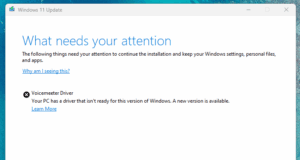
⚠️ Note: Some older drivers may conflict—check for compatibility.
🌐 2. Use DNS Over HTTPS (Encrypts Web Traffic)
Stops ISPs & hackers from spying on your browsing.
Steps to Enable:
- Settings → Network & Internet → Wi-Fi/Ethernet → Hardware Properties
- Under DNS Settings, choose Manual
- Enter:
- Preferred DNS:
1.1.1.1(Cloudflare) - Alternate DNS:
1.0.0.1
- Select “Encrypted (DNS over HTTPS)”
🔐 3. Encrypt Your Drive with BitLocker
Protects data if your PC is stolen.
Enable BitLocker:
- Search “BitLocker” in Start Menu
- Select “Turn on BitLocker”
- Choose “Password” or “USB Key” for unlocking
- Save Recovery Key (Print or store securely)
💡 Alternative for Home Users: Use VeraCrypt (Free open-source encryption).
⚡ Part 4: System Optimization & Maintenance
🧹 1. Clean Up Junk Files
- Press
Win + R→ Typecleanmgr→ Enter - Select C: drive → OK
- Check:
- Temporary files
- Downloaded Program Files
- Recycle Bin
- Click OK → Delete Files
🔄 2. Defragment HDD (If Using Old Hard Drive)
(SSD users skip this—it’s unnecessary and harmful!)





- Search “Defragment and Optimize Drives”
- Select C: drive → Optimize
📁 3. Create a System Backup (Image)
Avoid data loss from crashes or malware.
Steps:
- Search “Control Panel” → Backup and Restore (Windows 7)
- Click “Create a system image”
- Choose external drive or network location
- Start Backup
💡 Pro Tip: Also create a Recovery USB (Create a recovery drive in Start Menu).
🔧 Part 5: Advanced Tweaks for Power Users
🖥️ 1. Disable Telemetry & Data Collection
Windows 11 sends diagnostic data to Microsoft by default.
Reduce Tracking:
- Settings → Privacy & Security → Diagnostics & Feedback
- Select “Required diagnostic data” (Minimal)
- Turn off “Tailored experiences”
🚪 2. Use Windows Sandbox for Testing Unsafe Apps
A disposable virtual machine for risky software.
Enable Sandbox:
- Search “Turn Windows features on or off”
- Check Windows Sandbox → OK → Restart
- Launch from Start Menu
⚙️ 3. Adjust Power Plan for Performance
- Search “Edit Power Plan”
- Select “High Performance” (For desktops)
- Laptop users: Use “Balanced” for battery life
🚨 Final Checklist for Peak Performance
✅ Startup Apps – Disabled unnecessary ones
✅ Windows Updates – Installed latest patches
✅ Windows Defender – Full scan + ransomware protection
✅ BitLocker – Enabled (or VeraCrypt)
✅ DNS Over HTTPS – Configured (1.1.1.1)
✅ Junk Files – Cleaned (cleanmgr)
✅ System Backup – Created (External drive)
✅ Telemetry – Reduced tracking
📢 Hashtags & Tags
#Windows11 #PCOptimization #CyberSecurity #BitLocker #WindowsTips #SpeedUpWindows #PrivacyMatters #TechGuide
Tags: Windows 11 optimization, startup speed, Windows security, BitLocker encryption, DNS over HTTPS, disable telemetry, system backup, Windows Sandbox
⚠️ Important Notes
- Backup data before major changes.
- Some features (BitLocker, Sandbox) require Pro/Enterprise editions.
- Check driver compatibility before enabling Memory Integrity.








