Desktop computers are essential tools for work, gaming, and entertainment, but they can encounter various issues that disrupt productivity. This comprehensive guide covers solutions to 30 of the most common PC problems, helping you maintain optimal performance and avoid costly repairs.

1. Desktop PC Overheating
Symptoms: Random shutdowns, performance throttling, loud fan noise
Solutions:
- Reapply thermal paste between CPU and heatsink (recommended every 2-3 years)
- Clean dust from fans, vents, and heatsinks using compressed air
- Improve airflow by ensuring proper case ventilation
- Monitor temperatures with tools like HWMonitor
- Consider upgrading cooling solutions for high-performance systems
2. USB Port Not Working
Troubleshooting Steps:
- Test device on other ports/computers to isolate issue
- Clean port gently with compressed air or isopropyl alcohol
- Update USB drivers via Device Manager
- Uninstall and reinstall USB controllers in Device Manager
- Check BIOS settings for disabled USB ports
3. Slow Computer Performance
Optimization Techniques:
- Upgrade to SSD if using HDD (dramatically improves speed)
- Increase RAM (8GB minimum for modern systems)
- Disable startup programs in Task Manager
- Run Disk Cleanup and defragmentation (for HDDs only)
- Reset virtual memory settings (System Properties > Advanced > Performance)
4. Blue Screen of Death (BSOD)
Diagnosis and Repair:
- Note error code (e.g., MEMORY_MANAGEMENT)
- Boot in Safe Mode (F8 during startup)
- Update all drivers, especially graphics and chipset
- Run memory diagnostics (Windows Memory Diagnostic)
- Perform system restore to last stable point
5. Computer Won’t Turn On
Power Issues Checklist:
✓ Check power cable connections
✓ Test outlet with another device
✓ Reset CMOS battery
✓ Inspect motherboard for swollen capacitors
✓ Try different PSU if available
6. Constant Restarting
Potential Causes:
- Faulty power supply (test with PSU tester)
- Overheating components (monitor temps)
- Corrupt system files (run
sfc /scannow) - Windows update issues (disable automatic restarts)
7. Frequent Freezing
Solutions:
- Update all drivers (focus on graphics and chipset)
- Test RAM with MemTest86
- Check disk health with CrystalDiskInfo
- Clean install Windows as last resort
8. Keyboard Malfunctions
Fix Steps:
- Try different USB port
- Check for physical damage
- Disable Filter Keys (Control Panel > Ease of Access)
- Update/reinstall keyboard drivers
- Test with different keyboard
9. SSD Installation Error 0x8030024
Resolution:







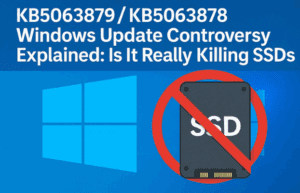

- Disconnect all other drives during installation
- Convert disk to GPT (for UEFI systems)
- Use Rufus to create proper boot media
- Check SATA mode in BIOS (AHCI recommended)
10. Programs Not Responding
Troubleshooting:
- Increase virtual memory (1.5x physical RAM)
- Close background processes
- Run program as administrator
- Check for Windows updates
- Reinstall problematic software
11. Microsoft Edge Issues
Reset Steps:
- Clear browsing data (Ctrl+Shift+Del)
- Reset Edge (Settings > Reset settings)
- Disable extensions
- Create new user profile
12. Start Menu/Taskbar Failure
Fix:
- Run PowerShell as admin:
Get-AppXPackage -AllUsers | Foreach {Add-AppxPackage -DisableDevelopmentMode -Register "$($_.InstallLocation)\AppXManifest.xml"}- Create new user account
- Reinstall Start menu via PowerShell
13. Windows Store Problems
Solution:
- Delete cache at:
C:\Users\[username]\AppData\Local\Packages\Microsoft.WindowsStore* - Run WSReset.exe
- Re-register Store app via PowerShell
14. YouTube Playback Issues
Troubleshooting:
- Disable hardware acceleration in browser
- Update graphics drivers
- Clear browser cache/cookies
- Try different browser (Firefox/Chrome)
15. Printer Problems After Update
Resolution:
- Uninstall/reinstall printer
- Download latest drivers from manufacturer
- Run printer troubleshooter
- Check print spooler service
16. Mouse Not Working
Fix:
- Try different USB port
- Uninstall problematic updates (KB4074588)
- Check for physical damage
- Update mouse drivers
17. Search Box Failure
Repair Command:
Get-AppXPackage -Name Microsoft.Windows.Cortana | Foreach {Add-AppxPackage -DisableDevelopmentMode -Register "$($_.InstallLocation)\AppXManifest.xml"}18. Sleep Mode Issues
Solutions:
- Update BIOS
- Adjust power settings (Control Panel)
- Disable hybrid sleep
- Update chipset drivers
19. Print Spooler Crashes
Fix:
- Enable LDP/LPR in Windows Features
- Clear spooler folder (
C:\Windows\System32\spool\PRINTERS) - Restart spooler service
20. Microsoft Account Login Failure
Workaround:
- Create local admin account
- Sync credentials (Settings > Accounts)
- Reset Microsoft password online
21. NAS Drive Visibility
Network Fixes:
net use * /delete
net stop workstation /y
net start workstation
22. Shutdown/Restart Problems
Commands:
shutdown /s /t 0  # Immediate shutdown
shutdown /r /t 0  # Immediate restart
23. Word Document Issues
Repair Steps:
- Run Office Repair (Control Panel)
- Disable add-ins
- Create new user profile
- Check file associations
24. Microphone Not Working
Audio Settings:
- Set mic as default device
- Adjust levels (minimum 80%)
- Disable audio enhancements
- Update sound drivers
25. No Sound Output
Troubleshooting:
- Verify default playback device
- Run audio troubleshooter
- Check cable connections
- Update/reinstall audio drivers
26. Monitor Display Issues
Solutions:
- Test different cables (HDMI/DP)
- Update graphics drivers
- Check power to monitor
- Try different monitor
27. Internet Connectivity Problems
Network Reset:
- Flush DNS (
ipconfig /flushdns) - Reset TCP/IP (
netsh int ip reset) - Reinstall network adapter
28. Mouse Button Failure
Options:
- Replace mouse
- Swap left/right buttons temporarily
- Check mouse settings (Control Panel)
29. Windows Explorer Crashes
Repair Commands:
DISM /Online /Cleanup-Image /RestoreHealth
sfc /scannow
30. Black Screen with Cursor
Recovery Steps:
- Boot into Safe Mode
- Run system file checker
- Update graphics drivers
- Perform clean boot
Preventative Maintenance Tips
- Regular Cleaning: Dust interior every 3-6 months
- Driver Updates: Use Snappy Driver Installer for bulk updates
- Backup Strategy: Implement 3-2-1 backup rule
- Temperature Monitoring: Install Core Temp
- Power Protection: Use quality UPS for stable power
For persistent hardware issues, consider professional diagnostics with tools like PC-Doctor.
Tags: PC troubleshooting, computer repair, Windows errors, hardware issues, software problems, IT support, tech solutions, computer maintenance
Hashtags: #PCTroubleshooting #TechSupport #WindowsHelp #ComputerRepair #ITSolutions #HardwareIssues #SoftwareProblems #TechTips #PCMaintenance #FixMyPC








