Windows 11 offers powerful customization options to tailor your PC experience. Whether you want to change the taskbar layout, optimize system performance, or enhance privacy, this guide covers everything you need to know.
📌 Quick Navigation
✅ Taskbar Customization
✅ Start Menu & Admin Tools
✅ System & Display Settings
✅ Network & Security
✅ Personalization & Themes
✅ Privacy & Updates
🖥️ 1. Taskbar Customization
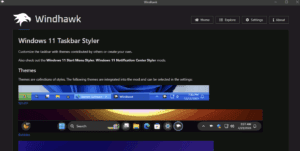
The taskbar is the central hub for accessing apps and system functions.
How to Customize:
- Right-click the taskbar → “Taskbar settings”.
- Toggle options:
- Search button (Show/Hide)
- Task View (Virtual desktops)
- Widgets (News, weather)
- System tray icons (Wi-Fi, volume, battery)
- Move taskbar to left (Classic Windows style).
- Show taskbar on all monitors (Multi-display setup).
🔹 Pro Tip: Use Win + X for quick access to Device Manager, Disk Management, and Task Manager.
🚀 2. Start Menu & Admin Tools
The Start Menu can be tweaked for efficiency.
Customizing Start Menu:
- Right-click Start button → “Settings”.
- Choose between:
- “All apps” (Full list)
- “Pinned apps” (Quick access)
Admin Shortcuts (Win + X Menu)
- Device Manager (Hardware settings)
- Disk Management (Partition drives)
- Power Options (Shutdown, restart)
- Run (Quick command access)
⚙️ 3. System & Display Settings
Optimize performance, battery, and visuals.
Display Settings
- Resolution & Orientation (Adjust scaling)
- Night Light (Reduce blue light)
- Multiple Displays (Extend/duplicate screens)
Power & Battery
- Power Mode:
- Best Performance (For gaming/editing)
- Battery Saver (Laptops)
- Screen Timeout (Turn off display when idle)
Storage Management
- Storage Sense (Auto-delete temp files)
- Disk Cleanup (Free up space manually)
- Virtual Hard Disks (Create for extra storage)
🌐 4. Network & Security Settings
Control Wi-Fi, VPN, and privacy.
Network Profiles
- Public (Hidden from other devices)
- Private (For file sharing & printers)
Advanced Network Settings
- Data Usage Limit (For metered connections)
- Network Reset (Fix connectivity issues)
- Mobile Hotspot (Share internet via Wi-Fi)
Security Features
- Windows Security (Built-in antivirus)
- BitLocker (Encrypt drives)
- Find My Device (Track lost PC)
🎨 5. Personalization & Themes
Make Windows visually appealing.
Customization Options
- Wallpaper (Picture, Slideshow, Spotlight)
- Themes (Light, Dark, Custom)
- Lock Screen (Custom image, timeout settings)
- Dynamic Lighting (RGB effects for supported devices)
Fonts & Input
- Install new fonts (From Microsoft Store)
- Virtual Keyboard (Resize, theme changes)
🔒 6. Privacy & Updates
Control data sharing & system updates.
Privacy Settings
- App Permissions (Camera, mic, location)
- Clipboard History (Enable/disable Win + V)
Windows Update
- Pause updates (Up to 5 weeks)
- Optional updates (Drivers, patches)
📌 Final Thoughts
Windows 11 is highly customizable—experiment with these settings to boost productivity and aesthetics.
💬 Questions? Drop them in the comments!

🔗 More Guides:
📌 Tags:
Windows 11 customization, taskbar settings, Windows 11 tips, system optimization, personalization guide
📌 Hashtags:
#Windows11 #PCTips #TechGuide #CustomizeWindows #WindowsSettings #TechTutorial








