Keeping your Windows 11 system fast, secure, and optimized is essential for smooth performance and data protection. In this article, we’ll walk you through the best settings to customize startup programs, improve security, enable core privacy features, and back up your system to prevent data loss or compromise. Whether you’re a casual user or a power user, this guide will help you take full control of your Windows 11 environment.

🚀 Speed Up Startup in Windows 11
When your computer boots up, many apps load automatically, slowing down the system. To improve boot speed, it’s best to disable unnecessary startup programs.
Method 1: Using Settings
- Open Settings → Apps → Startup.
- Toggle off the apps you don’t want to run at startup.
Method 2: Using Task Manager
- Right-click on the Taskbar and select Task Manager.
- Go to the Startup tab.
- Right-click and disable apps that you don’t need to load during boot.
🔐 Strengthening Windows 11 Security Settings
1. Keep Windows Updated
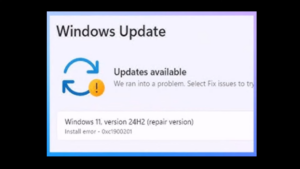
Regular updates help fix bugs and patch vulnerabilities.
- Go to Settings → Windows Update → Check for updates.
- For optional updates: Advanced Options → Optional Updates.
2. Virus & Threat Protection
Open Windows Security → Virus & Threat Protection. Choose from:
- Quick Scan – Scans common threat areas.
- Full Scan – Scans the entire system.
- Custom Scan – Select a folder to scan.
- Offline Scan – Scans before OS loads for deeper malware removal.
🛡️ Enable Advanced Protection Features
1. Ransomware Protection
- Navigate to Windows Security → Virus & Threat Protection → Manage Ransomware Protection.
- Turn on Controlled Folder Access.
- Add folders you want to protect.
- Allow trusted apps if mistakenly blocked.
2. Anti-Phishing Protection
- Go to Windows Security → App & Browser Control → Reputation-Based Protection.
- Enable Phishing Protection to avoid password theft and insecure sites.
3. Block Unwanted Apps
- Turn on Potentially Unwanted App (PUA) Blocking to prevent low-reputation apps from running.
🧠 Enable Core Isolation & Memory Integrity
Core Isolation protects Windows core processes from being tampered with by malware.
- Open Windows Security → Device Security → Core Isolation Details.
- Enable Memory Integrity.
🌐 Protect Online Activity with DNS Over HTTPS
Encrypt DNS requests to hide your browsing from hackers and third-party observers.
Steps:
- Go to Settings → Network & Internet.
- Choose your active network (Ethernet or Wi-Fi).
- Click Edit DNS Server Assignment → Select Manual.
- Input preferred DNS:
- Cloudflare:
1.1.1.1,1.0.0.1 - Google:
8.8.8.8,8.8.4.4
- Cloudflare:
- Enable Encryption and disable fallback to plain text.
🔐 Full-Disk Encryption with BitLocker
BitLocker encrypts the entire hard drive to prevent unauthorized access.
Enable BitLocker:
- Open Control Panel → BitLocker Drive Encryption.
- Click Turn on BitLocker.
- Choose a way to unlock the drive (Password, USB key, or Smart Card).
- Save your recovery key securely.
Note: BitLocker works best with TPM (Trusted Platform Module), but can be used without it by storing a startup key on USB.
🧪 Isolate Risky Software with Windows Sandbox
Safely test unknown applications in a secure environment.
Install Sandbox:
- Open Control Panel → Programs and Features → Turn Windows features on or off.
- Enable Windows Sandbox and restart your PC.
- Access Sandbox from the Start menu.
💾 Create Full System Backups
Be prepared for system crashes by creating full backups.
Steps:
- Go to Control Panel → File History → System Image Backup (left panel).
- Choose Create a system image and save it to an external drive.
- Optionally, create a System Repair Disc for emergencies.
👥 Manage User Accounts
To keep your PC secure, create separate accounts for different users.





Add a New Account:
- Go to Settings → Accounts → Other Users.
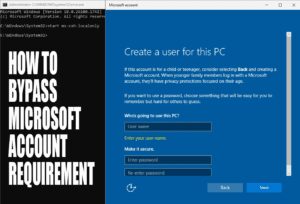
- Choose to add via Microsoft Account or create a local user.
- Set the user type: Administrator or Standard User.
🗑️ Uninstall Unused Programs
Speed up your PC and improve security by removing unused apps.
- Go to Settings → Apps → Installed Apps.
- Click the three-dot menu beside an app → Uninstall.
- Example: If you don’t use OneDrive, remove it.
🔐 Sign-In & Lock Screen Options
Windows 11 offers multiple sign-in methods and customizable lock screens.
Sign-In Options:
- Go to Settings → Accounts → Sign-in options.
- Available methods: Password, PIN, Fingerprint, Security Key, Picture Password.
Biometric options require compatible hardware.
Lock Screen:
- Press Win + L to lock instantly.
- To customize: Settings → Personalization → Lock Screen.
- Set background type, screen timeout, and screen saver.
🌐 Configure Windows Firewall
Turn Firewall On/Off:
- Go to Settings → Privacy & Security → Windows Security → Firewall & Network Protection.
Advanced Configuration:
- Open Advanced Settings to manage:
- Inbound Rules: From internet to your PC.
- Outbound Rules: From your PC to the internet.
- Connection Security Rules: Encryption for communication between two systems.
🔒 Enable Dynamic Lock
Automatically lock your PC when you walk away.
Set It Up:
- Go to Settings → Accounts → Sign-In Options.
- Under Dynamic Lock, check “Allow Windows to lock your device automatically when you’re away”.
- Pair your phone via Bluetooth for it to work.
Final Thoughts
By customizing startup apps, enabling security features like BitLocker, configuring privacy tools like DNS over HTTPS, and managing your system proactively, you can make your Windows 11 experience both smooth and secure. Don’t skip regular backups and always stay up to date with Windows Updates.
🔖 Tags:
Windows 11, startup optimization, Windows security, BitLocker, firewall settings, Windows sandbox, DNS over HTTPS, dynamic lock, antivirus scan, user management, system backup
📢 Hashtags:
#Windows11 #CyberSecurity #BitLocker #WindowsTips #PCOptimization #DNSoverHTTPS #WindowsSandbox #Antivirus #DynamicLock #FirewallSettings
🔗 Useful Links:
⚠️ Disclaimer:
This article is intended for informational purposes only. Always back up your system and data before making significant changes to system settings or security features. Use administrative access responsibly and verify all software sources.








