Is your Windows PC running slower than usual? Over time, temporary files, browser caches, and system junk can accumulate, consuming valuable storage space and reducing performance. In this comprehensive guide, we’ll walk you through seven effective methods to clear cache and junk files from your Windows 10 or 11 system.

Why Clearing Cache is Important
✔ Frees up storage space (Often recovers GBs of space)
✔ Improves system responsiveness
✔ Fixes browser and app performance issues
✔ Resolves update and installation problems
1. Clear Temporary Files Using Windows Settings
This is the easiest way to remove temporary system files:
- Right-click the Windows icon → Select Settings
- Go to System → Storage
- Click Temporary files
- Select categories to clean (Downloads, Recycle Bin, etc.)
- Click Remove files → Continue
⚠ Note: Be careful when selecting “Downloads” as this will delete all downloaded files.
2. Clear Location History Cache
Windows stores your location data which can be cleared:
- Go to Settings → Privacy & security → Location
- Scroll down to Location history
- Click Clear
3. Reset Microsoft Store Cache
Fix Store app issues by clearing its cache:
- Press Win + R, type
wsreset.exe - Press Enter
- Wait for the command prompt to complete
4. Clear Browser Cache (Chrome Example)
For faster browsing:
- Open Chrome → Click ⋮ → Settings
- Go to Privacy and security → Clear browsing data
- Select Advanced → Choose All time
- Check:
- Browsing history
- Cookies
- Cached images/files
- Click Clear data
5. Manually Delete Temp Files
For deeper cleaning:
- Press Win + R, type
%temp%→ Enter - Select all files (Ctrl + A)
- Shift + Delete to permanently remove
- Repeat for
tempfolder (viaWin + R→temp)
6. Flush DNS Cache
Improve internet connectivity:
- Open Command Prompt as Admin
- Type:
ipconfig /flushdns- Press Enter
7. Uninstall Unused Applications
Free up space from bloatware:
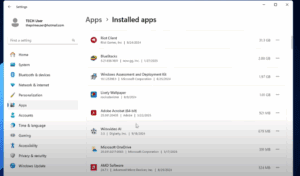
- Go to Settings → Apps → Installed apps
- Sort by size
- Remove unused programs
Final Optimization Tips
- Restart your PC after cleaning
- Use Disk Cleanup (
cleanmgr) for additional space - Consider third-party cleaners like CCleaner for advanced options
🔗 Recommended Tools:







Tags:
Windows Optimization, Clear Cache Windows 11, Speed Up PC, Delete Temp Files, System Maintenance
Hashtags:
#Windows11 #PCOptimization #SpeedUpPC #TechTips #SystemMaintenance








