Linux in 2025 is no longer an exclusive playground for developers or hardcore tech geeks. Today, it’s surprisingly polished, user-friendly, and—believe it or not—an excellent alternative to Windows for the average user. Whether you’re looking to revive an old laptop or try something new, Linux is worth a serious look.
In this article, we’ll explore some of the most common questions and adjustments that new Linux users face, how to fix audio and file access quirks, and how to make Linux feel just as familiar (or even better) than Windows.
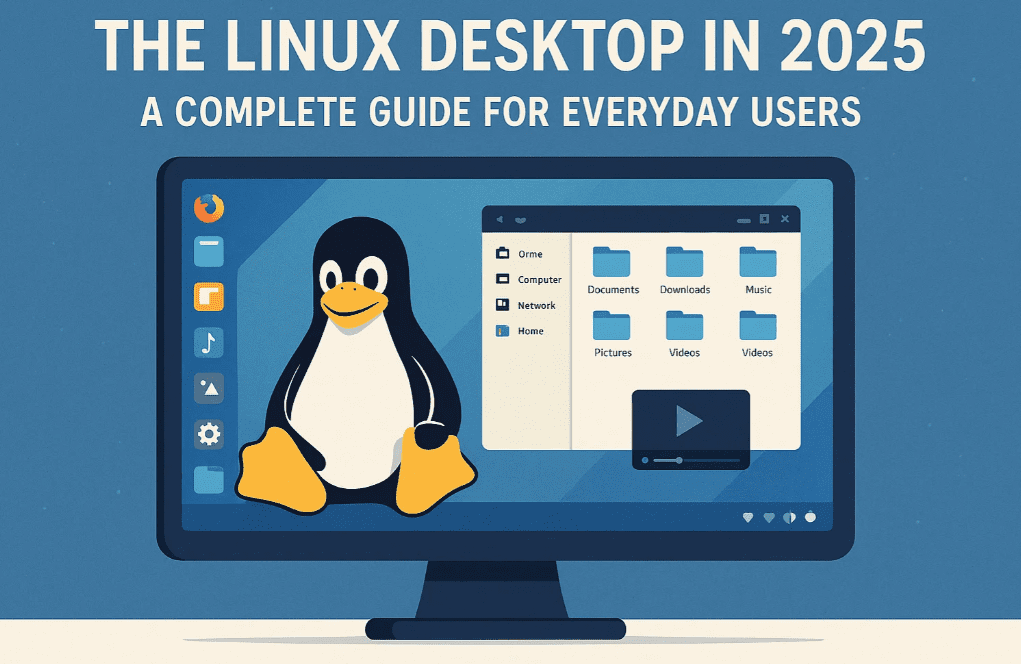
🧭 1. Getting Started: Which Linux Desktop Environment Should You Choose?
One of the first things you’ll encounter when switching to Linux is the choice of desktop environment (DE). Think of it as your “skin” or interface. The two most popular ones you’ll come across are:
- GNOME: Clean, modern, and excellent with network shares and cloud integrations
- KDE Plasma: Highly customizable and fast, used even on Steam Decks
💡 Tip: If you plan to use shared network drives or a NAS (like in offices), GNOME is your best friend. It behaves more like Windows by mounting network drives in recognizable paths—just like your C: or D: drives.
KDE Plasma can also connect to network shares, but the experience can be inconsistent. Sometimes apps may not see your networked files properly unless you dig deeper into the file paths.
If you’re not sure which desktop your chosen Linux distro uses, check the official website or search “[Your Distro] desktop environment.”
💽 2. Partitioning, Disk Management, and USB Tools
When you plug in a new drive on Windows, a couple of clicks in Disk Management is all it takes. On Linux, you might be bombarded with terminal commands—but don’t worry, there’s an easier way!
Most Linux distros include a graphical disk utility (like Disks in Ubuntu or KDE Partition Manager) that lets you:
- Format drives to Linux-only or Windows-compatible file systems (like EXT4 or NTFS)
- Resize existing partitions for dual-boot setups
- Enable auto-mounting on boot
- Encrypt partitions during setup
- Flash
.ISOor.IMGfiles to USB sticks (yes, no third-party tools needed)
🔐 Auto-mount is disabled by default on Linux for security, but it takes just one toggle to enable it.
🔊 3. Fixing Audio Issues with PulseAudio and More
If you’ve ever experienced weird audio problems like:
- Sound playing from the wrong output
- Headphones too quiet
- Microphone not being detected
…then PulseAudio Volume Control (PavuControl) is a lifesaver.


Simply install it from your Software Center. It gives you advanced control over:
- Volume boosting beyond 100%
- Channel balance
- Output/input routing
- Enabling true surround sound if supported
For additional audio tweaks like effects and equalizers, you can try EasyEffects—a modern alternative to proprietary audio enhancers in Windows.
🖱️ 4. Middle-Click Confusion? Let’s Fix That
Coming from Windows, you may expect your mouse’s middle-click to scroll smoothly. But on Linux, it often pastes text instead.
Here’s how to fix it:
- KDE Plasma: Initial support for auto-scroll is built-in but might need enabling.
- Firefox: Go to settings and turn on auto-scroll.
- Chrome/Brave/Edge: Visit
chrome://flags, search for middle-click autoscroll, and enable it. - Other Apps: Many offer similar options in their preferences.
With a few tweaks, your scrolling experience will feel just like Windows again.
🧩 5. Extensions and Customization: Make Linux Yours
One of Linux’s biggest advantages is its flexibility. Don’t like how something looks or behaves? Change it.
- GNOME Users:
Use GNOME Extensions to add desktop icons, taskbars, and even Mac-style docks. - KDE Plasma Users:
Use KWin Scripts for advanced window behaviors, workspace tweaks, and dynamic layouts. You can even make KDE behave like a tiling window manager if you want.
Want the power of GNOME with the style of KDE? Extensions let you blend features from both environments.
🛡️ 6. Protecting Your Linux Setup: Backups Made Easy
If you’re worried about breaking your system while customizing it (we’ve all been there!), Linux has you covered.
Here are two essential backup tools:
- Timeshift – Perfect for creating restore points, especially before making big changes
- Déjà Dup – Great for automated personal file backups to external drives, cloud, or network locations
With these tools, you can experiment confidently. Break something? Just restore and move on.
❓ FAQs: Common Questions from New Linux Users
Q1: Can Linux really replace Windows for daily use?
Yes! Most modern Linux distros offer a great user experience for web browsing, media consumption, office work, development, and even gaming.
Q2: Will I have to use the terminal all the time?
Not at all. Most things can be done via a graphical interface today. The terminal is still there for power users, though.
Q3: Can I play games on Linux?
Thanks to Steam’s Proton and native support, many popular games work well. Just check compatibility at https://www.protondb.com.
Q4: Is Linux secure?
Absolutely. Linux is known for its security and privacy. With updates handled through package managers, it’s easier to keep your system safe.
Q5: Will my printer, Wi-Fi, and Bluetooth work?
Most modern hardware is supported. But if you’re using very new or very obscure hardware, a quick search can help you pick the right distro.
💬 Final Thoughts
The Linux desktop in 2025 is stable, powerful, and user-friendly—even for people who’ve never used Linux before. Whether you’re customizing KDE to your liking or leveraging GNOME’s smooth integration, there’s something for everyone.
If you’re tired of Windows updates, crashes, or just want to breathe new life into old hardware, Linux is 100% worth a try. And with tools like Timeshift and PavuControl, even the trickier parts are manageable.
Welcome to the world of freedom and control—welcome to Linux. 🐧
🏷️ Tags
linux desktop, linux for beginners, linux vs windows, gnome, kde plasma, linux backup tools, linux audio fix, linux network share, linux customization, pavucontrol, timeshift linux, linux 2025
📢 Hashtags
#Linux2025 #GnomeDesktop #KDEPlasma #LinuxTips #LinuxForBeginners #OpenSource #LinuxCustomization #LinuxAudio #LinuxNetwork #LinuxVsWindows
Disclaimer: This article is written based on personal hands-on experience using various Linux distributions and tools in 2025. Always check compatibility and backup important data before switching operating systems or attempting major system changes.








