Windows 11 LTSC (Long-Term Servicing Channel) represents Microsoft’s most stable and lightweight version of Windows 11, specifically designed for users who prioritize reliability over constant feature updates. Unlike standard Windows 11 versions that receive frequent updates, LTSC versions get only security patches for 5-10 years, making them ideal for mission-critical systems, enterprise environments, and users who want a bloatware-free experience.

Understanding Windows 11 LTSC
Before we dive into the installation process, it’s important to understand what makes Windows 11 LTSC special:
- Extended Support Lifecycle: Receives security updates for 5-10 years without feature changes
- Minimal Bloatware: Excludes consumer apps like Candy Crush, Microsoft Store, and other pre-installed software
- Stable Performance: Ideal for systems where consistency is more important than new features
- Reduced Update Frequency: Only receives critical security updates, minimizing disruptions
System Requirements
To install Windows 11 LTSC, your system must meet these minimum specifications:
| Component | Minimum Requirement | Recommended |
|---|---|---|
| Processor | 1 GHz or faster with 2+ cores | 2 GHz or faster with 4+ cores |
| RAM | 4 GB | 8 GB or more |
| Storage | 64 GB | 128 GB SSD or larger |
| Graphics | DirectX 12 compatible | Dedicated GPU |
| TPM | Version 2.0 | Version 2.0 |
| Secure Boot | Required | Enabled |
Step 1: Obtaining Windows 11 LTSC ISO
Finding the Official Source
- Open your preferred web browser (Chrome, Edge, or Firefox recommended)
- Navigate to the Microsoft Volume Licensing Service Center (VLSC) at https://www.microsoft.com/licensing/servicecenter
- Note: You’ll need a valid Volume Licensing agreement to access downloads
- Search for “Windows 11 Enterprise LTSC” in the download section
Alternative Sources (For Evaluation)
If you don’t have volume licensing, you can:
- Check the Microsoft Evaluation Center for trial versions
- Access through Visual Studio subscriptions
- Contact Microsoft partners for evaluation copies
Step 2: Preparing Installation Media
Choosing Your USB Creation Tool
We recommend these reliable options:
- Rufus (https://rufus.ie) – Best for most users
- Lightweight (1.3MB)
- Supports UEFI and legacy BIOS
- Can bypass Windows 11 requirements if needed
- Ventoy (https://www.ventoy.net) – Advanced option
- Allows multiple ISOs on one drive
- Persistent storage capability
- Microsoft Media Creation Tool – Official but limited to retail versions
Creating Bootable Media with Rufus (Detailed Steps)
- Download the latest Rufus version from the official site
- Insert a high-quality USB drive (8GB minimum, 16GB recommended)
- Launch Rufus (no installation needed)
- In the Device dropdown, select your USB drive
- Click “SELECT” and choose your Windows 11 LTSC ISO
- Partition scheme:
- For modern PCs: GPT (UEFI systems)
- For older PCs: MBR (BIOS systems)
- File system: NTFS (recommended)
- Cluster size: Default
- Check “Quick format” for faster creation
- Click “START” and wait for completion (typically 10-30 minutes)
Pro Tip: Use USB 3.0 ports and drives for significantly faster creation times
Step 3: BIOS/UEFI Configuration
Before installation, you may need to adjust these BIOS settings:
- Accessing BIOS/UEFI:
- Restart your PC
- Press the appropriate key (typically F2, DEL, F12, or ESC)
- Consult your motherboard manual if unsure
- Recommended Settings:
- Secure Boot: Enabled
- TPM: Enabled (if available)
- Boot Mode: UEFI (preferred) or Legacy/CSM if needed
- Fast Boot: Disabled (for installation)
- SATA Mode: AHCI (for SSDs)
- Boot Order:
- Set USB as first boot device
- Save changes and exit
Step 4: Installation Process (Step-by-Step)
- Boot from USB:
- Insert your prepared USB drive
- Restart your PC
- Press the boot menu key (often F12, ESC, or F8)
- Select your USB drive
- Windows Setup:
- Language/Region: Select your preferences
- Click “Install Now”
- Enter your product key (or skip if installing evaluation)
- Accept license terms
- Partitioning:
- For new installations: Select “Custom”
- Delete existing partitions if needed (backup first!)
- Create new partition(s)
- Select the primary partition and click “Next”
- Installation:
- The process will take 15-30 minutes
- Your PC will restart several times
Post-Installation Configuration
Initial Setup
- Region Settings:
- Select your country/region
- Choose keyboard layout
- Network Connection:
- Connect to a network if needed
- For privacy: Consider skipping Wi-Fi initially
- Account Setup:
- For local account: Select “Offline account”
- Create username and password
Essential Post-Install Steps
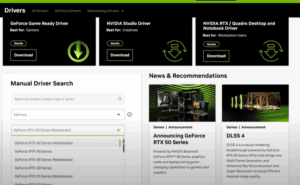
- Driver Installation:
- Install chipset drivers first
- Then graphics, audio, and network drivers
- Use manufacturer websites for latest versions
- Check for critical security updates
- Install all available updates
- Security Configuration:
- Enable Windows Defender
- Configure firewall settings
- Set up BitLocker if needed
- Performance Optimization:
- Disable unnecessary startup programs
- Adjust power settings for performance
- Configure virtual memory
Troubleshooting Common Issues
Installation Problems
- “This PC can’t run Windows 11” Error:
- Ensure TPM 2.0 is enabled in BIOS
- Verify Secure Boot is enabled
- Use Rufus to bypass requirements if needed
- Boot Device Not Found:
- Check BIOS boot order
- Verify USB was created properly
- Try different USB port
- Driver Missing During Install:
- Have network drivers ready on another USB
- Use “Load driver” option in setup
Performance Issues
- Slow Performance:
- Check for driver updates
- Verify power settings
- Disable visual effects
- Activation Problems:
- Ensure you’re using correct LTSC key
- Contact volume licensing service if needed
Windows 11 LTSC vs Regular Windows 11
| Feature | Windows 11 LTSC | Regular Windows 11 |
|---|---|---|
| Update Cycle | 5-10 years | 6 months |
| Pre-installed Apps | Minimal | Many consumer apps |
| Feature Updates | None | Twice yearly |
| Support Length | Extended | 24 months per version |
| Ideal For | Stability-focused users | Users wanting latest features |
Final Thoughts
Windows 11 LTSC offers a unique combination of stability and performance that’s unmatched by regular Windows versions. While the installation process requires careful attention to detail, the long-term benefits of a clean, stable system are well worth the effort.
For ongoing maintenance:
- Schedule regular backups
- Monitor security updates
- Review system performance periodically
Tags: Windows 11, LTSC, Windows installation, enterprise Windows, stable OS, Windows configuration, system setup, Microsoft Windows
Hashtags: #Windows11 #LTSC #TechGuide #WindowsInstallation #EnterpriseIT #SystemAdmin #PCOptimization #MicrosoftWindows #StableOS #ITProfessional