Setting up a new PC is exciting — until you encounter that frustrating screen in Device Manager filled with yellow exclamation marks. Those “unknown devices” are missing drivers, and downloading the wrong ones from shady websites can crash your system or infect your computer.
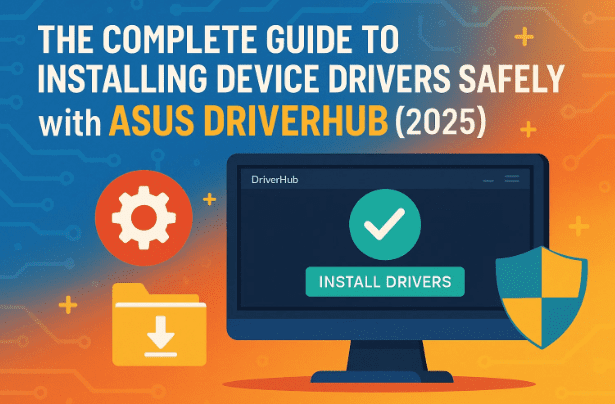
Thankfully, ASUS DriverHub — a smart, built-in driver utility — now makes the entire process simple, fast, and secure. Whether you’ve just built a new PC or reinstalled Windows, this guide will walk you step-by-step through installing the correct drivers using ASUS DriverHub, explaining why it’s safer than third-party tools and how to avoid the common pitfalls that many beginners face.
Let’s get started.
1. ⚙️ Why Drivers Matter in Windows Setup
Every piece of hardware in your computer — from your graphics card to your Wi-Fi adapter — needs a small piece of software called a driver to communicate with Windows. Without the correct drivers, your PC can’t properly use the hardware.
When you install a fresh copy of Windows, it often provides generic drivers, which allow basic functionality but lack advanced features or optimizations. For example:
- Your GPU may not deliver full gaming performance.
- The network adapter might fail to connect to Wi-Fi.
- USB ports may not recognize external drives.
In short, having proper, up-to-date drivers is essential for stability, performance, and hardware longevity.
2. ⚠️ Risks of Downloading Drivers Manually
Let’s be honest — many people, especially beginners, search the internet for missing drivers and download whatever appears first. Unfortunately, that’s one of the easiest ways to:
- Infect your system with malware or spyware.
- Corrupt Windows by installing incompatible drivers.
- Break hardware functionality, causing freezes or blue screens.
Dozens of unverified “driver pack” websites bundle malicious installers disguised as utilities. And even when they’re clean, they may deliver the wrong driver for your exact hardware revision.
So before you go hunting for drivers on random forums, there’s a better, safer method — using ASUS DriverHub, which automatically fetches official drivers from the manufacturer’s database.
3. 💡 What Is ASUS DriverHub?
ASUS DriverHub is a utility integrated into many ASUS systems and downloadable from the official ASUS website. It’s designed to detect your hardware automatically and install the exact drivers required for your motherboard or laptop.
Think of it as your personal driver assistant.
Instead of manually finding your motherboard model and searching online, DriverHub does it all in seconds.








🧰 Key Features of ASUS DriverHub
- Automatic Hardware Detection: Identifies your system and chipset accurately.
- Official Downloads: Fetches drivers directly from ASUS’s secure servers.
- One-Click Installation: You can install all required drivers with a single click.
- Version Control: Ensures the newest drivers replace outdated ones.
- Safe and Verified: No risk of third-party infection or mismatched drivers.
Let’s now move to the practical part — how to install and use it properly.
4. 🪜 Step-by-Step Guide to Installing Drivers Safely
Before diving into the steps, it’s worth understanding why ASUS’s approach stands out.
Most systems rely on Windows Update to supply generic drivers — often older versions. By contrast, ASUS DriverHub connects directly to your motherboard’s driver catalog, guaranteeing exact compatibility.
Now, let’s begin the step-by-step process.
Step 1: Install ASUS DriverHub
- Visit the official ASUS Support website → https://www.asus.com/support.
- Search for your motherboard or laptop model.
- Under the Utilities section, download ASUS DriverHub.
- Run the installer and accept the license agreement.
- Once installed, click Finish — DriverHub will launch automatically.
(Important: Never download ASUS utilities from third-party websites.)
Step 2: Detect Missing Drivers
When you first open DriverHub, it scans your computer for missing or outdated drivers.
You’ll see a list of components such as:
- Chipset
- Graphics
- Audio
- Network (LAN/Wi-Fi)
- Bluetooth
- SATA/NVMe Storage
Each entry will display the latest version number and release date.
This quick scan eliminates the guesswork — you’ll immediately know what your PC lacks.
Step 3: Choose Drivers to Install
DriverHub gives you two convenient options:
- Install All: Automatically installs every missing or outdated driver.
- Manual Selection: Pick only the drivers you want to update.
For beginners, Install All is the easiest and safest route. Advanced users may prefer manual control, especially if they use specific GPU or sound configurations.
Step 4: Automatic Download and Installation
Click Install All, and DriverHub will start downloading each official driver directly from ASUS servers.
The download size and duration depend on your internet speed, but the process is automatic. Once complete, it will install each driver one by one without requiring manual extraction or setup wizards.
After installation, you may be prompted to reboot your computer — always do this to finalize driver registration in Windows.
Step 5: Verify Installation
After rebooting:
- Press Windows + X → select Device Manager.
- Check that all yellow warning icons are gone.
- Confirm that key components (Display, Network, Audio, etc.) now show correct hardware names.
If everything looks good, congratulations — your drivers are successfully installed.
5. 💽 How to Handle Network or NVMe Drivers Manually
Sometimes, before you even reach the desktop (for example, during Windows installation), you might need to load special drivers manually — especially IRST (Intel Rapid Storage Technology) or NVMe drivers for high-speed SSDs.
Here’s how to prepare in advance:
- Create a folder named “Drivers” inside your Windows USB installation media.
- Download your motherboard’s NVMe or IRST driver from ASUS Support.
- Place the files in that folder.
- During Windows setup, when it says “Where do you want to install Windows?”, click Load Driver, navigate to the folder, and select it.
This ensures Windows can detect your SSD and complete the installation successfully.
Even though DriverHub handles most drivers post-installation, critical ones like storage and network may need manual loading if Windows can’t recognize them automatically.
6. ⏸️ Preventing Windows from Installing Outdated Drivers
One subtle but important step many users overlook is managing Windows Update’s automatic driver replacement.
Windows occasionally installs its own, often older, drivers after you’ve installed the correct ones — causing performance drops or audio/network issues.
To Prevent This:
- Press Windows + R, type
sysdm.cpl, and hit Enter. - Under the Hardware tab, click Device Installation Settings.
- Choose No (your device might not work as expected).
- Click Save Changes.
This tells Windows not to override your ASUS-approved drivers during updates.
7. 🔧 Common Driver Installation Problems and Fixes
Even with the best tools, issues can occur. Here’s how to handle common driver-related problems.
1. Driver Installation Fails or Freezes
- Reboot the PC and rerun DriverHub as Administrator.
- Temporarily disable antivirus (it can block installations).
- Check if your Windows version matches the driver (Windows 10 vs 11).
2. No Internet Connection After Windows Reinstall
This happens if your network driver is missing.
Solution:
- Download the LAN/Wi-Fi driver from another PC using ASUS Support.
- Transfer it via USB, install it manually, and then rerun DriverHub.
3. Device Still Showing Unknown Status
If a device remains unidentified:
- Open Device Manager.
- Right-click → Properties → Details → Hardware IDs.
- Copy the ID and search it on the ASUS Support page (not on third-party sites).
4. BSOD or Instability After Update
- Boot into Safe Mode.
- Use System Restore to roll back to a previous restore point.
- Reinstall drivers via DriverHub again.
8. 🧠 Tips for Advanced Users and System Builders
If you’re an enthusiast or frequently build systems, these additional practices will save time and frustration.
1. Keep a Local Driver Backup
After setting up a system, export all installed drivers using this command:
dism /online /export-driver /destination:D:\DriverBackup
This creates a portable backup you can reuse without internet.
2. Integrate Drivers into ISO Files
For power users, integrate IRST or NVMe drivers directly into a Windows ISO using tools like NTLite or DISM.
This ensures even brand-new hardware is recognized during setup.
3. Update BIOS and Chipset First
Always start with BIOS and chipset drivers before GPU, audio, or LAN. This prevents conflicts and ensures better hardware recognition.
4. Use Manufacturer Tools for Other Brands
If your system isn’t ASUS, similar official utilities exist:
- MSI Center – https://www.msi.com/Landing/msi-center
- Gigabyte Control Center – https://www.gigabyte.com
- Dell SupportAssist – https://www.dell.com/support
Avoid unofficial driver packs or “auto-installer” sites at all costs.
9. 💬 Frequently Asked Questions
Q1: Do I need an internet connection to use ASUS DriverHub?
A: Yes. It connects to ASUS’s servers to fetch official driver files securely. However, you can preload essential drivers (like network) manually if the PC can’t connect yet.
Q2: Can DriverHub work on non-ASUS motherboards?
A: No. It’s designed exclusively for ASUS systems to ensure accuracy and security.
Q3: Should I uninstall older drivers first?
A: Not usually. DriverHub automatically overwrites outdated versions safely.
Q4: Why are some drivers missing after reinstalling Windows 11?
A: Microsoft’s installation media doesn’t always include latest drivers for new chipsets. That’s why using DriverHub (or manual downloads) is essential.
Q5: Is it safe to use Windows Update for drivers?
A: It’s safe, but not ideal. Windows drivers are often older and may lack hardware-specific optimizations.
Q6: Can I schedule automatic driver updates?
A: Yes. Within DriverHub’s settings, you can enable Auto Scan and Update, which checks weekly for new releases.
10. 🏁 Conclusion: Safe, Simple, and Reliable
In today’s world of endless third-party software and questionable driver packs, ASUS DriverHub stands out as a genuine, trustworthy solution.
It eliminates guesswork, avoids security risks, and gives even beginners confidence that their systems are running with the correct, manufacturer-verified drivers.
So whether you’ve just built a gaming PC or repaired an old workstation, always get your drivers directly from the source — it’s faster, cleaner, and safer.
#ASUS #DriverHub #Windows11 #DeviceDrivers #PCSetup #SafeComputing #TechGuide #MotherboardDrivers #ASUSSupport #WindowsTips
Disclaimer:
This article is for educational and informational purposes only. Always download software and drivers directly from official manufacturer websites. Installing unofficial or modified drivers can cause security vulnerabilities or hardware instability.








