Looking to expand your computer’s storage or transfer files more easily between devices? External storage devices like USB flash drives, external hard disks, and SD cards are your best friends. Whether you’re backing up precious memories, moving files between laptops, or just freeing up space, this guide will walk you through everything — from connecting a USB drive to formatting, renaming, and troubleshooting device issues.
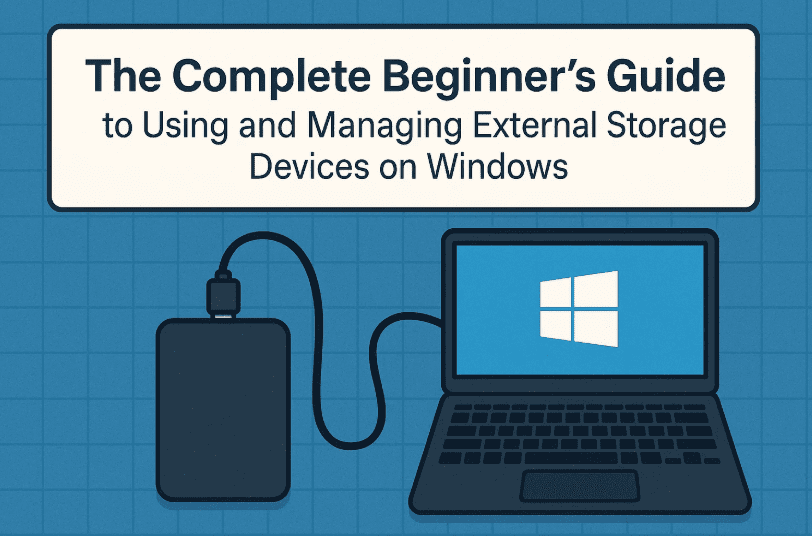
So grab your external storage device and let’s dive in!
📌 What Are External Storage Devices?
Before we jump into the steps, let’s first understand what we’re working with.
External storage devices are physical tools you can plug into your computer to store, move, or back up data. These devices are widely used because they’re portable, easy to use, and compatible with most systems.
Here are the main types of external storage devices:
🧳 Common Types of External Storage Devices
Let’s quickly go over the most popular ones:
- USB Flash Drives: Small and portable, these are great for transferring documents, photos, and videos. Storage ranges from 4GB to 1TB.
- External Hard Drives (HDD/SSD): Larger in size and capacity (starting from 500GB up to several terabytes), ideal for system backups or massive file transfers.
- SD Cards: Commonly used in smartphones, cameras, and sometimes laptops. They’re compact and can be used with card readers on PCs.
🔌 Connecting and Identifying an External Drive
Let’s start with the basics — plugging in your device and identifying it.
- Plug in the USB drive or SD card into an available USB port or SD card slot on your computer.
- Open File Explorer by pressing
Windows + E. - Click on “This PC” to view all your drives.
- Your external storage will be listed here, often labeled with a drive letter like
E:,F:, orG:and a default name.
👉 Tip: You can right-click the drive and select “Properties” to see more details such as space used, file system (FAT32, exFAT, NTFS), and device name.
✏️ Renaming Your External Drive
Want to personalize your drive? Here’s how:
So far we’ve plugged in the drive and explored it in File Explorer. Now let’s make it yours by renaming it.
Steps to Rename:
- In File Explorer, right-click the external drive.
- Select “Properties”.
- In the General tab, type a new name in the field where the current drive name is shown (e.g., “Kelvin”).
- Click Apply, then OK.
Your new drive name will now appear in File Explorer.


📁 Copying Files to and from the Drive
Let’s say you want to move a document to the USB drive. It’s as simple as drag and drop.
- Open File Explorer in two windows — one showing your documents and the other showing your external drive.
- Drag the file from your documents folder and drop it into the external drive window.
- Or right-click the file, choose Copy, then navigate to the external drive and right-click → Paste.
📝 Note: Always safely eject your device before physically removing it to avoid data corruption.
⚙️ Managing External Drives in Disk Management
Ready to get a bit more advanced? Windows allows deeper control over your drives using Disk Management.
Now that we’ve copied files and renamed our drive, let’s go one step further — managing disk settings.
How to Open Disk Management:
- Right-click the Start button.
- Select Disk Management from the list.
From here, you can:
- Change the drive letter:
- Right-click your USB drive.
- Select “Change Drive Letter and Paths” → Change → Choose a new letter.
- Confirm changes. Windows may warn you that programs relying on the old drive letter might not work.
- Format the drive:
- Right-click your USB drive in Disk Management.
- Click Format → Choose file system (FAT32 is most compatible).
- Confirm, but remember: Formatting erases all data on the drive.
📌 Tip: After formatting, your drive will appear empty and ready to use again.
🧰 Troubleshooting USB or External Drive Issues
Sometimes, your external drive might not show up or function correctly. Here’s what to do:
Let’s take a quick detour — if your USB device isn’t recognized or behaving oddly, Device Manager is your troubleshooting hub.
Steps to Check via Device Manager:
- Right-click Start and open Device Manager.
- Expand the section Universal Serial Bus controllers.
- Look for entries like USB Mass Storage Device or Generic USB Hub.
- Right-click the device → Properties to check:
- Driver Status (if it’s working properly)
- Driver Details
- Power Management: Ensure “Allow the computer to turn off this device to save power” is checked to avoid unintentional disconnection.
If you see a yellow warning icon:
- Try updating the driver.
- Unplug and replug the device.
- Download updated drivers from the manufacturer’s website if needed.
🧠 Quick Recap: Key Takeaways
Let’s summarize everything we’ve learned so far:
- External drives are handy tools for data storage and transfers.
- You can rename, format, and assign new letters to them via File Explorer and Disk Management.
- Files can be moved easily by drag and drop or copy-paste.
- Use Device Manager to fix connection or driver-related issues.
❓FAQs
Q: Which format should I choose when formatting a USB drive?
A:
- Use FAT32 for compatibility with most systems (Windows, macOS, Linux, TVs, consoles).
- Use exFAT for larger files (>4GB).
- Use NTFS if you’re working only with Windows and need advanced features.
Q: My USB drive is not showing up. What should I do?
A:
Check Device Manager for errors or Disk Management to see if it’s unallocated. Try changing the drive letter or reinstalling drivers.
⚠️ Disclaimer:
Formatting a drive will delete all existing data. Please back up important files before proceeding with any formatting steps mentioned in this article.
🔗 Useful Links
- 🔌 Download USB drivers from manufacturer’s website (check brand-specific links such as SanDisk, Seagate, WD)
- 🧰 Microsoft Disk Management Tool Documentation: https://learn.microsoft.com/en-us/windows-server/administration/windows-commands/disk-management
✅ Final Thoughts
External storage is no longer just an accessory — it’s a necessity in today’s digital life. By learning how to manage your drives, format them safely, and troubleshoot connection issues, you’re already ahead of most casual users. Whether you’re storing family photos or backing up a project, you now have the confidence to take full control of your external devices.
Keep exploring, and don’t be afraid to dive deeper into Windows tools — there’s always more to learn!
Tags: external storage, usb drive, sd card, disk management, device manager, windows 11, windows tips, file transfer, format usb, troubleshoot drive
Hashtags:
#USBDrive #ExternalStorage #WindowsTips #FormatUSB #DeviceManager #DiskManagement #TechGuide #FileTransfer #StorageTips







