Windows 11 introduced a sleek, modern design with a centered Start menu. While many users appreciate the refreshed look, others miss the familiarity and customization offered by older versions of Windows, such as Windows 7, 8, 10, or even the classic charm of Windows XP.
If you’re among those looking for a way to change or enhance your Windows 11 Start menu, this article is for you. We’ll walk you through four powerful Start menu alternatives—each with its unique features, styles, and levels of customization.
Why Replace the Windows 11 Start Menu?
There are many reasons users might seek a different Start menu:
- Preference for the classic Start menu layout from previous Windows versions
- Desire for more customization and personalization
- Improved functionality and user experience
- A more efficient workflow
Now, let’s explore four of the best Start menu replacements for Windows 11.
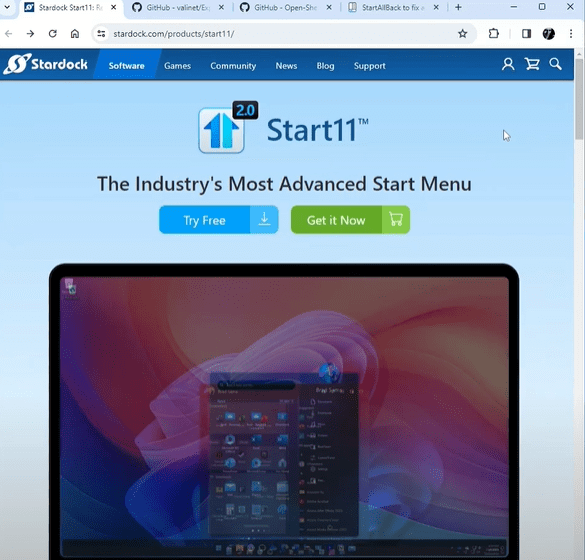
1. Start11 by Stardock (Best Overall)
Start11 by Stardock is arguably the most powerful and polished Start menu replacement on the market today. It offers a professional-grade experience with multiple layout options:
- Windows 7 Style: Perfect for users who miss the classic Start menu design.
- Windows 10 Style: A modern, familiar layout for long-time Windows 10 users.
- Modern & Pro Styles: Sleek, futuristic styles with advanced options.
- Custom Start Button: You can personalize your Start button with custom images or select from included icons.
- Taskbar Tweaks: Adjust transparency, texture, clock display (with seconds), and more.
Start11 also allows pinning files and folders directly to your taskbar, offering enhanced workflow and accessibility.
While Start11 is a premium tool, it offers a trial version with full functionality. It’s ideal for users who want a premium, highly customizable experience.
2. ExplorerPatcher (Best Free Option)
ExplorerPatcher is an open-source utility designed to bring back Windows 10-style functionality, including the traditional Start menu.
Key Features:
- Windows 10 Start Menu: Restore the familiar layout with full customization.
- Taskbar Tweaks: Change the location, behavior, and design of your taskbar.
- System Tray & Explorer Customization: Deep control over how Windows elements look and behave.
- Regular Updates: Frequent improvements and bug fixes from the developer community.
ExplorerPatcher is a lightweight, powerful tool perfect for users who want a Windows 10-like experience on Windows 11 without spending money.
3. Open-Shell Menu (Best for Windows 7 Fans)
Open-Shell Menu (formerly Classic Shell) is another free, open-source alternative. It recreates the beloved Windows 7 Start menu and adds deep customization options.
Features Include:
- Multiple Start Menu Styles: Choose from Classic, Classic with Two Columns, and Windows 7 Style.
- Skin Support: Change the visual style of your Start menu to match your desktop theme.
- Full Control: Configure nearly every aspect of the menu layout and behavior.
While not as sleek as Start11, Open-Shell Menu is a fantastic lightweight solution for users who prioritize function over flash.









4. StartAllBack (Great Windows 7 Visual Experience)
StartAllBack is a paid utility that restores and enhances the classic Windows 7-style interface while keeping Windows 11’s modern performance.
Highlights:
- Windows 7 Start Menu: Recreates the nostalgic look with a clean, modern touch.
- Taskbar Customization: Fully configurable taskbar, system tray, and more.
- Elegant UI: Includes refined visual options like transparency, texture effects, and rounded corners.
- Trial Version: Offers 100 days free to explore all features.
StartAllBack offers an excellent balance between form and function, and is ideal for users who love the Windows 7 look but want it in a more modern package.
Final Thoughts: Which One Should You Choose?
Each of these tools brings something unique to the table:
- Choose Start11 if you want a highly polished, feature-rich experience with various styles.
- Go for ExplorerPatcher if you’re looking for a free tool with strong performance and stability.
- Pick Open-Shell Menu for simplicity, nostalgia, and lightweight performance.
- Opt for StartAllBack if you’re after the full Windows 7 experience, modernized for today.
Customization is one of the joys of Windows. With these Start menu alternatives, you can tailor your desktop experience to fit your style and workflow.
Bonus Tip:
If you’re interested in customizing hidden themes and UI elements in Windows 11, including educational themes and hidden UI tweaks, explore the additional articles on this site for more Windows optimization tips.
Tags:
windows 11, start menu, windows customization, windows 10, windows 7, start11, explorer patcher, open shell, startallback, desktop customization, windows themes, pc performance, tech guide
Hashtags:
#Windows11 #StartMenu #WindowsCustomization #Start11 #ExplorerPatcher #OpenShell #StartAllBack #WindowsTips #PCTweaks #TechGuide #CustomizationTools #WindowsXPStyle #Windows7Style #ProductivityTools








