There’s no shortage of content explaining why you should switch from Windows or macOS to Linux. Whether it’s frustration with the direction Microsoft is taking Windows 11, privacy concerns, or the desire for more control, Linux has become an increasingly attractive option.
But while many articles and videos focus on the “why,” very few explain the “how to actually live with Linux.” This blog is all about the practical, day-to-day things you should know before or after switching—especially if you’re new to Linux.

Let’s get right into it.
🧠 1. Linux Is Not a Single Operating System—It’s a Family of Distros
When people say “Linux,” they’re actually referring to a whole ecosystem of operating systems called distributions (or “distros”).
Each distro is a customized bundle of the Linux kernel, desktop environment, software, and tools—curated for a specific kind of user or device.
So… What Distro Should You Choose?
If you’re a beginner, we strongly recommend:
- ✅ Linux Mint – Stable, beginner-friendly, and works out-of-the-box
- ✅ Zorin OS – Clean and polished UI; great for users switching from Windows or macOS
Both are based on Ubuntu, which is one of the most supported and widely used Linux bases.
💡 2. Linux ≠ Windows: Understanding the Key Differences
One of the biggest mistakes beginners make is expecting Linux to behave exactly like Windows. It doesn’t—and that’s okay!
Here are a few important differences:
- File Systems:
- Windows = NTFS
- Linux = ext4, Btrfs, XFS, etc.
- Software Installation:
On Windows, you download.exefiles.
On Linux, you use a package manager (e.g.,apt,dnf,pacman). Many beginner distros like Mint or Zorin have graphical “app stores” for easy software installation, but knowing how to use the terminal will take you further (more on that later).
🧰 3. Check Your Software Needs: Can It Run on Linux?
Before you make the full switch, ask yourself:
What apps do I use every day? Are they available on Linux?






Popular software that does NOT work natively on Linux:
- Adobe Creative Cloud (Photoshop, Premiere Pro)
- Microsoft Office (Excel, Word – although web versions work)
- Some proprietary finance or industrial software
Workarounds:
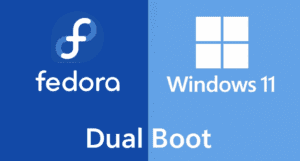
- Dual Boot: Install both Linux and Windows on the same machine and use Windows only when needed.
- Wine / PlayOnLinux: Run some Windows apps via compatibility layers (results vary).
- Virtual Machines: Use software like VirtualBox to run Windows inside Linux.
For everything else, there are native alternatives on Linux:
| Windows/Mac Software | Linux Alternative |
|---|---|
| Adobe Photoshop | GIMP, Krita |
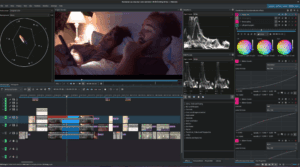
| Adobe Premiere Pro | Kdenlive, DaVinci Resolve |
| Microsoft Office | LibreOffice, OnlyOffice |
| Notepad++ | Geany, VS Code |
| Steam | Steam (native on Linux!) |
💻 4. Think About Hardware Compatibility
Linux supports a wide range of hardware, but not everything works out-of-the-box—especially when manufacturers don’t provide Linux drivers.
Tips:
- ✅ Printers: Look for Brother printers. For example, Brother HL-1210W is well-supported.
- ✅ Wi-Fi/Bluetooth adapters: Search the exact model + “Linux compatibility” before buying.
- ❌ Don’t expect Linux to support niche, proprietary accessories (especially docks and specialty audio gear).
Remember, if a product doesn’t support Linux, it’s usually the manufacturer’s fault—not Linux’s.
🔁 “If they don’t support Linux, I don’t support them.”
🖥️ 5. Don’t Fear the Terminal (It’s Your Friend)
The terminal might look scary, but it’s incredibly powerful and often faster than using a GUI. You don’t need to be a programmer—just learn a few basic commands:
- Update system:
sudo apt update && sudo apt upgrade - Install software:
sudo apt install [package-name] - Search software:
apt search [keyword]
💡 You can install multiple programs in one line:
sudo apt install vlc gimp libreoffice
💾 6. Always Keep Backups
Whether you use Windows, macOS, or Linux—data loss can happen. Don’t risk it.
Recommended backup strategies:
- Use external drives or cloud storage to back up personal files
- Linux Mint includes Timeshift, a system snapshot tool (like System Restore for Windows)
- Keep a Live USB of your Linux distro—it can help you troubleshoot boot issues and recover data if needed
🎮 7. Yes, You Can Game on Linux!
It’s 2025—Linux gaming is no longer a pipe dream.
Thanks to Valve’s Proton, Lutris, and Heroic Games Launcher, many Windows-only games run perfectly on Linux.
What Works:
- Native Linux games on Steam
- Many Windows games via Proton (e.g., Dead by Daylight, Apex Legends)
- Emulators (RetroArch, Dolphin, Yuzu, etc.)
What Doesn’t:
- Games with strict anti-cheat systems (e.g., Valorant, Fortnite)
💡 Check compatibility: https://www.protondb.com
❓ Frequently Asked Questions
Q: Can I use Linux without touching the terminal?
Yes, especially with beginner distros like Mint or Zorin OS. But learning a few terminal basics helps a lot.
Q: Is Linux really free?
100%. Most Linux distros and software are open-source and free to use.
Q: Can I dual boot Windows and Linux?
Absolutely. It’s the best of both worlds—Linux for daily use, Windows for apps or games that don’t work on Linux.
Q: What if I mess up my Linux install?
Keep a Live USB handy and use Timeshift snapshots to restore your system.
Q: Does Linux get viruses?
Linux is far more secure than Windows. While not immune, it’s rarely targeted due to its architecture and smaller user base.
✅ Final Thoughts
Switching to Linux isn’t just about changing your operating system—it’s about reclaiming control of your computer. It may take a little effort, but the rewards are worth it:
- No forced ads
- No bloated background updates
- No unnecessary tracking
- Total freedom and customization
Whether you’re switching out of curiosity or frustration, remember: Linux is not perfect—but it’s powerful, private, and yours.
🔗 Helpful Links
- 🌱 Linux Mint Official Website
- 🎨 Zorin OS
- 🔧 Balena Etcher (Create Bootable USB)
- 🎮 ProtonDB – Game Compatibility Database
- 🕒 Timeshift Backup Tool
🏷️ Tags
linux switch guide, linux beginner tutorial, dual boot linux windows, linux mint setup, zorin os, linux software alternatives, linux gaming, linux for productivity, timeshift, linux hardware compatibility
📢 Hashtags
#LinuxMint #LinuxSwitch #OpenSource #LinuxGaming #LinuxTutorial #DualBoot #ZorinOS #LinuxGuide #LinuxForBeginners #TimeshiftLinux
Disclaimer: This article is written from a practical user perspective, not from a developer or system administrator’s view. Always back up your data and check hardware/software compatibility before making a full switch to Linux.








