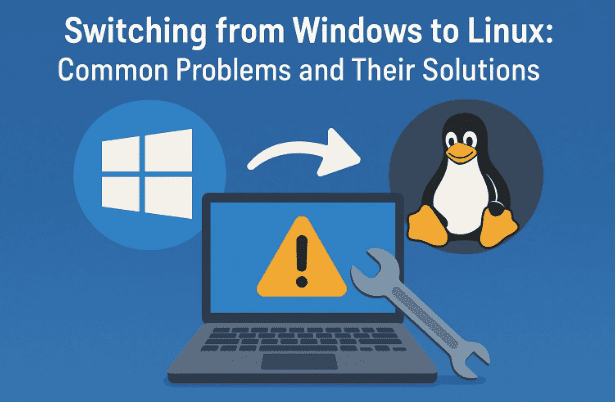
If you’ve ever thought about ditching Windows for Linux, you’re not alone. With concerns about privacy, data collection, and system bloatware, more people than ever are making the switch. But while Linux is powerful, flexible, and privacy-friendly, the transition isn’t always smooth.
In this article, we’ll walk through the six most common problems you’re likely to face when switching from Windows to Linux, and most importantly, how to solve them step by step. Whether you’re dual-booting for the first time or planning a complete migration, this guide will help you set expectations and prepare for success.
Let’s get started.
1. Hardware Compatibility Issues 🔧
The first big hurdle most people face is hardware compatibility. Unlike Windows, which usually comes preloaded with drivers for most consumer devices, Linux sometimes struggles to recognize newer or highly specialized hardware.
Typical issues you might face:
- Touchscreens on laptops not working properly.
- Nvidia GPU drivers being buggy or unavailable.
- Advanced power saving features like lid-closing actions not working.
- Limited support for multiple displays or very high resolutions.
- Bluetooth or Wi-Fi adapters occasionally failing to connect.
Why does this happen? Because Linux relies on open-source drivers that must be approved by the Linux community before making their way into distributions (distros). If a company doesn’t provide a driver or only provides a binary (closed) version, Linux developers may have to reverse-engineer it — which can lead to buggy performance.
How to solve this:
- Choose Linux-friendly hardware: Brands like Lenovo ThinkPad and Dell XPS are known to be highly compatible.
- Pick the right distro: Ubuntu and its derivatives (like Pop!_OS) often bundle proprietary drivers, making setup easier.
- Install drivers manually: For Nvidia cards, you can quickly install drivers using:
sudo apt install nvidia-driver-535
- Install multimedia codecs: Ubuntu makes this easy with:
sudo apt install ubuntu-restricted-extras
- Fallback plan: If a specific feature doesn’t work (e.g., touchscreen), it usually won’t break the system — you can still use Linux effectively with external peripherals.
👉 Tip: Before switching, check hardware compatibility lists online. Sites like Linux Hardware Database are invaluable.
2. Fear of the Command Line 💻
For many new users, the idea of typing commands instead of clicking through menus is intimidating. But here’s the truth: Linux doesn’t require constant command-line use anymore.
Most modern distros come with polished graphical interfaces (GUIs) where you can manage files, update systems, and change settings — very similar to Windows.
Essential commands worth knowing:
cd– change directoryls– list files in a directorymkdir– create a new foldercp– copy filesmv– move filesrm– remove filessudo– run as administrator
For example, to install an app:
sudo apt install vlc
That’s no harder than clicking “Install” in Windows.
👉 Solution: Keep a notebook (or digital cheat sheet) of common commands. Over time, you’ll memorize the ones you use most. And remember, almost everything can be done from the file manager GUI if you prefer.





3. Application Availability 🎨
Another common concern: “Will I lose access to my favorite apps?”
Yes and no. Some Windows applications don’t have direct Linux versions, but there are usually workarounds or open-source equivalents.
Examples:
- Microsoft Office → LibreOffice or OnlyOffice
- Photoshop → GIMP or Krita
- Premiere Pro → DaVinci Resolve (Linux supported!)
- Outlook → Thunderbird
- Windows Notepad → Kate, Gedit, or Nano
If there’s no alternative, you have two main solutions:
- Dual boot – Keep Windows installed for occasional tasks.
- Wine/Proton – Compatibility layers that let you run many Windows apps on Linux.
👉 Tip: Try the alternatives in Windows first. For example, install LibreOffice on Windows, see if it meets your needs, and then switch seamlessly when you move to Linux.
4. App Installation Confusion 📦
On Windows, almost everything installs with a .exe file. Linux, however, has multiple package managers, which can feel overwhelming.
Common installation methods:
- APT (Debian/Ubuntu):
sudo apt install appname
- DNF (Fedora):
sudo dnf install appname
- Flatpak: Universal app packaging system.
- Snap: Canonical’s universal package system.
- AppImage: A single portable file you make executable.
At first, this variety can be confusing. But once you stick to one method (usually APT + Flatpak), it becomes second nature.
👉 Solution: Start with Ubuntu or Pop!_OS, since they offer the easiest app installations with GUI app stores.
5. Different File System & Disk Structure 📂
Windows users are used to “C:” or “D:” drives. Linux doesn’t work that way. Instead, everything is treated as a directory.
/home→ your personal files (like Windows’ C:\Users)/etc→ system configurations/mnt→ mounted drives
Linux mainly uses EXT4 as its file system, while Windows uses NTFS. Windows can’t read EXT4, but Linux can read NTFS.
👉 Solution: If you’re sharing data between Windows and Linux, format shared drives as exFAT or NTFS for maximum compatibility.
6. Gaming on Linux 🎮
This is a big one. For years, Linux had a reputation as “bad for gaming.” That’s no longer true. Thanks to Proton (developed by Valve for Steam), many Windows games now run flawlessly on Linux.
Gaming facts in 2025:
- The Steam Deck runs Linux and proves most major titles work.
- Proton allows thousands of Windows games to run on Linux.
- Some titles still won’t work (anti-cheat issues, Xbox exclusives, etc.).
👉 Solutions for gamers:
- Use Proton via Steam for the widest compatibility.
- Dual boot into Windows for unsupported titles.
- Check the ProtonDB database to see if your favorite game works.
7. Community Support Challenges 🧑🤝🧑
Linux has a fantastic global community, but beginners sometimes feel unwelcome when asking basic questions. Some forums are filled with developers who expect you to “read the source code” — not beginner-friendly at all.
👉 Solution:
- Use beginner-friendly forums like AskUbuntu, Linux Mint Forums, or r/linux4noobs on Reddit.
- Consider buying from companies that sell Linux laptops (System76, Tuxedo, Framework) since they offer dedicated customer support.
- Remember: there are no stupid questions.
Quick Comparison: Windows vs Linux Transition
| Feature | Windows | Linux |
|---|---|---|
| Hardware Support | Broad driver support out of box | May need manual driver install |
| Command Line | Rarely used | Optional, powerful for advanced tasks |
| Applications | Proprietary, expensive | Mostly free, open source alternatives |
| Gaming | Full compatibility | Great with Proton, but not 100% |
| File System | NTFS/FAT | EXT4 (but can read NTFS) |
| Privacy | Data collection & telemetry | Minimal tracking, user-controlled |
FAQs ❓
Q1: Can Linux replace Windows completely for everyday use?
Yes, for most people — especially for browsing, office work, programming, and light creative tasks. For specialized software or hardcore gaming, you may need dual boot.
Q2: Which Linux distro should beginners use?
Ubuntu, Linux Mint, or Pop!_OS. They have the best balance of ease of use, community support, and app availability.
Q3: Is Linux really safer than Windows?
Generally, yes. Linux has fewer malware threats, no built-in telemetry, and gives you more control over your privacy.
Final Thoughts 🌍
Switching from Windows to Linux is a big step, but it’s also a step toward freedom, privacy, and control. While challenges exist — like drivers, gaming, and app differences — most can be solved with patience and the right tools.
For beginners, I recommend dual booting first. Get comfortable with Linux while still having Windows as a backup. Over time, you’ll likely find yourself spending more and more hours inside Linux.
The future of computing is open, and Linux is leading the way. If you’re serious about protecting your privacy and escaping corporate surveillance, it’s worth making the leap.
Disclaimer ⚠️
Linux is powerful, but your experience may vary depending on your hardware and workflow. Always back up your files before switching operating systems, and test compatibility before making Linux your only OS.
Tags & Hashtags
Tags: Linux, Windows to Linux, Ubuntu, PopOS, Linux Mint, Linux guide, privacy, open source, gaming on Linux, Linux troubleshooting
Hashtags: #Linux #WindowsToLinux #OpenSource #Privacy #Ubuntu #LinuxMint #PopOS #GamingOnLinux








