When you first set up an Amazon Fire TV Stick, it comes with several pre-enabled features that track your activity for advertising and product improvement purposes. While these may seem harmless, they can slow down your device significantly and compromise your privacy. Fortunately, you can turn off these features to both enhance performance and protect your privacy.
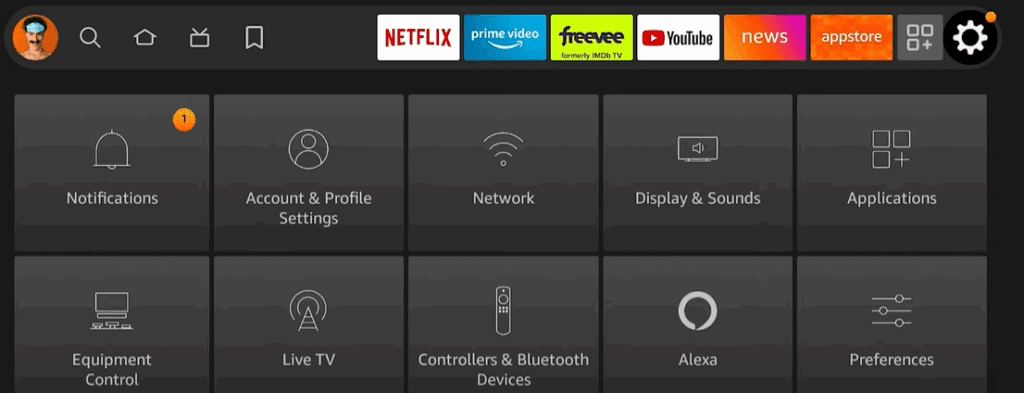
In this article, we’ll guide you through step-by-step instructions to turn off the most intrusive settings on your Fire TV Stick. By following these changes, your device will run faster, smoother, and without constant tracking by Amazon.
Step-by-Step Guide to Disable Tracking and Speed Up Your Fire TV Stick
🔧 Step 1: Check for System Updates
Start by updating your device to ensure you have the latest features and security patches.
- Go to the Fire TV Home Screen.
- Navigate to Settings > My Fire TV > About.
- Scroll down to Check for Updates and install any available updates.
This ensures that all the latest features and optimizations are active before making changes.
🧼 Step 2: Know How to Reset (Just in Case)
Although not mandatory, it’s helpful to know where the reset option is if something goes wrong during settings changes:
- Go to Settings > My Fire TV > Reset to Factory Defaults.
Use this only if you need to start over.
🔒 Step 3: Disable Privacy Intrusions
Navigate to Settings > Preferences > Privacy Settings, then turn off the following options:
- Device Usage Data Turn Off – This stops Amazon from collecting data on how you use your device.
- Collect App Usage Data Turn Off – Prevents the App Store from tracking app usage frequency and duration.
- Interest-Based Ads Turn Off – Disables personalized ads based on your activity.
These three settings are the biggest contributors to Amazon’s tracking behavior.
📊 Step 4: Turn Off Data Monitoring (Optional)
- Go to Settings > Preferences > Data Monitoring.
- Choose to Turn Off Data Monitoring.
If you have limited internet bandwidth or data caps, you might prefer to leave this ON. Otherwise, disabling it reduces background processing.
🔕 Step 5: Mute Notifications
- Navigate to Settings > Preferences > Notification Settings.
- Turn on Do Not Interrupt.
This setting blocks annoying notification pop-ups and keeps your viewing experience clean.
🎞️ Step 6: Disable Auto-Playing Featured Content
Auto-playing video and audio on the Fire TV home screen can slow down your device.







- Go to Settings > Preferences > Featured Content.
- Turn off:
- Allow Video Autoplay
- Allow Audio Autoplay
This will stop automatic previews from playing and conserve system resources.
📷 Step 7: Disable Amazon Photos Sync
By default, Amazon Photos may sync your personal media to the Fire Stick. This consumes memory and slows down the interface.
- Go to Settings > Applications > Amazon Photos.
- Select Disable to stop access and syncing.
🛠️ Step 8: Adjust App Store Settings
Navigate to Settings > Applications > Appstore, and configure the following:
- Automatic Updates – Turn Off
Prevents automatic updates from interrupting your streaming experience. - In-App Purchases – Turn Off
Especially helpful if kids use your Fire Stick to prevent accidental purchases. - Notifications – Turn Off
Keeps your device distraction-free by blocking store-related alerts.
Final Thoughts
By disabling the above features, you can vastly improve the performance of your Fire TV Stick and take back control of your privacy. These changes make for a smoother, faster, and more secure streaming experience without the clutter of unnecessary background activity or tracking.
To learn more about the Fire TV Stick and its capabilities, visit the official Amazon page:
👉 https://www.amazon.com/firetv
If you found this article helpful, feel free to bookmark it and share it with others who use Fire TV devices.
#FireTV #AmazonFireStick #PrivacySettings #StreamingTips #FireStickSetup #TechTips #AmazonTracking #FireTVOptimization #SmartTVSettings #CordCutting









You had me until the last line “Visit Amazon.com Help page”