In a world where typing can sometimes feel like a chore, imagine being able to turn your spoken words into clean, formatted text almost instantly. If you’re someone who frequently types documents, notes, assignments, or office work, this blog post will change your productivity forever. Today, we’re going to explore a powerful and advanced AI tool called Whisperflow AI, which allows you to type using your voice — and not just casually, but in an extremely efficient, intelligent, and multilingual way.
We’ll walk you through everything from installing the tool, using it in Microsoft Word, configuring shortcuts, testing multilingual voice typing, and even copying your past transcripts effortlessly.
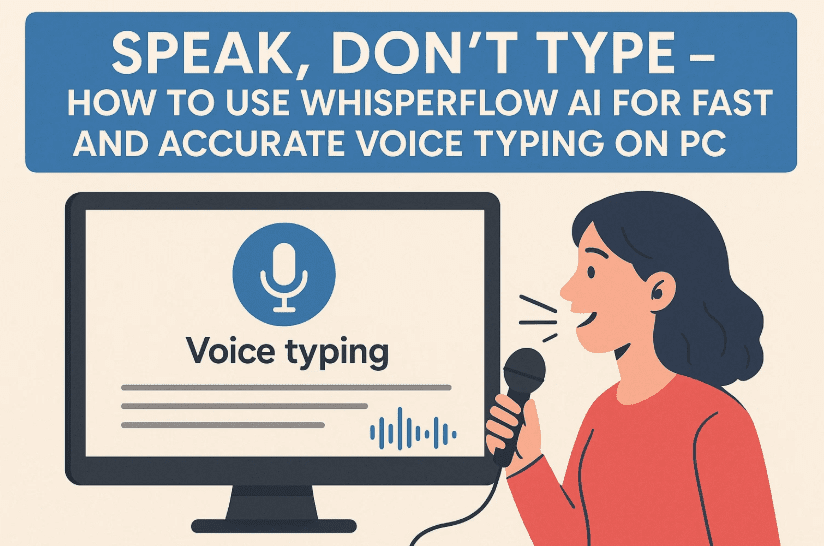
Let’s begin this journey toward hands-free, lightning-fast typing using Whisperflow AI!
Why Voice Typing Matters More Than Ever
Typing fatigue is real. Whether you’re a student, content creator, or office worker, manually typing long texts every day can strain your wrists and slow down your workflow. But now, thanks to advances in AI, you can speak your content naturally and let the software do the typing for you.
Even better, tools like Whisperflow AI offer:
- High accuracy with punctuation
- Smart correction of mistakes
- Real-time formatting
- Support for over 100 languages
- Auto translation (e.g., Hindi to English)
Before we dive into setup and features, here’s a glimpse of what it can do.
Real-World Example: Voice Typing in Microsoft Word
Let’s begin with a practical test. Imagine you have a set of handwritten notes you want to digitize into Microsoft Word. Instead of typing them manually, follow this quick method:
- Open Microsoft Word.
- Press
Ctrl + Windowskey on your keyboard and start speaking. - Whisperflow AI will immediately start transcribing your voice into text.
- Release the keys to stop typing.
Spoken Text Example:
“Today I will be telling you the five main points to create a blank template in MS Word. First, click the File and then click New. Second, click My Template…”
Within seconds, Whisperflow types out a fully structured, formatted, and grammatically accurate version of your speech into Word — with bullet points and punctuation automatically handled!
Now Let’s Get into the Tool: What is Whisperflow AI?
Whisperflow AI is an advanced speech-to-text AI tool that recognizes your voice, transcribes it in real time, and offers features like formatting, multilingual support, and even smart correction of spoken errors.
Key Features at a Glance:
- Accurate real-time voice typing
- Supports over 100 languages
- Corrects common mispronunciations
- Auto-translates Hindi to English and more
- Typing speed up to 130+ WPM
- Stores your voice input as transcripts
- Clipboard copy and paste functionality
- Customizable shortcut keys
👉 Official website: https://wisprflow.ai











Let’s Move to the Next Step: Installing Whisperflow AI
Getting started is quite easy. Here’s how to install and set up Whisperflow AI on your PC or laptop.
Step-by-Step Installation Guide:
- Visit https://wisprflow.ai
- On the homepage, click Download for Free.
- Sign in using your Google account.
- Download the installer (~200MB).
- Install the application on your PC.
- Connect a working microphone to your PC or laptop.
That’s it! Once installed, you’re ready to speak and watch the magic unfold.
Exploring the Interface of Whisperflow AI
So far, so good. Now let’s understand the main dashboard once you open the app.
Dashboard Highlights:
- Typing Stats: Shows your weekly usage, words typed, and speed.
- Speed Monitor: Displays words-per-minute — you can hit 130+ WPM just by speaking!
- Free Trial Indicator: Tracks your 15-day free trial period.
- Shortcut Display: Shows currently active voice typing shortcut keys.
- Settings: Customize commands, keyboard shortcuts, and language preferences.
Even if you’ve never used a voice typing tool before, the UI is intuitive and beginner-friendly.
Configuring Voice Typing Shortcuts
By default, pressing Ctrl + Windows begins voice input. But you can change or add more shortcuts to fit your needs.
How to Customize Shortcuts:
- Go to Settings in the app.
- Click Change Shortcut.
- You can set:
- Press and hold (e.g.,
Ctrl + Windows) - Toggle on/off (e.g.,
Ctrl + Windows + Space) - Paste last transcript (e.g.,
Alt + Shift + Z)
- Press and hold (e.g.,
This customization allows for a hands-free experience, perfect for long dictation sessions or accessibility needs.
Let’s See It in Action Again: Practical Use Cases
To give you more clarity, here’s a demonstration of how Whisperflow AI handles spoken input, both in English and translated Hindi.
English Voice Typing Example:
“Just give me a latest function related to Excel 2019 that I can implement in my day-to-day work as well as in my office work.”
✅ The tool immediately transcribes and formats the sentence correctly in your text editor.
Hindi to English Voice Typing Example:
You speak in Hindi:
“मुझे Excel में कुछ लेटेस्ट फंक्शन के बारे में बताइए जो मैं ऑफिस के काम में यूज़ कर सकूं।”
🧠 Whisperflow AI translates and types:
“Tell me about some latest functions in Excel which I can use in my office work.”
This translation and typing combo makes it a game-changer for multilingual users.
Accessing and Pasting Your Voice Transcripts
One of the best features of Whisperflow AI is its transcript history. It saves your spoken text so you can reuse it later.
How to Use This Feature:
- Go to the Home Screen of the app.
- Scroll to see recent voice inputs saved automatically.
- To reuse:
- Click Copy Transcript
- Or press
Alt + Shift + Zto paste it directly into Word or any other editor.
Perfect for when you want to build on previous content or fix parts without re-recording.
So How Much Does Whisperflow AI Cost?
Let’s break down the pricing and free options, so you can choose what suits you best.
Free Plan:
- 2,000 words/week
- Voice typing in 100+ languages
- Basic dictionary and formatting
- No watermark or branding
✅ Ideal for students, casual users, and testing the tool.
Pro Plan:
- $12/month (approx ₹960)
- Unlimited voice typing
- Priority support
- Team collaboration support
- Extra productivity features
💼 Perfect for office users, content creators, and professional workflows.
🔗 Visit https://wisprflow.ai/pricing for the latest pricing details.
Frequently Asked Questions (FAQs)
Q: Can I use Whisperflow AI offline?
A: Currently, Whisperflow AI requires an internet connection for real-time voice processing and translation.
Q: Does it work with apps other than MS Word?
A: Yes! You can use it with any text field, including Google Docs, Notepad, Gmail, ChatGPT, and even search bars.
Q: What if I make a mistake while speaking?
A: The AI smartly ignores minor mistakes and autocorrects formatting errors. It even skips filler words unless you dictate them clearly.
Q: Is it safe to use for work emails or confidential typing?
A: As with any cloud-based AI, be cautious when typing sensitive data. Check Whisperflow’s Privacy Policy for details.
Final Thoughts: Is Whisperflow AI Worth It?
Absolutely. Whisperflow AI offers a 10x boost in productivity, removes typing fatigue, and brings accessibility and multilingual support in a single package.
Whether you’re a busy professional, an educator, a content creator, or just someone who hates typing, this tool is going to make your digital life easier, faster, and smarter.
So, stop typing. Start speaking. Let AI do the rest.
Tags:
voice typing, whisperflow ai, ai speech to text, speech recognition tool, ms word voice typing, hindi to english voice typing, free ai productivity tool, whisperflow features, ai tools for students, dictation software
Hashtags:
#VoiceTyping #WhisperflowAI #ProductivityTools #SpeechToText #AIAssistant #HindiToEnglish #DictationSoftware #MicrosoftWordTips #MultilingualAI #TypeWithVoice
Disclaimer:
This article is for educational purposes only. Always review software privacy policies before inputting sensitive information. Whisperflow AI is a third-party tool, and we do not endorse or guarantee its functionality or data handling.








