When you close your laptop lid or step away from your PC, you probably put it into Sleep or Hibernate mode. But do you really know what happens inside your computer when you do that?
Many users assume both options are the same — but there’s a huge difference in how they affect your RAM, battery, and storage life. In this detailed article, we’ll break down the science behind Sleep and Hibernate, when to use each, the potential problems of overusing them, and how to enable Hibernate mode if you can’t find it on your laptop.
We’ll also go over real-world scenarios — like what happens if you leave your laptop in Sleep mode for days — and answer common questions users have about performance, battery drain, and SSD safety.
⚙️ 1. Understanding Sleep Mode
Let’s start with the more familiar one — Sleep mode.
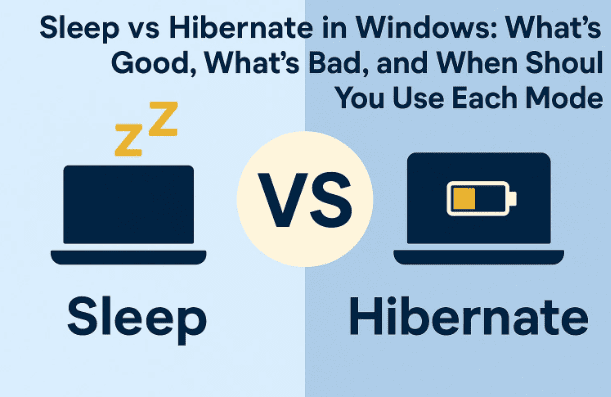
When you put your laptop to sleep, the system doesn’t fully shut down. Instead, it enters a low-power state that keeps your open applications, documents, and background tasks stored in RAM.
This allows you to resume your work instantly when you wake the device. It’s quick, smooth, and convenient — like pausing a movie and pressing play later.
However, because Sleep mode keeps your RAM active, your battery continues to drain slowly even though the screen and fans are off.
💡 2. How Sleep Mode Works Internally
Here’s what really happens behind the scenes when you activate Sleep mode:
- Your RAM stays powered to keep all open files and data in memory.
- The CPU, hard disk, and screen are powered down to save energy.
- When you wake your laptop, the RAM instantly restores all applications to where you left them.
Think of it as “standby mode” — your laptop isn’t off, it’s just waiting for you to come back.
But there’s a catch: because your RAM is still using power, your battery will keep discharging over time.
For example:









- If your laptop is in Sleep mode overnight, you may lose 2–5% battery.
- Leave it for two days? It might drain completely.
That’s because the RAM continues to draw power even though you’re not actively using your PC.
⚠️ 3. The Hidden Drawbacks of Using Sleep Mode Too Often
Sleep mode seems harmless, but if you use it daily for long periods without restarting or shutting down, a few issues can pile up.
Let’s discuss these in more detail.
🧠 Memory (RAM) Buildup
Every time you open and close programs, fragments of data stay in memory. Over several days, these cached processes can accumulate in RAM, slowing down your system.
Eventually, your laptop may feel sluggish — apps take longer to open, and browsers start lagging. The fix? A restart or shutdown clears the memory and refreshes your system.
🔋 Continuous Battery Drain
Even though Sleep mode saves power, it’s not zero consumption. Keeping your system in this state for days can fully discharge the battery, especially if left unplugged.
🔁 Background Processes Keep Running
In Sleep mode, some background tasks (like Windows updates or scheduled syncs) can continue in partial form. Over time, that adds more memory pressure and power draw.
So, while Sleep mode is convenient for short breaks or daily use, it’s not designed for multi-day storage.
🌙 4. What Is Hibernate Mode?
Now, let’s move on to Hibernate mode — a lesser-known but very powerful feature in Windows.
Hibernate works like Sleep, but with one big difference: instead of keeping your open data in RAM, it saves everything to your hard drive (or SSD) and completely powers off your system.
When you turn your laptop back on, Windows reads that saved file from storage and restores your session exactly where you left off — even if your battery was completely drained in between.
🔋 5. How Hibernate Mode Works (and Why It Saves Power)
When you activate Hibernate:
- Windows takes a snapshot of your open applications and RAM data.
- It writes that snapshot into a hidden file on your system drive called hiberfil.sys.
- Then, your laptop shuts down completely — consuming zero battery power.
- When you power it back on, the data from hiberfil.sys is reloaded into memory.
This method ensures:
- No battery drain while off.
- You can resume work exactly where you left off.
- Even if you unplug the battery or travel for days, your progress is safe.
That’s why Hibernate is ideal for long breaks or when you’re not using your laptop for a few days but still want to keep all sessions intact.
🛠️ 6. How to Enable Hibernate Mode in Windows
Many modern laptops hide Hibernate mode by default. But don’t worry — you can easily enable it.
Here’s how:
Step-by-Step:
- Right-click the battery icon in your taskbar.
- Choose Power Options → then click Additional Power Settings.
- On the left panel, select Choose what the power buttons do.
- Click on Change settings that are currently unavailable at the top.
- Scroll down, and you’ll see Hibernate under the “Shutdown settings” section.
- Tick the checkbox next to Hibernate.
- Click Save changes.
Now, you’ll see “Hibernate” as an option when you click the Power button menu.
🧠 7. Does Hibernate Damage Your SSD or HDD?
This is one of the most common misconceptions people have.
Some users believe that frequent hibernation can reduce SSD lifespan because it writes data to storage each time. Let’s clarify this.
Modern SSDs are designed with high endurance and wear-leveling algorithms, meaning they can handle hundreds of terabytes of writes before any degradation occurs.
Even if you hibernate twice a day, your total additional write load is minimal — far below what would impact an SSD within its normal lifetime.
In short:
✅ Hibernate does not harm your SSD.
✅ You can safely use it daily if you prefer zero battery drain.
✅ HDDs are even less affected because they’re designed for constant read/write cycles.
📊 8. Sleep vs Hibernate – Key Differences (Comparison Table)
Let’s put both modes side-by-side for easier understanding:
| Feature | Sleep Mode | Hibernate Mode |
|---|---|---|
| Where Data Is Stored | In RAM | In Hard Drive / SSD |
| Power Usage | Low, but continuous | None (Zero battery drain) |
| Resume Speed | Instant | Slightly slower |
| Ideal For | Short breaks (1–3 hours) | Long breaks (overnight or multi-day) |
| Battery Drain | Yes, gradual | No |
| Safe for SSDs? | Yes | Yes |
| File Used | None | hiberfil.sys |
| System State | Semi-active | Fully off |
This table makes it clear: Sleep is convenient, Hibernate is power-efficient.
💻 9. When Should You Use Sleep Mode vs Hibernate Mode?
Let’s summarize when to use which mode for the best performance and battery life.
Use Sleep Mode When:
- You’re stepping away for a few hours.
- You use your laptop multiple times during the day.
- You want instant resume speed and don’t mind a little battery usage.
Use Hibernate Mode When:
- You’re not using your laptop for a full day or more.
- You’re traveling and can’t charge for a while.
- You want to save your current session without draining battery.
- You’re using a laptop with older battery health and want to preserve charge.
Tip: If your laptop battery drains too fast in Sleep mode, switch to Hibernate. It’s safer for long breaks.
✅ 10. Final Recommendation
Both modes have their place — and using them wisely can help your laptop stay fast, efficient, and healthy.
Here’s a simple rule of thumb:
- Short Break (1–2 hours): Use Sleep Mode.
- Overnight or Multiple Days: Use Hibernate Mode.
- No Work Pending or Battery Critical: Go for a Full Shutdown.
You can even combine both: keep Sleep mode as default, but enable Hibernate manually for travel or long inactivity.
Modern hardware easily handles frequent hibernation — so don’t worry about SSD damage. What matters more is occasionally restarting your laptop (once a week) to clear memory and refresh system performance.
❓ 11. Frequently Asked Questions (FAQ)
Q1. Does hibernation slow down Windows startup?
A: Only slightly — since data is read from the drive instead of RAM. The delay is usually less than 5–10 seconds on SSD systems.
Q2. Why can’t I find Hibernate mode in my power options?
A: It’s disabled by default on many modern laptops. Follow the steps in Section 6 to enable it manually.
Q3. Can hibernation corrupt files?
A: No. Hibernate is a native Windows function — it safely stores your RAM data in a protected system file (hiberfil.sys).
Q4. Is Sleep mode bad for battery health?
A: Not really, but leaving it plugged in 24/7 while sleeping can slightly wear the battery over time. Occasionally shutting down helps maintain health.
Q5. Can I use both Sleep and Hibernate together?
A: Yes. Windows allows you to configure automatic hibernation after a certain Sleep duration — go to Control Panel → Power Options → Advanced Settings and set a time limit.
Q6. Should I shut down my laptop daily?
A: If you’re done working for the day, yes — shutting down clears memory, installs pending updates, and prolongs hardware life.
Tags: sleep mode, hibernate mode, Windows 11 laptop tips, battery drain issue, RAM memory, laptop performance, enable hibernate Windows 11, SSD safety, power management, Windows troubleshooting
Hashtags: #Windows11 #SleepMode #HibernateMode #LaptopTips #TechGuide #BatteryLife #WindowsTips







