When it comes to managing system performance on a Windows 11 PC, one question often pops up: Should I manually configure virtual memory settings, or let Windows handle it automatically? In this article, we’ll walk you through what virtual memory is, how it works, how to manually set it up, and whether or not you should tweak it at all.
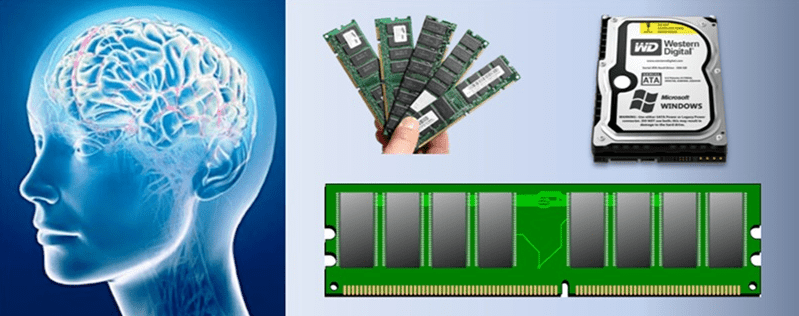
What is Virtual Memory?
Virtual Memory acts as a backup for your system RAM. When your RAM gets filled up, Windows temporarily shifts data to a reserved space on your hard drive (known as the paging file or pagefile.sys) to maintain performance.
This feature can be a lifesaver when running memory-intensive tasks like video editing, gaming, or using large software applications.
How to Access Virtual Memory Settings in Windows 11
To access and manage virtual memory settings:
- Open Settings
PressWin + Ito open the Settings menu. - Navigate to System > About
On the left panel, click on System, then scroll down and click on About. - Click on Advanced System Settings
Under “Related links,” click on Advanced system settings. - Open System Properties
A legacy dialog box titled System Properties will appear. - Click on the Performance Settings Button
In the Performance section, click Settings. - Go to the Advanced Tab
In the new window, click on the Advanced tab, then under “Virtual memory,” click Change. - Virtual Memory Panel Opens
Here, you’ll see the current settings for your system’s paging file.
Manual Configuration of Virtual Memory
By default, the checkbox “Automatically manage paging file size for all drives” is enabled. This allows Windows to manage the virtual memory dynamically based on your system’s needs.
If you choose to manually configure it:
- Uncheck “Automatically manage paging file size for all drives”
- Select the C Drive (your Windows installation drive)
- Choose Custom Size
- Enter values for:
- Initial Size: 1.5 times the size of your RAM
- Maximum Size: 3 times the size of your RAM
💡 1 GB = 1024 MB
Example Virtual Memory Values
Below is a reference table showing how to calculate the custom virtual memory settings based on the amount of RAM installed:
| RAM (GB) | Initial Size (MB) | Maximum Size (MB) |
|---|---|---|
| 4 GB | 6,144 | 12,288 |
| 8 GB | 12,288 | 24,576 |
| 16 GB | 24,576 | 49,152 |
| 32 GB | 49,152 | 98,304 |
| 64 GB | 98,304 | 196,608 |
| 128 GB | 196,608 | 393,216 |
How to Calculate:
- Open Calculator by typing
calcin Windows Search. - Multiply your RAM size (in GB) by 1,024 to convert it to MB.
- Multiply the result by 1.5 for the initial size.
- Multiply the result by 3 for the maximum size.
Should You Tweak Virtual Memory Settings?
While customizing these settings may help in very specific use cases (e.g., older systems or specialized tasks), it is generally best to let Windows manage virtual memory. Microsoft has optimized this feature well enough for most users and use cases.
Risks of Disabling Page File:
- Blue screen errors due to “insufficient memory”
- Loss of crash dump files (critical for troubleshooting)
- Crashes in high-memory usage scenarios like video editing or gaming
When Should You Configure Manually?
You might consider custom settings if:











- You are running legacy or specialized applications
- You receive frequent memory-related errors despite having sufficient RAM
- You have high workloads and want consistent memory allocation behavior
The Better Option: Upgrade Your RAM
Instead of tweaking virtual memory settings, increasing your physical memory (RAM) is a far better solution. Virtual memory is not a substitute for physical RAM—it is a fallback. Upgrading to 16 GB or 32 GB of RAM, depending on your needs, can significantly boost your PC’s performance without the potential risks.
Final Recommendation
Unless you have a very specific reason to do so, it’s safest to:
- Leave the “Automatically manage paging file size” checkbox enabled
- Let Windows handle memory management
- Focus on upgrading hardware for long-term improvements
Useful Link
Disclaimer
This article is intended for informational purposes only. Modifying virtual memory settings can impact system stability if done improperly. Proceed with caution and always back up your system settings before making changes.
Tags
virtual memory, Windows 11, paging file, system settings, RAM management, computer performance, memory optimization, how to, Windows tips, PC troubleshooting
Hashtags
#Windows11 #VirtualMemory #ComputerTips #MemoryManagement #PCPerformance #RAM #SystemSettings #TechHelp








