Have you ever wanted a certain program on your Windows PC to shut down at a specific time, or maybe launch automatically without having to do it yourself? Whether you’re managing productivity apps, scheduling work tools, or limiting access to distractions like browsers or games — there’s a smart solution available.
Let’s talk about AutoClose, a handy utility that helps you automate program startup and shutdown tasks. Whether you’re working on a project, managing timed access, or saving system resources, AutoClose offers both free and premium features to get the job done.
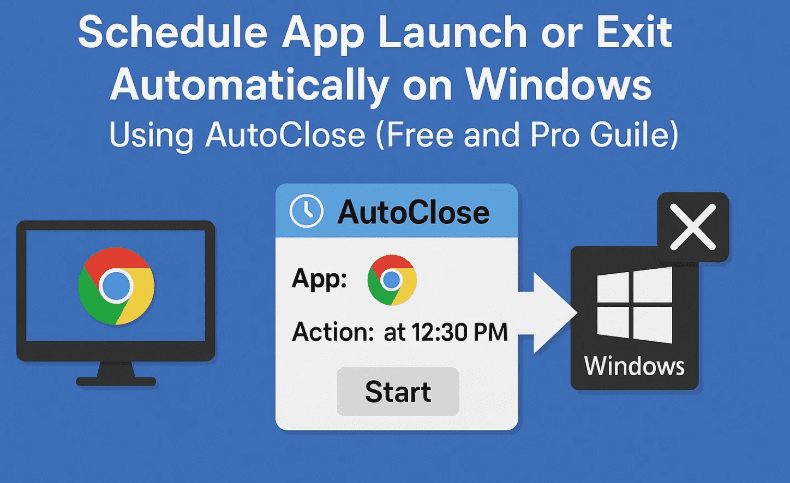
🧠 What is AutoClose?
AutoClose is a lightweight Windows utility that allows you to:
- Automatically close a running program at a specified time or interval
- Automatically launch a program at a set time
- Schedule both recurring and one-time tasks
- Run tasks daily, weekly, monthly, or after a set duration
The free version supports:
- 2 scheduled tasks
- Maximum time interval of 30 minutes
The Pro version (costs around $30) supports:
- Unlimited tasks
- Extended scheduling flexibility
- Additional control options
Now that you know what the tool does, let’s dive into how you can use it.
🔧 Step-by-Step Guide to Using AutoClose
✅ First, Download and Install AutoClose
You can download the tool from its official website here:
👉 https://www.autoclose.net/
Once installed, launch the program. The interface is clean, simple, and easy to navigate.
➕ Step 1: Add a New Task
Let’s begin with scheduling a program to close automatically.
Here’s how to set it up:
- Click “Add a Task” from the top menu.
- Choose a program to close:
- If the app is currently running, pick it from the list.
- Alternatively, click “Select Executable” to manually choose a
.exefile. - You can also drag the crosshair tool onto an open window to select it.
- Choose “Auto Close” as the task type.
- Set the time or interval for closing the program:
- You can select a specific time (e.g., 4:00 PM)
- Or set a countdown like “after 30 minutes”
- Optional: Choose what to do after closing (e.g., shut down PC, restart, etc.)
- Click Add to save the task.
That’s it — your chosen program will now be closed automatically at the set time!
▶️ Step 2: Schedule a Program to Auto Launch
Now, let’s move on to the Auto Run feature.








This is useful for opening software like:
- A note-taking app during your work hours
- A browser at startup
- A custom tool or script at night
To Auto Launch an Application:
- Again, click “Add a Task.”
- Under task type, select “Auto Run.”
- Click “Select Executable” and choose the program you want to start (e.g.,
notepad.exe,chrome.exe, or any.exefile). - Set the time you want the program to open.
- Click Add and you’re done.
When the scheduled time hits, the program will launch automatically!
🔁 Step 3: Manage and Monitor Your Tasks
Once your tasks are created, they’ll appear in a list showing:
- Task name (e.g., Chrome, Notepad)
- Action (Auto Close or Auto Run)
- Scheduled time
- Loop or repeat status
- Post-task action (e.g., shutdown)
- Status
From here, you can:
- Delete tasks you no longer need
- Manually run tasks
- Load or save task lists for later use
- Choose whether AutoClose should start with Windows
⚙️ Additional Settings & Features
If you’re planning to use AutoClose regularly, here are some optional tweaks you can apply:
- Start AutoClose with Windows
- Automatically load saved task list on startup
- Repeat tasks on a loop (e.g., every day at the same time)
- Set what happens after task runs (e.g., hibernate, restart, logout)
❓ FAQs About AutoClose
Q1. Can AutoClose launch Microsoft Store apps or shortcuts?
❌ No. AutoClose works with .exe files only. Store apps or shortcut links won’t work directly.
Q2. Is there a limit to how many tasks I can create in the free version?
✅ Yes. You can only schedule 2 tasks at a time in the free version.
Q3. What happens after a task is executed?
Once a task is completed, it is removed from the list unless it’s configured to loop.
Q4. Can I create recurring tasks daily or weekly?
✅ Yes, with the Pro version, you get more flexible loop and recurrence settings.
Q5. Is it safe to use AutoClose for closing background apps?
Yes, but be cautious. Closing system-critical apps may lead to data loss or instability. Always test first.
⚠️ Disclaimer
This guide is for informational purposes. Closing certain system apps, games, or unsaved work using automation tools may lead to data loss or instability. Always test and configure tasks carefully.
🏷️ Tags:
AutoClose, schedule apps in Windows, run program on schedule, close apps automatically, Windows automation tools, task automation, productivity tool Windows, launch apps at boot
🔖 Hashtags:
#AutoClose #WindowsAutomation #ScheduleApps #ClosePrograms #TaskScheduler #ProductivityTools #WindowsTips #StartupApps #WindowsUtilities #AutomationHack
✅ Final Thoughts
Whether you’re looking to shut down distracting apps like Chrome after 30 minutes, automatically start your word processor at 8 AM, or just keep your system tidy — AutoClose is a small yet powerful utility that makes this a breeze.
For most users, the free version is enough to get started. But if you find yourself needing more scheduled tasks and advanced options, the Pro version is reasonably priced at around $30 and well worth the upgrade.
Feel free to experiment with it — and make your PC a little more automatic!








