Switching from Windows to Linux can be liberating — faster performance, better control, and a sense of digital independence. But let’s be honest: sometimes, you still need access to that one Windows-only application — maybe Photoshop, Illustrator, or Microsoft Office.
Sure, you could dual boot, or use Wine, but both methods come with compromises. Dual booting breaks your workflow, and Wine often struggles with compatibility and keyboard shortcuts.
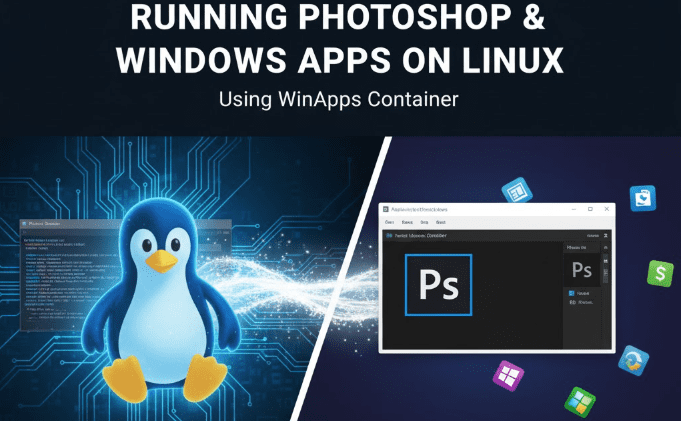
That’s where WinApps comes in — a powerful open-source project that lets you run Windows applications seamlessly inside Linux using a lightweight virtual machine container. In this article, we’ll go step by step through how to install WinApps, configure Docker containers, and run Photoshop or any Windows-only app directly from your Linux desktop — no lag, no crashes, and no dual boot required.
🧭 Table of Contents
- What Is WinApps?
- How WinApps Works
- Prerequisites and Recommended Setup
- Installing Docker Properly on Linux
- Configuring the WinApps Container
- Adjusting Security and Folder Access
- Starting the Container and Downloading Windows
- Setting Up FreeRDP for Access
- Automating Launch with Scripts and Desktop Entry
- Optimizing Performance: RAM, CPU, and Restart Rules
- Stopping, Recreating, or Removing Containers Safely
- Why Use This Over Wine or VirtualBox?
💡 1. What Is WinApps?
WinApps is an open-source project that lets Linux users run native Windows applications directly from their Linux desktop.
It achieves this by running Windows in a lightweight container or virtual machine (VM) and using Remote Desktop Protocol (RDP) to display and interact with the Windows apps. From the user’s perspective, the apps feel native — complete with icons, window borders, and working shortcuts.
It’s like having Windows invisibly running in the background, but your Photoshop, Word, or Excel window appears directly in your Linux environment.
⚙️ 2. How WinApps Works
WinApps uses two main components:
- Docker Compose Container (running a minimal Windows VM)
- FreeRDP Client (to render the Windows application inside Linux)
When you open Photoshop (or another Windows app), Docker starts a background Windows instance, loads the app, and streams it directly to your Linux desktop with almost zero latency — because it’s running locally on your own system, not over the internet.
Unlike Wine or PlayOnLinux, WinApps doesn’t try to translate Windows APIs — it simply runs a real Windows environment inside Linux, ensuring complete compatibility and stability.
🧩 3. Prerequisites and Recommended Setup
Before we dive in, let’s make sure you have the essentials ready.
You’ll need:










- A Linux distribution (Ubuntu, Mint, Pop!_OS, Fedora, etc.)
- At least 8 GB of RAM (16 GB recommended if you’ll run heavy apps like Photoshop)
- At least 30 GB of free disk space
- Docker and Docker Compose installed
- A Windows ISO image (the container will download this automatically)
🐳 4. Installing Docker Properly on Linux
Let’s start by setting up Docker correctly.
A common mistake is installing Docker from your distro’s package repository (like apt install docker on Ubuntu). Those packages are often outdated and may cause integration problems.
Instead, always install Docker directly from the official Docker documentation for your Linux distribution:
👉 https://docs.docker.com/engine/install/
Step-by-Step Docker Installation (Example for Ubuntu/Debian)
- Update your repositories:
sudo apt update - Install dependencies:
sudo apt install ca-certificates curl gnupg lsb-release - Add Docker’s GPG key:
sudo mkdir -p /etc/apt/keyrings curl -fsSL https://download.docker.com/linux/ubuntu/gpg | sudo gpg --dearmor -o /etc/apt/keyrings/docker.gpg - Add the official Docker repo:
echo \ "deb [arch=$(dpkg --print-architecture) signed-by=/etc/apt/keyrings/docker.gpg] \ https://download.docker.com/linux/ubuntu $(lsb_release -cs) stable" | \ sudo tee /etc/apt/sources.list.d/docker.list > /dev/null - Install Docker:
sudo apt update sudo apt install docker-ce docker-ce-cli containerd.io docker-compose-plugin
Add User to Docker Group
To avoid running Docker commands with sudo, add yourself to the Docker group:
sudo usermod -aG docker $USER
Then log out and back in, or run:
newgrp docker
🪟 5. Configuring the WinApps Container
Now that Docker is running smoothly, it’s time to set up your Windows container.
- Go to the WinApps GitHub page.
- Copy the
docker-compose.ymlcontent from the repository. - Create a new project folder:
mkdir ~/winapps && cd ~/winapps - Create the Compose file:
nano docker-compose.yml - Paste the contents from GitHub.
Now, let’s tweak a few important lines before saving.
🔐 6. Adjusting Security and Folder Access
There are two crucial tweaks to make before running your container.
1. Change the Username and Password
Inside your docker-compose.yml file, look for:
environment:
  USER: user
  PASS: password
Change these to something unique and secure.
2. Limit File Access
By default, WinApps exposes your entire Linux home directory to the Windows environment — not ideal from a security standpoint.
Instead, modify it like this:
volumes:
  - ~/winshared:/home/user/winshared
This way, only a folder named winshared inside your Linux home will be visible to Windows. You can use it for transferring files safely between systems.
Save and close the file.
🚀 7. Starting the Container and Downloading Windows
Now open a terminal in your WinApps folder and run:
docker compose up
Docker will start building and downloading the Windows container. The first time, it may also fetch a Windows ISO image from Microsoft’s servers.
⚠️ If you get a download error, temporarily turn off your VPN, as Microsoft’s servers may block region-masked connections.
Once the setup completes, you’ll see a message confirming that Windows is being installed. Wait until it finishes and displays the Windows login screen.
💻 8. Setting Up FreeRDP for Access
The next step is to connect to your running Windows container using FreeRDP — a fast, open-source RDP client.
Install FreeRDP
For Ubuntu/Debian-based systems:
sudo apt update
sudo apt install freerdp2-x11
Now, check if you can connect to your container:
xfreerdp /v:127.0.0.1 /u:user /p:password
You should see your Windows desktop appear inside a new window — running directly from your container!
If typing long commands each time feels inconvenient, don’t worry — we’ll automate it next.
⚡ 9. Automating Launch with Scripts and Desktop Entry
To make launching Photoshop or other Windows apps smoother, let’s automate the process using a shell script and a desktop shortcut.
Step 1: Create a Launcher Script
Navigate to your WinApps folder and create a new file:
nano launcher.sh
Paste the contents from this launcher repository:
👉 https://github.com/cyb3rm4gus/winapps_launcher
Modify:
- Your Linux username (
user) - The Windows password (same as set in
docker-compose.yml) - The path to your WinApps folder
Then make it executable:
chmod +x launcher.sh
Step 2: Create a Desktop Entry
Create a new file:
nano ~/.local/share/applications/winapps.desktop
Paste the following:
[Desktop Entry]
Name=WinApps Launcher
Exec=/home/yourusername/winapps/launcher.sh
Type=Application
Icon=applications-system
Categories=Utility;
Then make it executable:
chmod +x ~/.local/share/applications/winapps.desktop
Now, “WinApps Launcher” will appear in your system menu. You can pin it to your dock or panel for one-click access.
When launched, it will:
- Check if your container is running.
- Start it if not.
- Wait 10 seconds for boot-up.
- Automatically launch an RDP session.
- Close the container when you exit.
🧠 10. Optimizing Performance: RAM, CPU, and Restart Rules
By default, the container runs with just 4 GB of RAM, which might not be enough for Photoshop or other demanding software.
To Increase RAM:
In your docker-compose.yml file, find:
mem_limit: 4g
Change it to:
mem_limit: 8g
(if your system has 16 GB or more physical RAM)
To Control Auto-Restart:
The default restart rule is:
restart: on-failure
In some Linux distros, this may cause Windows to auto-launch at system startup.
If you don’t want that behavior, change it to:
restart: "no"
After modifying, recreate the container using:
docker compose down
docker compose up --force-recreate
🔁 11. Stopping, Recreating, or Removing Containers Safely
To stop your container:
docker compose down
To restart it:
docker compose up -d
To rebuild after config changes:
docker compose down
docker compose up --force-recreate
Remember: running Windows in the background consumes CPU and RAM. It’s better to stop it when not in use.
⚖️ 12. Why Use This Over Wine or VirtualBox?
Here’s a quick comparison between all three options:
| Feature | WinApps (Docker) | Wine | VirtualBox |
|---|---|---|---|
| Performance | High | Medium | Medium |
| Compatibility | 100% (real Windows) | Partial | 100% |
| Integration | Native app windows | Limited | Full VM |
| Latency | Zero (local) | N/A | Slight |
| Setup Complexity | Moderate | Low | Moderate |
| File Sharing | Controlled (via winshared) | Native | Folder Mounts |
| Resource Use | Moderate | Light | Heavy |
Verdict: WinApps offers the best balance between performance and usability — real Windows compatibility with Linux-level control.
❓ 13. Frequently Asked Questions
Q1. Can I install any Windows app using WinApps?
Yes. You can install Photoshop, Microsoft Office, Notepad++, or any Windows program that works in a standard Windows environment.
Q2. Does this require a Windows license?
Yes. The Windows container still runs a genuine Windows OS. You’ll need a valid Windows license key to activate it, although it will function unactivated for testing.
Q3. Is it safe to use this setup?
Absolutely, as long as you restrict shared folders and keep your system updated. Avoid exposing your full Linux home directory to the container.
Q4. Can I use another RDP client like Remmina?
Yes. FreeRDP is recommended because it integrates better with the launcher script, but Remmina or KRDC will also work.
Q5. Will this setup work on Fedora or Arch?
Yes. You just need to adjust package commands (dnf or pacman) when installing Docker and FreeRDP.
Q6. Can I connect from another computer?
No — the container is meant to run locally. It’s optimized for zero-latency usage within the same system.
🌟 14. Final Thoughts
Running Photoshop or other Windows applications on Linux has always been one of the community’s biggest challenges. WinApps finally provides a clean, efficient, and stable solution — combining the best of both worlds.
With Docker managing the Windows environment and RDP providing fluid visual performance, you can now switch between GIMP and Photoshop instantly, without rebooting or fiddling with Wine dependencies.
Once you set it up, it feels almost magical: Windows apps running like native Linux software.
So if you’ve ever hesitated to fully switch to Linux because of “that one Windows program,” give WinApps a try — it might just make you forget you ever needed dual boot.
⚠️ Disclaimer
WinApps is an open-source project that uses a virtualized Windows environment. Users must have their own valid Windows license. This setup is intended for personal or educational use only — not for bypassing license restrictions or corporate deployments.
Tags:
WinApps, Photoshop on Linux, Docker, FreeRDP, Linux Containers, Virtualization, Windows Apps on Linux, Docker Compose, Remote Desktop
Hashtags:
#Linux #WinApps #Docker #PhotoshopOnLinux #RemoteDesktop #Virtualization #OpenSource








