Is your computer running out of storage space because of numerous software installations? Do you work across multiple computers and get tired of installing the same apps repeatedly? What if we told you there’s a simple solution — a USB drive that carries all your favorite software, ready to run on any Windows computer without installation?
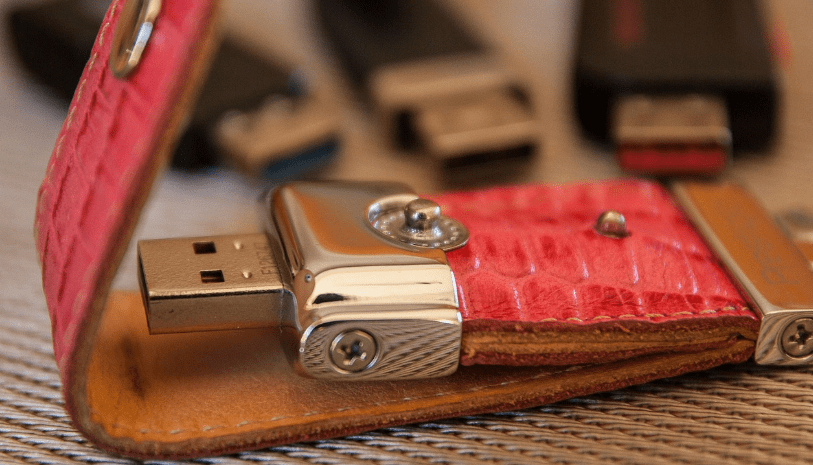
In this article, we’ll walk you through how to set up a portable apps USB drive using PortableApps.com, a popular and free solution that allows you to run software directly from a USB stick.
💡 What Are Portable Apps?
Portable apps are lightweight versions of software that can run independently, without needing to be installed on a computer. This makes them ideal for people who:
- Use shared or public computers
- Work in multiple locations
- Want to keep their system clean and clutter-free
- Prefer privacy and want their tools and files in one secure device
✅ What You’ll Need
- A USB drive (4GB or larger — 8GB or more is ideal)
- A Windows computer
- Internet connection (for initial setup and downloading apps)
🔧 Steps to Set Up Your Portable USB Drive
Step 1: Download PortableApps.com Installer
- Open your browser and go to https://portableapps.com
- Click on “Download PortableApps.com Platform”
- Once downloaded, run the installer
Step 2: Install on Your USB Drive
- Plug in your USB flash drive (ensure it’s empty or you’ve backed up your data)
- In the installer, select “New Install” and click Next
- Choose “Portable – Install to a Portable Device”
- Select your USB drive from the list (verify drive letter using File Explorer if unsure)
- Click Next and then Install
⚠️ Tip: You can also install portable apps to cloud storage like Dropbox or Google Drive if desired.
Step 3: Choose and Install Your Apps
After the base installation, a dashboard will appear prompting you to select applications. These are sorted by category (e.g., Internet, Office, Graphics, etc.). Choose what you need by ticking the checkboxes. Some popular portable apps include:
📁 Development
🎨 Graphics & Design
🌐 Internet
🎧 Audio & Video
🖥️ Office
🔐 Security
- VeraCrypt
- Password recovery tools like Password Tech
⚙️ Utilities
Once you’ve selected your preferred applications, click Install. The platform will begin downloading and installing all the selected apps to your USB. This may take several minutes depending on how many apps you’ve selected and your internet speed.
🖥️ How to Use Portable Apps on Any Computer
- Plug your USB drive into any Windows PC.
- Open the USB directory and double-click on
Start.exe. - A start menu will appear (similar to Windows 7).
- Browse your apps by category and launch them instantly — no installation needed!
You can even update your apps or add new ones later by clicking “Apps” → “Get More Apps” from the dashboard.
📦 Benefits of Using Portable Apps
- No need to install software repeatedly on multiple devices
- Saves hard drive space
- Perfect for tech professionals, students, travelers, and digital nomads
- Enhanced privacy and security
- Easy backup and portability
⚠️ Disclaimer
Some portable apps may not support all features available in their full installed versions. Performance may also vary depending on the computer’s specifications. Always download from trusted sources like PortableApps.com to avoid security risks.
🎯 Final Thoughts
If you’re tired of managing multiple software installations or simply want more flexibility, creating your own portable app USB drive is a smart, efficient solution. It’s completely free and can truly streamline your workflow, especially if you’re always on the move.
Grab a USB, follow the steps, and take your workspace wherever you go!
Tags: portable apps, USB software, run software from USB, no installation apps, free tools, portable applications, PortableApps.com, how to use USB software, software for travelers


Hashtags:
#PortableApps #USBTools #NoInstallApps #BlenderPortable #LibreOffice #VLCPortable #Audacity #OBSStudio #Shotcut #TechTips #WindowsTips #FreeSoftware








