With Microsoft officially ending support for Windows 10 on October 14, 2025, many older laptops and PCs will no longer receive critical updates. If your device isn’t compatible with Windows 11, it might seem like the only option is to let it collect dust. But there’s a better solution — ChromeOS Flex, a lightweight and free operating system from Google designed to breathe new life into aging hardware.
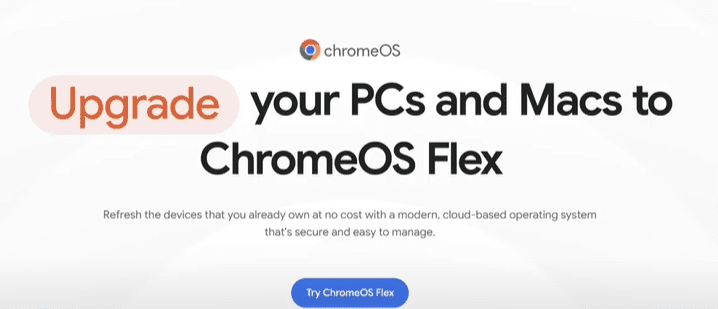
In this detailed article, we’ll walk you through how to install ChromeOS Flex on an old laptop using a USB flash drive. Whether you want to surf the web, check email, or watch videos, ChromeOS Flex provides a secure and efficient experience — and it boots in seconds!
What is ChromeOS Flex?
ChromeOS Flex is a cloud-first, fast, and secure operating system built by Google. It’s designed for both individuals and businesses to transform their old Windows or macOS devices into fast, modern Chromebooks. It’s based on the same platform as ChromeOS used in Chromebooks but tailored for legacy hardware.
💡 Learn more and download ChromeOS Flex here: https://chromeenterprise.google/os/chromeosflex/
Why Consider ChromeOS Flex?
- Free to use
- Fast boot times (as little as 10 seconds)
- Automatic updates & Google security
- Modern UI and integration with Google services
- Perfect for basic computing needs like browsing, email, YouTube, and Google Docs
- Compatible with many old PCs and Macs
What You Need Before You Begin
- A working USB flash drive (8 GB or more)
- Chrome browser installed on a Windows, Mac, or Linux machine
- A Google account to sign into ChromeOS Flex
- Your old laptop or desktop
Step-by-Step Guide to Install ChromeOS Flex
Step 1: Prepare for Installation
- Go to Google’s ChromeOS Flex page.
- Click “Try ChromeOS Flex”.
- Review the list of certified devices for compatibility. If your device isn’t listed, don’t worry — many unsupported devices still work well.
Step 2: Install the Chromebook Recovery Utility
- In the Chrome browser, go to the Chrome Web Store.
- Search for “Chromebook Recovery Utility”.
- Click Add to Chrome, then Add Extension.
Step 3: Create the Bootable USB Drive
- Launch the Chromebook Recovery Utility from your Chrome extensions menu.
- Click the gear icon (⚙️) in the top-right and choose Erase recovery media to wipe the USB drive clean.
- Click Get Started and choose:
- Manufacturer: Google ChromeOS Flex
- Product: ChromeOS Flex
- Click Continue, select your USB flash drive, and click Create Now.
- Wait for the process to complete. It might take several minutes.
Step 4: Boot from USB and Try ChromeOS Flex
- Insert the bootable USB into your old laptop.
- Reboot the laptop and enter the boot menu (usually pressing
F12,ESC, orDELduring startup). - Select your USB drive to boot from it.
- You’ll see “Welcome to ChromeOS Flex”.
- Choose your language and keyboard input settings, then click Get Started.
Step 5: Install ChromeOS Flex Permanently (Optional)
You can try ChromeOS Flex without installing it by selecting “Try it first” — a great way to test compatibility.
To install it permanently:
- Click Install ChromeOS Flex.
- WARNING: This will erase everything on your device, including the hard drive.
- Confirm and proceed.
- Wait for the installation to complete.
- Remove the USB drive when prompted and let the system reboot.
Step 6: Set Up Your Chromebook
- Choose your language and keyboard layout again.
- Connect to Wi-Fi or Ethernet.
- Choose usage type: Personal, Child, or Work.
- Sign in with your Google Account (or use Guest mode for limited features).
- Accept the terms and conditions.
- Choose preferences:
- Dark/Light mode
- Text size
- Trackpad settings
- Select your interests (optional): Productivity, Entertainment, Learning, etc.
What You Can Do on ChromeOS Flex
Once you reach the desktop, you’ll find a familiar and clean Google interface with access to:
- Google Chrome browser
- Gmail
- Google Calendar
- Google Drive
- YouTube
- Google Meet
- Gemini (Google’s AI assistant, formerly Bard)
You’ll also be able to install compatible web apps and extensions from the Chrome Web Store.
Final Thoughts
ChromeOS Flex is an excellent way to extend the life of older hardware, making it snappy, secure, and still functional in a world where Windows 10 is fading out. It’s ideal for users with basic computing needs and provides peace of mind with automatic updates and Google-grade security.
If your old device is gathering dust or you’re not ready to invest in a new one, give ChromeOS Flex a try — you might be surprised how well it performs.
Tags:
chromeos flex, install chromeos flex, revive old laptop, windows 10 end of life, lightweight os for old pc, google chromeos flex, chrome recovery utility, bootable usb chromeos, alternative to windows, free os from google




Hashtags:
#ChromeOSFlex #ReviveOldLaptop #GoogleChromeOS #Windows10EOL #BootableUSB #TechTips #FreeOperatingSystem #ChromebookAlternative #LightweightOS #OldPCUpgrade
Disclaimer:
ChromeOS Flex is a product by Google and is intended to be used in accordance with their terms and conditions. This guide is provided for educational purposes. Installing ChromeOS Flex will permanently erase all data on the target device. Make sure to back up important files before proceeding with installation. Compatibility is not guaranteed for all devices.








