This article is a part of “The 12 Golden Rules of Desktop Publishing Every Designer Should Know“
You’ve chosen your fonts carefully, balanced your line lengths, added the right spacing, and picked a color palette that sings. But if you’re still using default document settings, you might be unintentionally sabotaging all your good work.
Most desktop publishing software — from Microsoft Word to Adobe InDesign — comes with default settings for margins, spacing, fonts, and layout grids. These are designed to be neutral, fast, and generic. But here’s the problem:
📌 Design is never generic.
What works for a business letter doesn’t work for a newsletter. And what works for a school report definitely doesn’t work for a brand brochure.
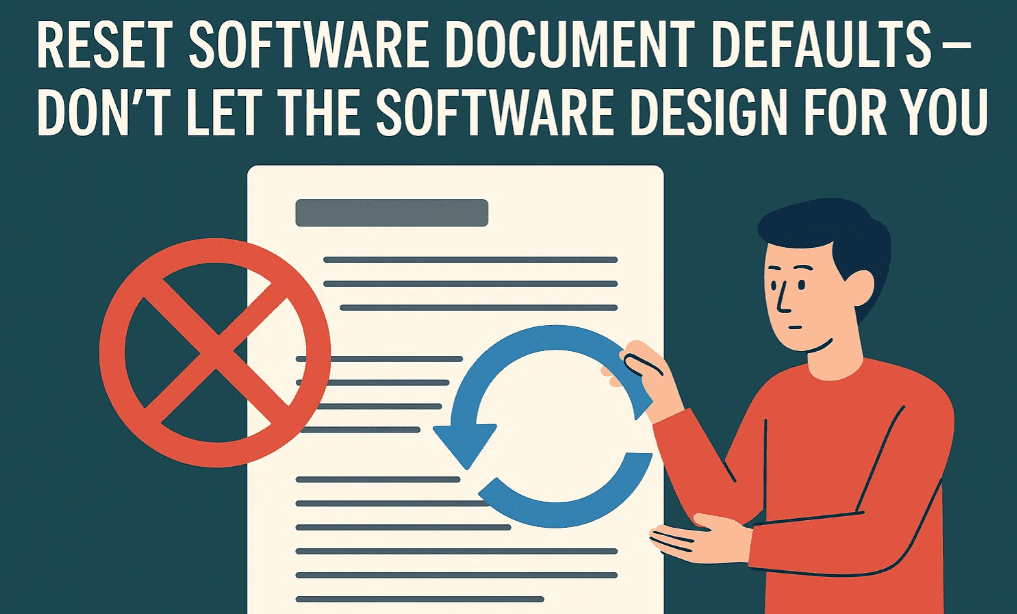
Let’s break down why resetting defaults is one of the smartest things you can do at the start of every project.
🧠 What Are Document Defaults?
Defaults are the pre-set design rules your software applies to every new document.
These may include:
- Page size and orientation
- Margins and column width
- Font family and size
- Line spacing (leading)
- Paragraph indents
- Tab settings
- Page grids and guides
- Text wrap and drop cap behavior
They’re useful for quick drafts — but if you never change them, you’re working with cookie-cutter design.
🛠️ Why You Should Customize Defaults
✅ Your layout will be more purpose-built
Each document has a different audience and intention. Default settings don’t know whether you’re designing a restaurant menu or a wedding invite.
✅ You gain better control and consistency
When you customize the settings upfront, you ensure consistent spacing, alignment, and formatting across all pages — especially helpful for multi-page documents.
✅ You avoid unnecessary formatting fixes later
Start clean. Don’t spend extra time adjusting every paragraph or resizing every text box halfway through.



🔧 Key Settings to Customize First
Here are the default settings you should review and update when starting a project:
| Setting | Why It Matters |
|---|---|
| Margins | Adjust to fit your layout needs (not 1” everywhere) |
| Fonts and Size | Replace Times New Roman 12pt with your chosen brand fonts |
| Line Spacing (Leading) | More readable layouts usually use 120–145% line height |
| Paragraph Spacing | Set spacing before/after instead of pressing Enter twice |
| Column Grid / Gutters | Set exact column widths and spacing for better flow |
| Text Wrap / Padding | Keeps text from hugging images or page edges |
| Drop Caps & Indents | Enable or disable based on style needs |
| Ruler Units & Guides | Switch from inches to millimeters or picas if needed |
📘 Example: Starting a Custom Newsletter in InDesign
- Create a new document.
- Set:
- Page size: A4 or US Letter
- Margins: 0.5″ top/bottom, 0.75″ outer, 0.5″ inner
- Columns: 2 with 0.25″ gutter
- Set default font styles in Paragraph Styles:
- Heading: Montserrat Bold 18pt
- Body: Lato Regular 11pt with 14pt leading
- Spacing after paragraphs: 10pt
- Save this as a template or preset for future use.
🎯 You’ve just saved yourself 30 minutes per project going forward.
🧰 Pro Designer Tips
- Use templates: Create your own document templates with all your custom defaults.
- Edit styles, not manually: Use paragraph and character styles to manage formatting — don’t format text one box at a time.
- Save presets for fonts, colors, and margins — especially in Word and InDesign.
- Start with a blank slate rather than tweaking a pre-loaded theme.
❓ Frequently Asked Questions
🔹 Are default settings really that bad?
Not bad — just basic. They’re not wrong, but they’re rarely right for professional publishing.
🔹 Should I create a custom template?
Yes. Creating branded or project-specific templates helps maintain consistency across newsletters, brochures, reports, and more.
🔹 Do I need to reset defaults every time?
No. You can set new defaults or create templates so that your preferred settings load by default in future documents.
✅ The Bottom Line
The software shouldn’t be making your design decisions — you should.
🎯 Resetting document defaults is a small step that brings massive benefits in design clarity, consistency, and professionalism.
🎯 It’s one of the first things professional designers do — and now, so can you.
🏷️ Tags:
desktop publishing, document defaults, layout setup, InDesign tips, formatting, templates
#Hashtags:
#DesktopPublishing #DesignTips #Formatting #PageLayout #DocumentDefaults #DesignEfficiency