Managing a WordPress website can often feel overwhelming — bloated dashboards, too many plugins, slow loading speeds, and complicated settings. But what if there was just one plugin that could help you organize, optimize, and secure your entire WordPress site?
In this article, we’ll explore ASC (All-in-One Security and Customization) — a powerful WordPress plugin that helps you:
- Declutter your dashboard
- Improve website performance
- Boost site security
- Add custom code
- Manage content
- Control media uploads
- And much more!
This is not a sponsored review, but a hands-on tutorial that covers all the key features of the ASC plugin and how to use it efficiently.
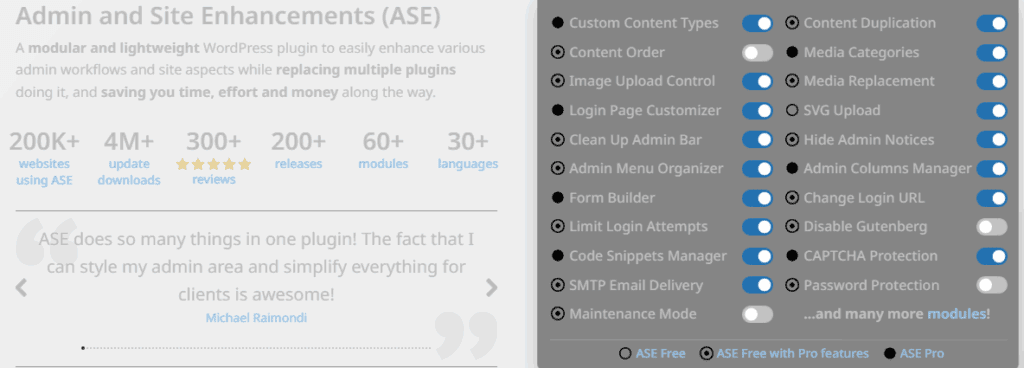
🔌 What is the ASC Plugin?
The ASC Plugin is an all-in-one WordPress plugin designed to replace dozens of separate plugins. It includes performance optimization, custom code insertion, login security, maintenance mode, SMTP setup, page duplication, and dashboard customizations — all packed into one tool.
You can download the plugin directly from your WordPress dashboard by searching for ASC Plugin or visit the official website:
👉 https://www.wpase.com/
🚀 Key Features and How to Use Them
✅ 1. Organize and Clean the WordPress Dashboard
Too many admin notices and plugin banners clutter the dashboard. ASC lets you clean it up:
Steps:
- Go to
Tools>Enhancements - Click
Admin Interface - Enable Hide Admin Notices
- Click Save Changes
- Refresh your dashboard to see a clean, minimal layout
🔐 2. Secure Your Login Page by Changing the URL
Every WordPress login page uses wp-admin or wp-login, which makes it vulnerable to bots. ASC lets you customize the login URL.
Steps:
- Go to
Login>Login Settings - Enable Change Login URL
- Enter a new unique login path
- Click Save Changes
Now your old login URL won’t work, and only the new one will allow access.
🧩 3. Add Custom Code Easily (Header, Body, Footer)
No need to install multiple plugins to add tracking codes (like Google Tag Manager) or CSS/JS snippets.






Steps:
- Go to
Custom Code - Enable Insert Head/Body/Footer Codes
- Click Expand
- Paste your custom code (e.g., GTM or CSS)
- Click Save Changes
Now your scripts are injected cleanly into the site.
🛡 4. Limit Login Attempts
Protect your site from brute-force attacks by limiting failed login attempts.
Steps:
- Go to
Security - Enable Limit Login Attempts
- Set a limit (e.g., 3 failed tries)
- Click Save Changes
After the set number of failed attempts, the user is temporarily blocked.
🎨 5. Add Your Logo to the Login Page
Brand your WordPress login screen with your site’s logo.
Steps:
- Go to
Login Settings - Enable Site Identity on Login Page
- Click Save Changes
- Check your login page — your logo replaces the default WordPress logo
📧 6. Set Up Email Delivery (SMTP)
WordPress emails sometimes land in spam or don’t deliver. ASC allows SMTP setup without coding.
Steps:
- Go to
Utilities - Enable Email Delivery
- Click Expand
- Add sender’s name, email, SMTP server, port, username, and password
- Click Save Changes
Refer to your email provider’s support for SMTP details (e.g., Gmail, Zoho, Outlook).
📄 7. Duplicate Any Page with One Click
Creating a similar page? No need to copy-paste everything.
Steps:
- Go to
Content Management - Enable Content Duplication
- Choose post duplication behavior (e.g., return to list view)
- Click Save Changes
- Go to
Pages>All Pagesand click Duplicate under any page
🛠 8. Enable Maintenance Mode
Hide your site while working on it with a custom message.
Steps:
- Go to
Tools>Enhancements>Utilities - Enable Maintenance Mode
- Click Expand and add a heading & message
- Click Save Changes
Visitors will now see your custom maintenance screen.
🖼 9. Set Image Upload Size Limits
Large image files slow down your site. ASC lets you restrict upload dimensions.
Steps:
- Go to
Optimizations - Enable Image Upload Control
- Click Expand
- Set max width and height (e.g., 1200×800)
- Click Save Changes
Now, any image uploaded will be resized automatically.
📁 10. Customize Admin Menu Layout
You can rename, reorder, or hide admin menu items for a cleaner workflow.
Steps:
- Go to
Admin Interface - Enable Admin Menu Organizer
- Drag-and-drop to rearrange
- Click menu names to rename
- Click Save Changes
🔁 11. Redirect 404 Pages to Homepage
Keep users from bouncing off broken links.
Steps:
- Go to
Utilities - Enable Redirect 404 to Homepage
- Click Save Changes
All 404 errors will now redirect to your homepage.
🌟 Bonus Pro Features
With the Pro version, you get access to:
- Custom Post Type management
- Media folder categorization
- Enhanced performance tools
- Advanced user roles & permissions
Pricing options are available for solo creators, teams, and agencies (annual and lifetime plans).
🧠 FAQs
Q: Is ASC Plugin free?
A: Yes, the basic version is free with powerful features. Pro unlocks additional tools.
Q: Can I uninstall other plugins after using ASC?
A: Absolutely. ASC can replace 30–50+ plugins depending on your needs (like SMTP, maintenance mode, page duplicator, login limiter, etc.).
Q: Is it safe to change the login URL?
A: Yes, but remember the new URL. Bookmark it or save it securely.
Q: Can I revert changes made with ASC?
A: Yes, all features are toggleable, and you can disable any changes anytime.
📌 Conclusion
If you’re tired of juggling 20+ plugins and want to boost performance, enhance security, and simplify your workflow, the ASC Plugin is a game-changer.
It’s lightweight, feature-rich, and eliminates the need for multiple standalone tools — making it perfect for beginners and advanced users alike.
🔖 Tags
WordPress optimization, WordPress security, ASC plugin, one plugin for WordPress, WordPress performance, SMTP WordPress, page duplication WordPress, hide admin notices, image upload limits, WordPress login protection
📢 Hashtags
#WordPressPlugin #ASCPlugin #WebsiteSpeed #WordPressSecurity #AdminDashboard #SMTPSetup #LoginProtection #PageDuplicator #MaintenanceMode #CustomCode
If you’ve been struggling to streamline your WordPress site, ASC Plugin might be all you need. Explore, experiment, and enjoy a faster, cleaner WordPress experience today!