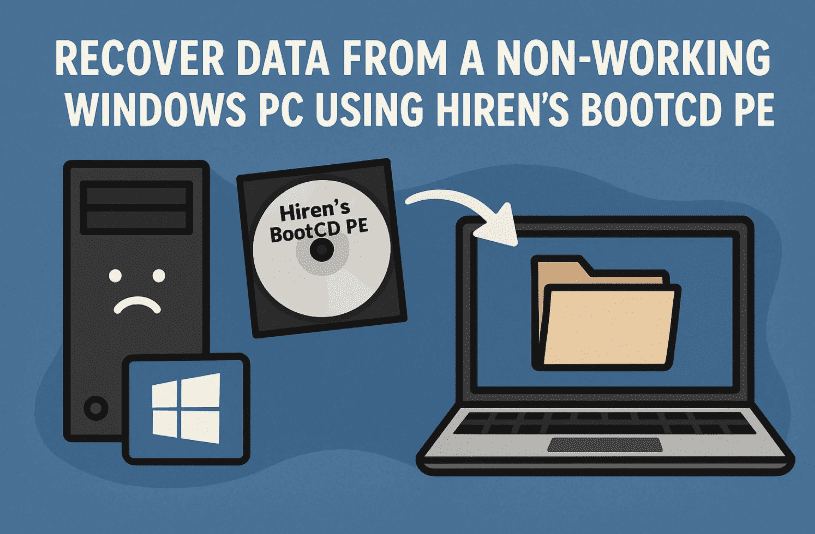
When your Windows computer crashes unexpectedly and won’t boot up, it can feel like a complete disaster—especially if you didn’t have time to back up your latest work. But don’t worry, your files might still be recoverable. In this detailed guide, we’ll walk you through how to retrieve important data from a non-working PC using a bootable recovery environment called Hiren’s BootCD PE.
🚨 Disclaimer:
This guide involves creating and booting from a USB drive, and may require entering BIOS/boot menus. Follow each step carefully. If you’re uncomfortable with any step, consider getting help from a tech-savvy friend or a professional.
⚡ What You’ll Need:
- A working Windows PC (can be your own or borrowed)
- A blank USB flash drive (64GB or more recommended)
- Internet access
🔗 Step 1: Download Hiren’s BootCD PE
- Visit https://www.hirensbootcd.org/
- Click on the Download link at the top.
- Scroll to the bottom and download the file named HBCD_PE_x64.iso (around 3GB in size).
🔗 Step 2: Download and Open Rufus
- Go back to the top of the Hiren’s BootCD page.
- Click USB Booting and then click the link to download Rufus (recommended tool to create bootable USB drives).
- Open Rufus after download completes.
🔗 Step 3: Create Bootable USB Drive
- Plug in your flash drive (backup anything important—this drive will be wiped).
- In Rufus:
- Select your USB device
- Press Alt + E to enable Dual BIOS/UEFI support
- Under Boot selection, click Select and choose the ISO you downloaded
- Set Partition scheme to MBR and File system to NTFS
- Set a name under Volume Label (e.g., RecoveryDrive)
- Click Start, then OK when warned about data loss
- Wait until the green Ready indicator appears, then close Rufus and remove the USB
🌐 Step 4: Boot the Broken PC from USB
- Plug the bootable USB into the non-working computer
- Turn it on and press the correct boot menu key (varies by brand: F12 for Dell, F11 for Lenovo, etc.)
- Select the USB drive from the menu and hit Enter
📂 Step 5: Use Hiren’s PE to Recover Files
- Hiren’s will load into a Windows-like environment
- Click the File Explorer icon (yellow folder at the bottom)
- Browse to C:\Users and open your user folder (e.g., John, Owner, etc.)
- Locate important folders: Desktop, Documents, Downloads, Pictures, Music, Videos
- Open your flash drive (usually labeled D: or Y:)
- Right-click files/folders you want to save > Send to > Select your USB drive
Repeat this process for all critical files until everything is copied.
💳 Recommended USB Drives:
- 64GB or 128GB USB 3.0 drives are ideal
- Brands: SanDisk, Kingston, Samsung, PNY
📊 FAQs
🤔 Is Hiren’s BootCD PE safe?
Yes. It’s a trusted recovery tool used by IT pros worldwide. Some antivirus tools may flag Rufus or ISO activity, but it’s safe.
📀 What if my drive is damaged?
- Traditional hard drives: You might still recover data, though slower
- SSD drives: If dead, data is usually unrecoverable without professional help
📁 How big should my flash drive be?
- Depends on the data size, but go with 64GB+ to be safe
🤔 What if I want to prevent this in the future?
- Partition your drive and store personal data separately
- Always maintain at least one backup (USB, external HDD, or cloud)
🚀 What Next?
Once you have safely recovered your files:
- Reinstall Windows using a USB installer (see: Windows Media Creation Tool)
- Or take your PC to a technician for OS reinstallation
📌 Tags:
data recovery, windows crash, hiren boot cd, rufus bootable usb, file recovery, no boot, recover files, windows tips, emergency recovery, windows won’t start
📈 Hashtags:
#DataRecovery #WindowsHelp #HirensBootCD #Rufus #WindowsRescue #PCRepair #FileBackup #TechTips #BootableUSB #ComputerFix