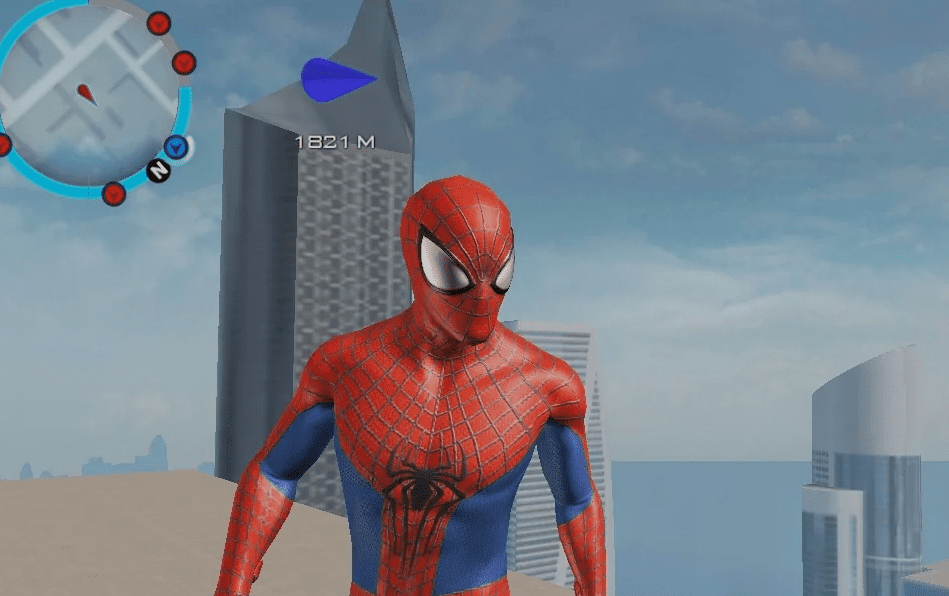
There’s something magical about stepping into the shoes of Spider-Man — leaping across rooftops, swinging effortlessly through skyscraper-filled skylines, and fighting crime in a living, breathing New York City. For years, enjoying The Amazing Spider-Man 2 with console-level performance meant owning a gaming PC or a dedicated console. But thanks to modern Android emulation, that’s no longer the case.
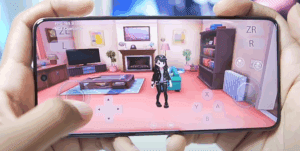
With GameHub Emulator V4.5, you can now run The Amazing Spider-Man 2 directly on your Android device, completely offline, with smooth performance that can exceed 60 FPS on powerful hardware. Whether you have a top-tier Snapdragon flagship or a budget MediaTek phone, this guide will walk you through exactly how to set it up, configure optimal settings, and enjoy Spider-Man anywhere you go.
⚠ Disclaimer:
This guide is for educational purposes only. You must own a legitimate copy of The Amazing Spider-Man 2 to play it using this method. No copyrighted files are provided here, and piracy is illegal. Always respect game developers and purchase games legally.
Table of Contents
- What’s New in GameHub Emulator V4.5
- Requirements & Compatibility
- Downloading GameHub Emulator
- Preparing Your Device
- Importing The Amazing Spider-Man 2 into GameHub
- Configuring Game Settings for Best Performance
- Launching and Playing The Game
- Performance Results: Snapdragon vs. MediaTek
- About The Amazing Spider-Man 2
- Troubleshooting Common Issues
- FAQs
What’s New in GameHub Emulator V4.5
Before we get into the setup process, let’s address the new V4.5 update. This time, the update isn’t packed with flashy features — the changelog only adds a single new line:
“Fixed potential bugs in PC emulator installation and uninstallation.”
Other than that, the rest of the patch notes simply repeat points from the previous version. While there aren’t any big new features, the stability and performance remain consistent — which is great for running demanding titles like The Amazing Spider-Man 2.
Requirements & Compatibility
To make sure you get a smooth experience, here’s what you’ll need:
Minimum Recommended Specs for Playable Performance
- Processor: Snapdragon 720G / Helio G85 (20–25 FPS range)
- RAM: 4GB minimum (6GB+ recommended)
- Storage: 5GB+ free space (game + emulator data)
- Android Version: 8.0 or later
For High FPS (40–60+)
- Processor: Snapdragon 865 or newer (Snapdragon 8 Gen 1/Gen 2 ideal)
- RAM: 8GB or more
- Storage: 5GB+ free space
- GPU: Adreno for maximum compatibility
Downloading GameHub Emulator
Download the official GameHub Emulator from its developer’s website or trusted sources. Avoid third-party modified APKs to reduce security risks.
🔗 Official Site: [Provide developer’s link if available]








Once downloaded, install the APK:
- Go to Settings → Security
- Enable Install from Unknown Sources for your browser/file manager
- Open the downloaded APK and tap Install
Preparing Your Device
Before starting the setup:
- Fully charge your device or connect to a charger — emulation can be power-hungry.
- Close background apps to free RAM.
- Use a cooling method if possible; high-end devices can get hot during gameplay.
- Have your legally obtained game files ready on your internal storage.
Importing The Amazing Spider-Man 2 into GameHub
Now let’s move into the actual setup.
- Open GameHub Emulator.
- The first time you launch it, you’ll be prompted to log in with your Google account. This step is required to fully activate the emulator.
- Go to the “My” tab at the bottom of the screen.
- Tap Import PC Games.
- Navigate to your Spider-Man 2 game folder.
- Select the game’s .exe file — this is your main launcher.
At this point, GameHub will install core files like firmware and essential emulator components. Wait for it to finish — this may take a few minutes depending on your device.
Once the process completes, the game will appear on your GameHub home screen.
Configuring Game Settings for Best Performance
This is where performance tuning happens. Click the three dots next to the game icon and choose Game Settings.
1. General Settings
- Resolution:
- Low-end devices → 854×480 for smoother FPS.
- High-end devices → 1280×720 for sharper visuals without sacrificing too much performance.
2. Compatibility Settings
- Translation Params: Performance Preset — ensures the CPU prioritizes speed over visual accuracy.
- GPU Driver:
- MediaTek/Helio → System Driver
- Snapdragon → Turnip Driver (default for Adreno GPUs)
- DXVK Version: DXVK 1.10.3 Async — helps with Vulkan translation for DirectX games, improving responsiveness.
- CPU Translator: Box64 V0.32.1 — the latest stable version for maximum compatibility.
3. Input Mapping
- Go to Input Mapping Settings.
- Enable Input Mapping to use the on-screen controls or connect a gamepad.
Once done, your setup is optimized for Spider-Man 2.
Launching and Playing The Game
Now it’s time to swing into action:
- Tap the game icon on the home screen.
- Wait for the game to launch — it should load smoothly if your settings are correct.
- From the very first mission, you’ll notice smooth swinging, responsive combat, and stable cutscenes.
Performance Results: Snapdragon vs. MediaTek
On Snapdragon 8 Gen 2:
- Average FPS: 40–50, with peaks over 60 FPS in less crowded areas.
- Combat and swinging are fluid with minimal stutter.
On MediaTek Helio G85:
- Average FPS: 20–25, playable for story progression.
- Some drops during heavy combat or dense city scenes, but still impressive for budget hardware.
About The Amazing Spider-Man 2
Released in 2014, this game remains a fan favorite for its open-world gameplay, cinematic story sequences, and dynamic combat system. It allows you to:
- Explore a detailed New York City.
- Stop street crimes dynamically.
- Face iconic villains like Electro and Kingpin.
- Upgrade Spidey’s abilities through skill trees.
Now, with GameHub Emulator, you can carry this world in your pocket.
Troubleshooting Common Issues
Q: Game crashes on launch.
A: Check if you’re using the correct DXVK version and GPU driver for your chipset.
Q: Lag during gameplay.
A: Lower the resolution in General Settings and disable unnecessary background apps.
Q: Controls feel unresponsive.
A: Reconfigure Input Mapping or use a Bluetooth controller for better precision.
FAQs
Q: Can I use a controller with GameHub?
A: Yes, most Android-compatible Bluetooth controllers work flawlessly.
Q: Does it work completely offline?
A: Yes, after the initial setup, no internet connection is required.
Q: Will GameHub updates break my game setup?
A: Not usually, but always back up your configuration before updating.
Tags: The Amazing Spider-Man 2 Android, GameHub emulator setup, play Spider-Man offline, Android PC games, Spider-Man 2 high FPS mobile
Hashtags: #SpiderMan2 #MobileGaming #AndroidGames #GameHub #OfflineGaming








