Imagine playing Stellar Blade, the visually stunning PlayStation-exclusive hack-and-slash game, directly on your Android smartphone. No PlayStation, no high-end PC – just you, your phone, and the breathtaking sci-fi action. Thanks to CyberCloud, a powerful Chinese cloud gaming emulator, this dream has become a reality.
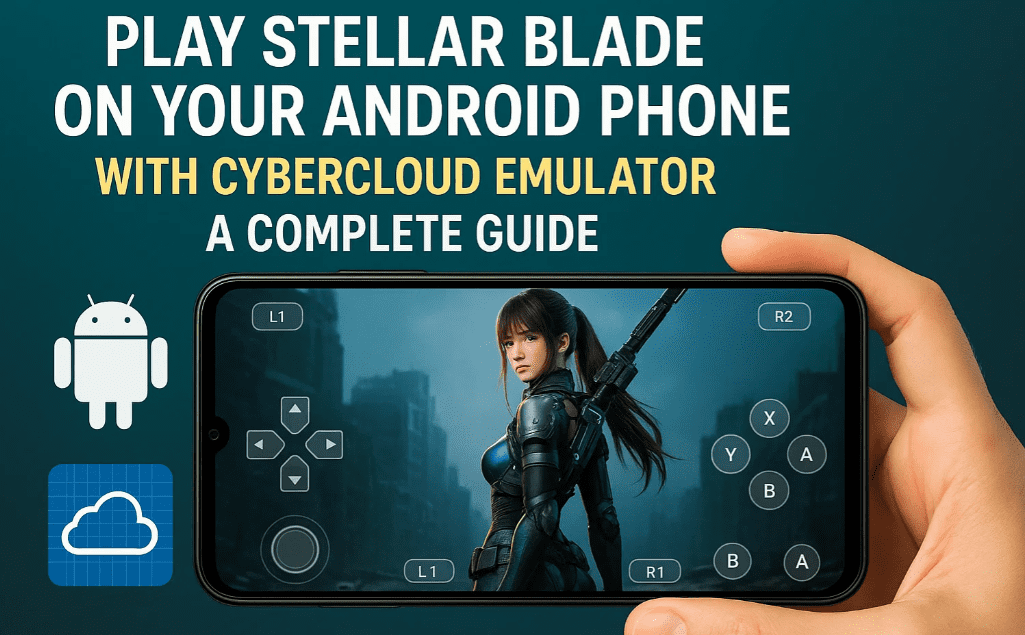
In this detailed article, we’ll walk you through everything you need to know to experience Stellar Blade on your Android device, including required tools, step-by-step setup, performance insights, and FAQs.
What is Stellar Blade?
Stellar Blade is a next-gen action RPG known for:
- Cinematic Sci-Fi Storyline
- Fast-paced, anime-style combat
- Console-level visual fidelity
- Immersive environments and boss battles
Previously available only on PlayStation consoles, this title is now accessible to mobile users via cloud technology.
What is CyberCloud?
CyberCloud is a Chinese cloud gaming emulator that allows users to stream and play console-quality games on Android devices. Unlike other emulators that require large downloads or high-end specifications, CyberCloud runs the game from the cloud — meaning:
- No installation of large files
- Minimal lag with stable internet
- Console-level graphics on mobile
🔗 Official Website: CyberCloud (Note: Use Google Translate if the page is in Chinese)
What You’ll Need
Before you begin, ensure you have the following:
✅ An Android phone (mid-range or higher)
✅ Chinese VPN app (e.g., HelloVPN, FlyVPN, or PandaVPN)
✅ CyberCloud APK (from the official site or trusted forums)
✅ Stable internet connection (minimum 10 Mbps recommended)
Step-by-Step Setup Guide
Step 1: Install a Chinese VPN
- Go to the Play Store or official website and download a VPN that offers Chinese servers.
- Install and open the VPN app.
- Connect to a Mainland China server.
Step 2: Download and Install CyberCloud Emulator
- Visit the official CyberCloud website or a trusted community (like TapTap or GitHub).
- Download the CyberCloud APK file.
- Enable “Install from Unknown Sources” on your device.
- Install the APK file.
Step 3: Launch CyberCloud and Create Account
- Open the CyberCloud app.
- Sign up using an email or phone number (some versions may require a QQ or WeChat account).
- Browse or search for Stellar Blade in the app interface.
Step 4: Play Stellar Blade
- Tap on the game and hit “Start” or “Play”.
- The game will stream directly to your device.
- Connect a Bluetooth controller for an even better experience (optional but recommended).
Performance Review
🔥 Graphics: Near-console quality, with detailed environments and character animations.
🎮 Controls: Smooth and responsive on touchscreen; best with a controller.
⚡ Lag: Very minimal if connected to a stable VPN and internet.
📱 Device Compatibility: Works surprisingly well even on mid-range devices like the Redmi Note series or Samsung Galaxy A-series.
Pros and Cons
| Pros | Cons |
|---|---|
| Play console games on Android | Requires VPN (slight hassle) |
| No need for downloads or large files | Chinese interface may need translation |
| High-quality streaming visuals | Controller highly recommended |
| Works on mid-range devices | May not be available in all regions |
Frequently Asked Questions (FAQ)
Q1: Is it legal to use CyberCloud?
A: CyberCloud operates in a legal grey area, especially for international users. It’s important to use this tool only for personal and non-commercial purposes.
Q2: Is a VPN mandatory?
A: Yes. Without a Chinese IP address, the CyberCloud app may not connect or load properly.







Q3: Can I play other games too?
A: Absolutely! CyberCloud supports several console and PC titles besides Stellar Blade.
Q4: Do I need a high-end phone?
A: Not really. As the game runs on the cloud, most of the heavy lifting is done server-side. Even a mid-range device should deliver smooth gameplay.
Q5: What about in-game language support?
A: The CyberCloud interface and game may default to Chinese. You can usually switch language settings within the game if supported.
Final Thoughts
If you’ve ever wanted to play Stellar Blade without owning a PlayStation, now’s your chance. Thanks to the CyberCloud emulator, your Android phone becomes a gaming powerhouse. While there are a few hoops to jump through — like setting up a VPN and dealing with a foreign language interface — the payoff is worth it: console-quality gameplay on the go.
Whether you’re commuting, lying in bed, or chilling at a café, Stellar Blade is now in your pocket.
Tags: cloud gaming, stellar blade android, cybercloud emulator, playstation emulator, android gaming, chinese cloud gaming, mobile hack and slash, console game on mobile
Hashtags:
#StellarBlade #CyberCloud #CloudGaming #AndroidGaming #ConsoleOnMobile #PlayStellarBlade #MobileEmulator #GamingTips #HackAndSlash
Affiliate Link Placeholder
🎮 Want a mobile gaming controller for the best experience?
https://amzn.to/44vOILi [US] | https://amzn.to/4llYhCe [IN]
Disclaimer:
This article is for educational purposes only. The use of third-party cloud gaming apps may violate terms of service of original game publishers or emulators. We do not host or promote pirated content. Always respect game developers’ rights and use legitimate platforms wherever possible.








