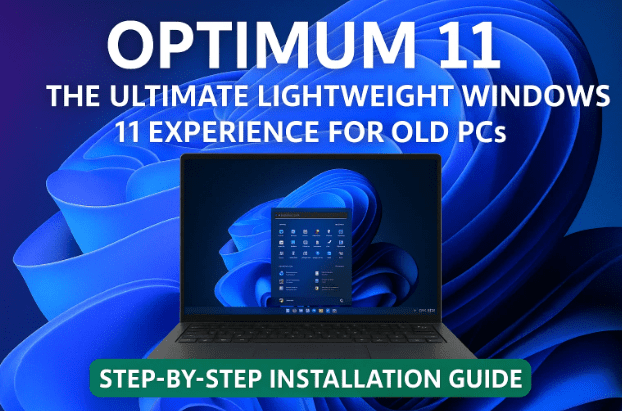
If you’ve ever wished your old computer could run Windows 11 smoothly — without lag, unnecessary bloatware, or annoying Microsoft account requirements — then Optimum 11 might just be the perfect solution.
This is a custom lightweight build of Windows 11, designed by the Windows X Lite team to deliver maximum performance, minimum background processes, and a cleaner interface. It removes redundant components that typically slow down lower-end PCs, making it ideal for users who want a faster, more efficient Windows experience.
In this guide, we’ll walk through what Optimum 11 is, how to download and install it safely, and what makes it unique. Along the way, we’ll include useful tips, context, and answers to common questions to ensure your setup process goes perfectly.
1. What Is Optimum 11 and Why Should You Use It?
Let’s begin by understanding what Optimum 11 actually does and how it differs from regular Windows 11.
Optimum 11 is a streamlined version of Windows 11 built on Microsoft’s base OS but with significant performance optimizations. It removes unnecessary apps and services (like Xbox, Microsoft Store, telemetry tools, and other background tasks) that normally consume resources.
Here are some of the biggest advantages of using Optimum 11:
- ✅ Runs smoothly on older hardware — even PCs without TPM or newer CPUs.
- ✅ No forced Microsoft Account during setup.
- ✅ Reduced RAM and CPU usage at idle (as low as 2GB RAM and 1–2% CPU).
- ✅ Minimal background processes (15–20 only).
- ✅ Fast boot time and smaller disk footprint (uses only ~6GB of storage).
- ✅ Clean desktop without ads, telemetry, or bloatware.
- ✅ Fully supports Windows updates and drivers.
Whether you’re repurposing an old laptop or building a minimalist desktop, Optimum 11 delivers that “fresh out of the box” speed many users miss.
2. ⚠️ Important Disclaimer Before You Begin
Before proceeding, a few crucial notes:
- Optimum 11 does not include a pirated license. It’s perfectly legal to install, but you’ll still need your own valid Windows key to activate it.
- Installation will erase your drive. Back up all important data before you continue.
- Always download the ISO from the official Windows X Lite website to avoid tampered or malicious builds.
With those precautions out of the way, let’s move to the next step — downloading Optimum 11 safely.
3. Downloading Optimum 11
Start by visiting the official source:
👉 https://windowsxlite.com
Once there, follow these steps carefully:



- Go to the Download section.
- Select Windows 11 Builds.
- Choose the latest release — currently, Optimum 11 24H2.
- You’ll see two main editions:
- Home Edition
- Pro Edition
Pick the version that matches your existing Windows license. For most advanced users, Pro is recommended.
Next, select the latest build version — as of now, Version 4.5.
Scroll down, and you’ll find two download options:
- Defender ON → Keeps Windows Defender active (more secure).
- Defender OFF → Removes Defender completely (better performance).
Choose based on your preference. The ISO size is roughly 2.8GB, so expect the download to take some time depending on your internet speed.
Once downloaded, you’ll get a ZIP file — let’s prepare it next.
4. Creating a Bootable USB Drive with Rufus
So far, we’ve done a good job getting the image. Now, let’s make it bootable.
You’ll need a tool called Rufus to create a bootable USB drive from the ISO file.
You can download Rufus from its official website:
👉 https://rufus.ie
Steps to create the USB:
- Insert a USB drive (minimum 8GB) into your PC.
- Launch Rufus.
- Under Device, select your USB drive.
- Under Boot selection, click Select, and choose the Optimum 11 ISO file.
- Leave all other settings at default (GPT + UEFI).
- Click Start.
Rufus will now format and write the ISO to your USB.
Within a few minutes, you’ll have a bootable Optimum 11 installer ready.
5. Installing Optimum 11
Now it’s time to bring this lightweight Windows to life.
- Restart your computer and boot from the USB drive.
(You may need to press F12, ESC, or F9 during startup to open the boot menu.) - Once it loads, you’ll see the Optimum 11 installer.
You’ll find two installation options:
- Defender ON (Standard Version) — Includes Defender for better protection.
- Defender ON SE (Special Edition) — Includes extra visual themes, tweaks, and customizations.
If you want a pure performance-focused setup, pick the regular version. If you enjoy additional design elements, choose SE.
- Select your preferred partition or drive for installation.
- Click Next, and the installation will begin.
Unlike standard Windows 11, Optimum 11 skips TPM checks, Secure Boot checks, and account requirements, so it installs on almost any machine without error.
Once completed, the system will reboot automatically — and you’ll be taken straight to the desktop, with an admin account already set up.
6. First Boot and Initial Impressions
The first thing you’ll notice after booting Optimum 11 is how clean and minimal the desktop looks.
No Cortana, no Edge pop-ups, no preinstalled Microsoft apps. Just the essentials.
Here’s what stands out immediately:
- The Start Menu is almost empty — no Candy Crush, no Xbox, no bloat.
- Task Manager shows only 15–20 background processes.
- RAM usage at idle: ~2GB.
- CPU usage: 1–2%.
- Storage footprint: Only ~5.9GB used on a fresh install (compared to 11–12GB for normal Windows 11).
- Boot time is significantly faster, especially on SSDs.
Everything about the interface feels snappy — from opening File Explorer to switching between windows.
7. Exploring the “Extras & Info” Folder
Once you’re on the desktop, you’ll notice a folder named Extras and Info. This folder is a hidden treasure for tweaking and customizing your setup further.
Here’s what’s inside:
- Quick Tools: Scripts to rename your PC or user profile easily.
- Service Enablers: Shortcuts to enable features like Print Spooler or Microsoft Account Sign-In.
- Browser Installers: One-click setup for Chrome, Firefox, or even Microsoft Edge.
- Microsoft Store Installer: If you want the Microsoft Store, simply run this shortcut to reinstall it.
- Help Guides: Links to official support and troubleshooting pages from Windows X Lite.
- Preloaded Wallpapers: Lightweight and visually clean backgrounds optimized for this build.
So far, so good — but there’s more you can control using the X-Lite Tools. Let’s look at those next.
8. Using X-Lite Tools for One-Click Tweaks
Optimum 11 includes a section in the Start Menu called X-Lite Tools, which lets you manage common Windows services instantly without diving into system menus.
You’ll find shortcuts to:
- Toggle Windows Updates on/off.
- Enable or disable Windows Firewall.
- Manage File Explorer transparency effects.
- Turn on the Print Spooler service when needed.
- Access WinAero Tweaker for deeper personalization.
These small utilities make it effortless to fine-tune your experience and reduce system resource consumption even further.
9. Context Menu Enhancements
One of the underrated yet helpful touches in Optimum 11 is the right-click menu customization.
You’ll see several new entries that make routine tasks faster:
- Open Command Prompt here — Launches CMD directly in any folder.
- Restart Explorer — Handy if the taskbar or File Explorer freezes.
- Open Control Panel — Quick access without searching.
- Boot into Safe Mode — One-click troubleshooting shortcut.
These context menu tweaks enhance everyday usability and make system management smoother than the stock Windows setup.
10. Windows Update and Security Notes
Optimum 11 supports official Windows updates; however, automatic updates are paused until the year 3000 (yes, literally).
You can re-enable updates anytime from the “X-Lite Tools” section.
But here’s an important tip — keeping updates off is better for performance, as it prevents unwanted reinstalls of removed bloatware.
If you prefer security updates only, enable Defender ON Edition, which keeps Windows Defender active.
11. Performance Overview
After using Optimum 11 for a few hours, it becomes clear why it’s becoming popular among users who value performance.
Here’s what typical resource usage looks like:
| Metric | Regular Windows 11 | Optimum 11 |
|---|---|---|
| Boot Time | 45–60 sec | 20–25 sec |
| Idle RAM Usage | 4–5 GB | 1.8–2 GB |
| Background Processes | 100+ | 20–25 |
| CPU Usage (Idle) | 5–10% | 1–2% |
| Storage After Install | 11–12 GB | 5.9 GB |
This efficiency means that even older laptops — like Intel 4th Gen i3s or AMD A6 systems — can feel noticeably faster, almost like new again.
12. Frequently Asked Questions (FAQ)
Q1: Is Optimum 11 legal?
Yes. It does not include a pirated activation key. You’ll need to activate it with your own genuine Windows license.
Q2: Can I update Optimum 11?
Yes, though updates are paused by default. You can enable them manually.
Q3: Does Optimum 11 work without TPM or Secure Boot?
Absolutely. These checks are removed during installation.
Q4: Can I install Microsoft Store and Xbox apps?
Yes. You can use the built-in installers from the Extras folder.
Q5: Is it safe to use for daily tasks?
Yes, but always download from the official site and ensure your Defender or third-party antivirus is active if you choose the Defender-Off build.
13. Final Thoughts
If you’ve been frustrated by Windows 11’s high system requirements, slow updates, or endless background services, Optimum 11 provides the experience you’ve been waiting for.
It’s a clean, fast, and efficient version of Windows that respects your hardware — not one that constantly fights it. The developers have struck an impressive balance between performance and usability, creating something that feels like Windows should have been out of the box.
From boot speed to multitasking, everything feels light and responsive — making it perfect for reviving old laptops, gaming PCs, or even low-end office machines.
Disclaimer:
Optimum 11 is developed by the independent Windows X Lite community, not Microsoft. Always back up your data and ensure you use a valid Windows key for activation. The guide above is for educational and informational purposes only.
Official Links:
#Optimum11 #Windows11Lite #WindowsXlite #OldPCRevival #PerformanceWindows #dtptips








