Embarking on a Linux journey can feel like stepping into an entirely different world—one full of excitement, frustration, learning curves, and fresh possibilities. It’s been over six months since I first shared my experience of trying Linux for a week, and since then, my perspective has evolved drastically. What started as a casual experiment quickly became a serious commitment, changing how I think about computing and pushing me to grow as a user.
If you’re curious about what it’s really like to switch from Windows to Linux, especially as a beginner, this detailed blog post will walk you through my personal Linux evolution—from the hype and hard lessons of Arch Linux to the surprisingly smooth ride with Linux Mint. Along the way, I’ll share my struggles, discoveries, and tips to help you navigate the Linux ecosystem thoughtfully and confidently.
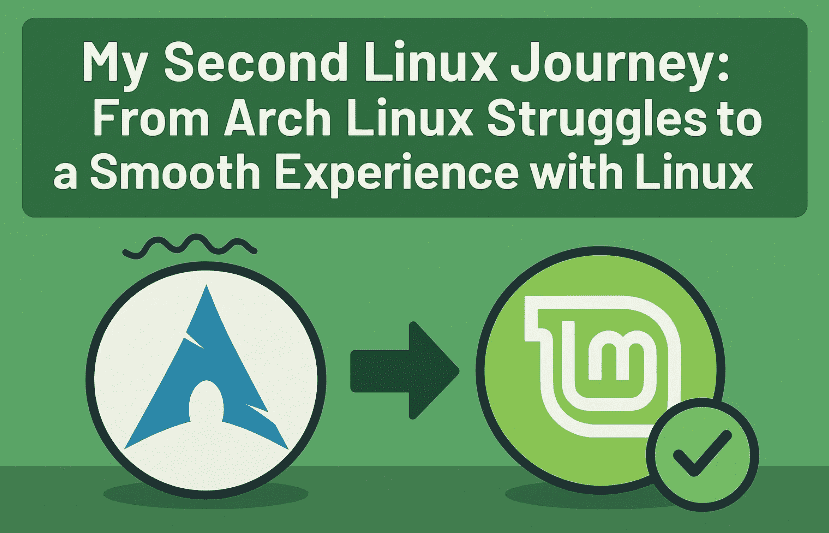
So, grab a coffee, and let’s dive into this Linux story together.
Trying Linux Again: The Arch Linux Experiment and Lessons Learned
At the start, my motivation to try Linux came from the hype around Arch Linux, a popular distribution praised for its customizability and power. Honestly, I dove in a bit too fast—mainly spurred on by the enthusiastic Linux community and “Arch fanboys.”
Here’s the thing: Arch is great—but not beginner-friendly. The installation process is complex, and customization demands a deep understanding of the system. It was a rough ride, and I faced many challenges that made me question if I should continue.
What I Learned from Arch Linux
- Patience is key: Rushing into Arch without a solid Linux foundation can be overwhelming.
- Community matters: While some Linux users can be opinionated and harsh, a lot of friendly, helpful people want to assist beginners. Massive thanks to them!
- Linux is diverse: There’s no one “right” way to use Linux. Different distros suit different needs.
- Give yourself time: A week isn’t enough to fully appreciate or understand Linux’s capabilities or quirks.
This realization led me to reconsider my approach and try a distro better suited for newcomers: Linux Mint.
Switching to Linux Mint: A Game-Changer in Usability
Linux Mint instantly felt like a breath of fresh air compared to the rollercoaster of Arch Linux.
First Impressions of Linux Mint:
- Smooth and Stable: The system worked seamlessly right out of the box—no complicated installs or crashes.
- Welcoming Interface: Unlike Arch’s barebones interface, Mint felt familiar and easy to navigate. It really helped bridge the gap from Windows.
- Performance Boost: My PC actually felt faster and more responsive. I was surprised at the speed improvements on my hardware.
Customization Made Easy: Themes, Cursors, and More
Mint strikes a nice balance between power and accessibility. Customizing the system was straightforward—the Settings app lets you tweak almost everything with just a few clicks:
- Themes: Mint offers three main themes—Mint L, Mint X, and Mint Y.
- Mint X: Traditional look but lacks dark mode.
- Mint L: A balance of modern and classic that felt a bit off to me.
- Mint Y: My favorite—modern, practical, and easy on the eyes.
- Cursor and Layout: Changing the cursor style and window behavior was painless compared to fiddling around in Arch.
- Backgrounds: A wide selection of beautiful wallpapers made it fun to personalize my desktop.
This level of out-of-the-box customization was a welcome change.
Tools and Software: Built-In Gems and Useful Add-Ons
Linux Mint comes packed with handy software:
- Screenshot Tool Issue: Curiously, screenshots were disabled by default. I installed CopyQ for clipboard management and screenshots, setting up shortcuts similar to Windows—a small but needed fix.
- Browser Choice: Initially, I used Brave but switched to Firefox after hearing privacy concerns. Firefox felt more polished, although I’m still exploring alternatives. Your suggestion? Please share in the comments.
- Office Suite: The free office apps bundled with Mint are surprisingly capable. The Word processor alternative is fully functional for everyday use and feels close to Microsoft Word.
- Paint Alternative: The preinstalled paint app was simple but got the job done for quick sketches.
- Presentation Software: I tried a free PowerPoint-like app which, while not as feature-rich as Microsoft’s version, offered essential tools and nice templates.
- Image and Document Viewers: The default image viewer Pix is lightweight and speedy, beating Windows’ Photos app. Document viewer is basic but functional; I still prefer Firefox for reading PDFs—especially for its highlighting and note-taking features.
- Media Player: The video player Celluloid works well, though I stick to VLC for more advanced needs.
- Hypnotix TV App: Fun but unreliable; it streams channels worldwide but often fails to connect.
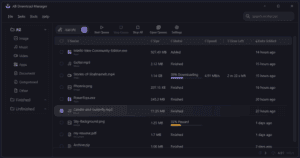
- Disk Analyzer: One of my favorite tools, offering a visual breakdown of disk usage to easily spot and clean up space.
- Task Manager: Stylish and informative UI, it revealed my system running multiple apps with only 6GB RAM usage, far more efficient than my Windows install.
- On-Screen Keyboard: Surprisingly useful on Linux, especially when my physical keyboard fails to wake after sleep.
- Password Manager: Simple, transparent password storage without “hidden vaults,” making it easy to manage credentials.
- Windows-Like Shortcuts: Navigation shortcuts are similar to Windows, making the transition less intimidating.
Driver Drama and Compatibility Challenges
No Linux experience is complete without some troubleshooting. Despite Mint’s ease, I ran into persistent GPU recognition issues—lags, disappearances, and repeated need for restarts shook my confidence.


- Driver UI: Mint’s built-in GPU driver manager looked promising but ended up making things worse at times.
- DIY Disaster: Be careful with copying random terminal commands from forums. Some advice worsened my setup.
- Persistent GPU Bugs: The issue remains unresolved without a clean reinstall—something I’m reluctant to do.
- Community Insight: Many suggest it might be a hardware/GPU problem rather than Linux-specific.
Content Creation: Mixed Results and Alternatives
For professional work, the story is more complex:
- Da Vinci Resolve: Unfortunately, it’s practically unusable due to poor GPU support on Linux.
- Alternatives: I tried Kdenlive, but the best performer for basic tasks was Caden Live. It’s solid for simple video editing but falls short for advanced projects.
- Trackpad Troubles: Pinch-to-zoom and multi-gesture support remain inconsistent.
- Workarounds Welcome: If you have tips or fixes for trackpad gestures, don’t hesitate to share!
What I’ve Learned So Far: The Linux Difference
Using Linux Mint daily has sharpened my understanding of how my hardware and OS interact. Some personal takeaways:
- Speed and Efficiency: SSD performance is noticeably better, with faster file transfers than Windows.
- Multitasking: Workspaces and gestures make juggling tasks effortless.
- User Experience: Linux Mint aims to simplify Linux, with a focus on accessibility and usability.
- Growth Mindset: Moving from Arch Linux to Mint taught me to pace myself and choose the right tool for the journey.
Recommendations for People Considering Linux
If you want to experiment with Linux, here’s my advice:
- Avoid jumping straight into complex distros like Arch unless you’re comfortable with troubleshooting.
- Start with user-friendly distros like Linux Mint, Ubuntu, or Fedora.
- Give yourself time—Linux isn’t mastered in a day or even a week.
- Engage with communities but filter out “tribal” noise—it’s about your needs, not fan wars.
- Experiment with different distros as you grow; each has unique strengths.
Frequently Asked Questions About Switching to Linux Mint
Q: How hard is it to set up Linux Mint for a former Windows user?
A: Surprisingly easy! With Mint’s polished interface and helpful tools, most users find switching straightforward, especially with Windows-like shortcuts.
Q: Are my favorite Windows apps available?
A: Many open-source alternatives are pre-installed or easily added. Some Windows-only apps might require compatibility layers like Wine, but support varies.
Q: Will my hardware work without tinkering?
A: Most modern devices (Wi-Fi, GPU, sound) work out of the box. GPU issues can occur, but drivers and kernel updates improve compatibility continually.
Q: Is Linux Mint good for gaming?
A: Fairly good. Steam runs well with Proton for many Windows games, but some multiplayer games may face anti-cheat restrictions.
Q: How do I keep Linux Mint secure and updated?
A: Mint provides regular updates through the Update Manager. Staying current helps avoid bugs and security issues.
Final Thoughts
My journey from Arch Linux frustration to Linux Mint enjoyment is a testament to the diversity and power of Linux. It’s not perfect—there will always be hiccups, especially with specialized hardware or software dependencies. But Mint’s stability, user-friendliness, and performance make it an excellent choice for beginners.
As I continue exploring different Linux distros, I invite you to join the adventure, ask questions, and share your own experiences. The world of Linux is vast—and whether you want a simple, stable desktop or a fully customized powerhouse, Linux has something for everyone.
Tags
Linux, Linux Mint, Arch Linux, beginner Linux, open source, distros, desktop customization, gaming on Linux, GPU issues, content creation, software alternatives, stability, productivity, software compatibility
Hashtags
#Linux #LinuxMint #ArchLinux #OpenSource #DistroJourney #DesktopCustomization #GamingOnLinux #GPUIssues #ContentCreation #Productivity #SoftwareAlternatives #BeginnerLinux
Disclaimer:
This blog post reflects a personal experience exploring Linux Mint and Arch Linux over several months and may not represent all users’ results. Hardware and software compatibility vary widely, so always back up your data and consult official distro guides for the latest information. For more on Linux Mint, visit the official Linux Mint website.







