Microsoft has officially launched a new and controversial feature for Windows 11 called Recall. While this feature has stirred quite a bit of debate online, it’s essential to understand the facts before jumping to conclusions. This blog post explains what Windows Recall is, how it works, who can use it, and the privacy implications you should be aware of.
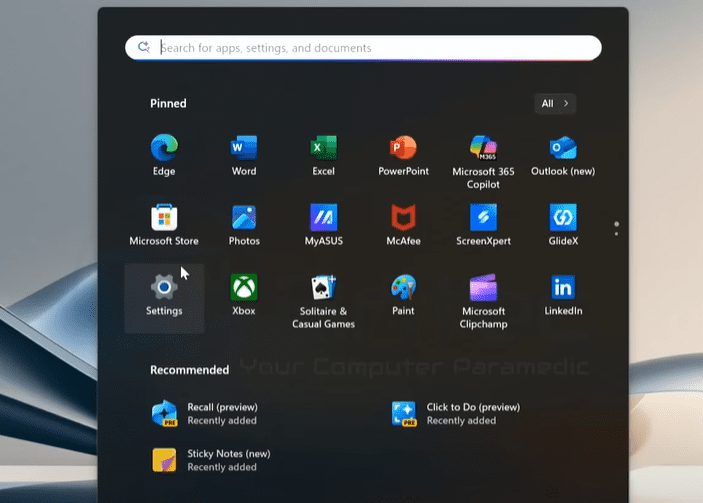
🚀 What is Windows Recall?
Windows Recall is an AI-powered feature designed to help users “retrace their steps” on their PC by capturing encrypted screenshots of screen activity over time. These screenshots create a visual timeline, allowing you to scroll back and find previous content or tasks you’ve worked on.
However, this powerful functionality also raises substantial privacy concerns, especially around the potential to capture sensitive data.
💡 Who Can Use Windows Recall?
Recall is not available to everyone. It is exclusively available on devices known as Copilot+ PCs—these are newer laptops or desktops that feature specific hardware, such as Snapdragon chipsets. You can usually identify them by checking if your keyboard has the Copilot key or by reviewing your system’s specifications.
More specifically:
- Your system must be running Windows 11 version 24H2 or newer.
- You must use a Microsoft Account (local accounts are not supported for Recall).
- You must have Windows Hello (facial or fingerprint recognition) set up.
- Device encryption must be enabled.
If these prerequisites are not met, the feature will not run.
🔐 Is Windows Recall Compulsory?
No, Windows Recall is opt-in only. It will not run automatically or capture any data unless you explicitly enable it.
Microsoft has confirmed that:
- Users are asked for permission before enabling Recall.
- It does not capture data out of the box.
- Each user must opt in individually.
- Snapshots are stored locally and are encrypted.
- Recall can be disabled or uninstalled via the “Turn Windows features on or off” settings.
This means you’re completely in control of whether the feature is active.
🛡️ Privacy and Security Measures
While Microsoft has taken several steps to protect user privacy, there are still concerns.
Here’s how Recall handles your data:






- All snapshots are encrypted using Windows Hello enhanced sign-in security.
- Data is stored locally—nothing is uploaded to the cloud.
- Sensitive data filtering is in place to automatically exclude passwords, financial information, and other private content.
- You can manually delete snapshots from the past hour, day, or month, or wipe them entirely.
That said, filters may not be foolproof, and users are encouraged to disable Recall during activities like online banking to avoid capturing sensitive content unintentionally.
🖥️ How to Disable or Uninstall Windows Recall
If you’re uncomfortable with the idea of Recall, the good news is that it can be completely turned off or uninstalled:
To uninstall Recall:
- Go to Start > Control Panel > Programs > Turn Windows Features on or off.
- Locate Recall in the list.
- Uncheck the box next to it.
- Click OK and restart your PC.
This will completely remove the feature from your system—no hidden background operations, no data collection.
🔍 What Recall Does and Doesn’t Capture
Recall does capture:
- Screen activity in supported apps and websites.
- Regular workflows such as documents, emails, chats (non-private browsing), etc.
Recall does NOT capture:
- Private browsing sessions.
- DRM-protected content (Netflix, Spotify, etc.).
- Media sent through encrypted messaging apps (like WhatsApp or Telegram).
Snapshots are also user-specific—other accounts on the same device cannot access your snapshots.
🎛️ Managing Snapshots
Once Recall is enabled, you can manage it via the Recall settings:
- Set a maximum storage limit for snapshots.
- Delete all or selected snapshots.
- Exclude certain apps or websites from being recorded.
- Pause or disable Recall at any time.
This gives users granular control over what Recall stores and when.
🧠 Why Use Recall?
While many users are concerned about privacy, others may find Recall genuinely useful. The ability to retrace your digital steps helps:
- Recover lost information quickly.
- Revisit websites or documents opened days ago.
- Resume interrupted work easily.
Think of it as a “photographic memory” for your computer, designed to streamline productivity.
⚠️ The Verdict
Windows Recall is not for everyone. If you value privacy and are uncomfortable with any form of background tracking, you may want to avoid it entirely. However, Microsoft has built in multiple safety measures to allow conscious users to take advantage of its convenience features while retaining control.
It’s important to note that:
- It’s opt-in, not mandatory.
- It can be disabled or removed.
- No cloud syncing or remote access to your snapshots.
For those who do choose to use it, Microsoft’s official stance is that Recall runs entirely on your device and is encrypted with state-of-the-art security.
🌐 Learn More
Visit Microsoft’s official Windows site to read further:
🔗 https://www.microsoft.com/windows
📌 Tags:
windows 11 recall, copilot plus pc, windows recall feature, recall opt-in, microsoft privacy features, turn off windows recall, uninstall recall, snapshot timeline, AI features in windows, windows 11 privacy
📌 Hashtags:
#Windows11 #RecallFeature #CopilotPlus #Microsoft #PrivacyConcerns #WindowsRecall #OptInFeature #DataSecurity #SnapshotTimeline #TechUpdate








