Microsoft has officially introduced a much-requested feature to its PC Manager application — the Deep Uninstaller. If you’ve been relying on third-party apps like Revo Uninstaller or Geek Uninstaller to completely remove programs and leftover files from your system, you may no longer need them. Microsoft now offers that capability natively within its PC Manager tool.
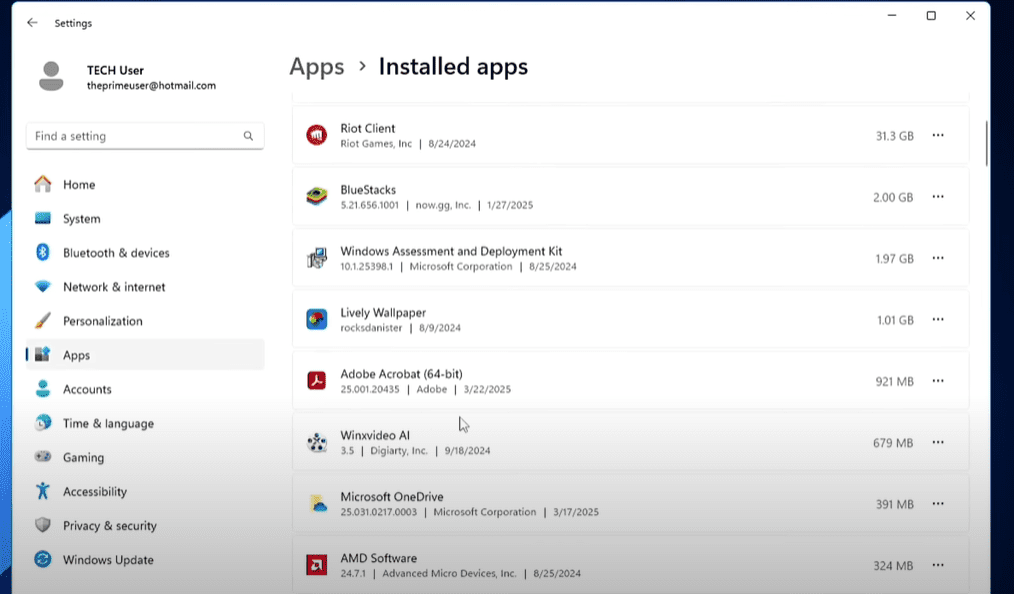
In this article, we’ll walk you through everything you need to know about this update, how to enable and use the Deep Uninstaller, and what makes it a useful addition to your PC optimization toolkit.
What Is Microsoft PC Manager?
Microsoft PC Manager is an official application from Microsoft designed to help users optimize their Windows PC. It provides tools to:
- Clean junk files
- Boost performance
- Manage startup apps
- Monitor security
Previously, however, its uninstallation feature was basic and did not remove residual files or registry entries. Users had to manually clean up leftovers or rely on third-party tools.
Introducing the Deep Uninstaller
With the latest update, Microsoft has introduced the Deep Uninstaller in PC Manager. This feature allows you to:
- Fully uninstall an application
- Remove leftover files
- Clean associated registry entries
Let’s walk through how you can use this new tool effectively.
Step-by-Step: How to Install and Use Deep Uninstaller in Microsoft PC Manager
1. Install Microsoft PC Manager
If you haven’t installed Microsoft PC Manager yet:
- Open Microsoft Store
- Search for “PC Manager”
- Install the app titled Microsoft PC Manager
Once installed, launch the application. You’ll see a dashboard interface on the right-hand side of your screen.
2. Enable Deep Uninstallation Reminders
To enable this functionality:
- Open Settings in PC Manager
- Scroll down to “Uninstall Residual Reminder”
- Toggle the setting on
This will ensure that whenever you uninstall an application, the system reminds you to use Deep Uninstall to fully clean up all residual data.
3. Access Deep Uninstaller
To access and use the Deep Uninstaller:








- Go to the “Apps” section in the left-hand menu
- Click on “Deep Uninstall”
- You’ll see a list of all installed applications
- Select any application you want to uninstall
- Click “Uninstall”
The tool will begin removing the application and attempt to clean up all remaining data.
Testing the Feature
As a test, uninstalling the Brave browser through Deep Uninstaller showed promising results. The app and its visible files were removed, and a quick search in File Explorer and C: drive returned no leftover folders related to Brave.
However, checking the Windows Registry revealed a few remaining entries. This suggests that while the feature does a thorough cleanup, it might not completely remove every registry trace — especially if related to other products from the same developer (e.g., Brave VPN vs. Brave Browser).
Still, the benefit here is safety — Microsoft ensures only the necessary components are removed, avoiding accidental deletion of shared files which can sometimes happen with third-party tools.
Other New Features in Microsoft PC Manager
Besides the Deep Uninstaller, the recent update also brings:
1. Network Check
Found under the “Protection” tab, this tool scans your current network connection and shows:
- Real-time internet speed
- Type of connection (Wi-Fi or wired)
- Network name
- Any existing issues or interruptions
2. Duplicate File Cleaner
You can now remove unnecessary duplicate files, which often consume valuable storage space. This tool can be found within the Cleanup section.
3. System Boost and Deep Cleanup
Continue using PC Manager’s built-in booster to enhance system performance and remove unnecessary files with one click.
Conclusion: Should You Use It?
The Deep Uninstaller is a welcome addition to Microsoft PC Manager, especially for users looking for a native, safe, and lightweight alternative to third-party uninstallers. While it may not yet be as detailed in visual reporting (like Revo showing every leftover registry key), its simplicity and trustworthiness as a Microsoft product make it a solid choice.
If you’ve never used PC Manager before, now is a great time to try it out. With features like system boosting, deep cleaning, network scanning, and now Deep Uninstallation, it’s becoming a comprehensive utility tool for Windows users.
Let us know in the comments whether this update meets your expectations. Has Deep Uninstaller helped you clean your system better? Share your feedback — your experience can help others too!
Tags: microsoft pc manager, deep uninstaller, how to uninstall apps windows, clean leftover files, registry cleaner windows, pc optimization tool, uninstall apps completely, windows performance tools
Hashtags: #MicrosoftPCManager #DeepUninstaller #WindowsTips #PCOptimization #UninstallApps #WindowsTools #RegistryCleaner #TechUpdate #MicrosoftTools







