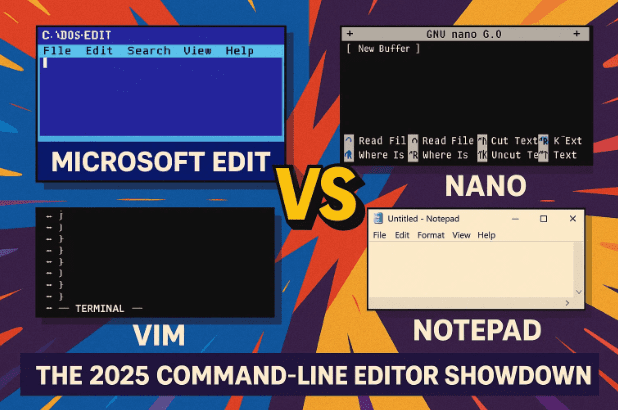
When it comes to text editors, everyone has a favorite. For decades, developers and system administrators have been divided between Nano’s simplicity, Vim’s legendary complexity, and Notepad’s nostalgia.
But now, Microsoft has quietly introduced a new contender — a small but surprisingly capable command-line text editor called Microsoft Edit.
It might sound like “just another text editor,” but there’s more to it. Microsoft Edit brings modern usability to the command line, blending familiar mouse and keyboard features with the raw efficiency of terminal editing. And yes, it even works on Linux.
So in this post, let’s dive deep into this new arrival, compare it with classics like Nano, Vim, and Notepad, and find out which one truly fits your workflow in 2025.
🚀 1. The Arrival of Microsoft Edit
For years, Microsoft relied on Notepad as its default text editor. It was lightweight, but limited — especially when you wanted to edit system files, work over SSH, or manage configurations remotely.
Then came Visual Studio Code, a full-fledged coding powerhouse — but too heavy for simple edits.
So in 2025, Microsoft decided to fill the gap with something fast, simple, and surprisingly flexible: Microsoft Edit.
This tool lives in the command line but feels refreshingly modern. It’s available by default in Windows 11 version 25H2, but it’s also cross-platform — meaning Linux users can join the party too.
💡 2. Why It Exists in 2025
Let’s pause for a second. Why would Microsoft create another text editor when dozens already exist?
The answer lies in use-case balance.
GUI editors like Notepad are easy but limited. Advanced editors like Vim or Emacs are powerful but intimidating. And Nano, while simple, lacks polish and mouse support.
Microsoft Edit aims to be the middle ground:
- Fast to launch like Nano
- Familiar controls like Notepad
- Mouse support even in terminals
- Full cross-platform compatibility
Essentially, it’s for people who want to get things done — not spend half a day learning cryptic keyboard shortcuts.
⚙️ 3. Installation and Availability
Let’s move to the next part — getting it installed.








🪟 Windows Installation
If you’re using Windows 11 (25H2 or later), Edit is already included. Just open the Command Prompt or Windows Terminal and type:
edit
If it opens, you’re ready.
If not, you can install it manually through Microsoft’s package manager:
winget install Microsoft.Edit
Alternatively, download it directly from Microsoft’s GitHub repository:
👉 https://github.com/microsoft/edit
🐧 Linux Installation
Linux users can download the standalone executable or build it from source. Once extracted, run:
./edit
No additional dependencies are required.
🖱️ 4. First Look: Design and Interface
The moment you launch Microsoft Edit, it doesn’t feel like a traditional terminal app. At the top, you’ll notice a menu bar — with options like File, Edit, and View — just like desktop editors.
And yes, these menus are clickable with the mouse. You can highlight text, scroll, and even use Ctrl+C, Ctrl+V, Ctrl+Z, and Ctrl+Y.
Even if you’re using the old conhost Command Prompt, mouse support still works — something rarely seen in command-line apps.
It’s minimal, but not primitive. A perfect blend of nostalgia and modern convenience.
✍️ 5. Basic Commands and Usage
Let’s learn how to use it.
You can open any file by typing:
edit filename.txt
- If the file exists, it opens instantly.
- If it doesn’t, Edit creates one automatically when you save.
To start a blank document, just type:
edit
It opens Untitled-1.txt by default, and you can rename it later while saving.
When you hit Ctrl+S, you’ll be asked for a filename if it’s new — similar to Save As in Notepad.
The command also supports opening multiple files, which we’ll explore later.
🔍 6. Smart Features That Set Edit Apart
So far, we’ve seen the basics, but let’s explore what makes it different from older editors.
🧠 Familiar Shortcuts
Unlike Vim or Nano, Microsoft Edit uses the same shortcuts most of us already know:
- Ctrl+C / Ctrl+V – Copy and paste
- Ctrl+Z / Ctrl+Y – Undo and redo
- Ctrl+A – Select all
🔎 Find and Replace
Press Ctrl+F for Find or Ctrl+H for Replace.
As you type, Edit highlights results in real time — no need to press Enter.
You can toggle options like:
- Match Case
- Match Whole Word
- Use Regex
You can click these checkboxes or use the keyboard with Tab and Space.
🖋️ Real-Time Highlighting
Press Enter or F3 to jump through search results.
Press F3 in Replace mode to skip replacements. Small touches like these make Edit far more natural than command-line alternatives.
⚙️ 7. Tabs, Encoding, and File Management
At the bottom, you’ll find a status bar showing:
- File name
- Line and column position
- Whether unsaved changes exist (marked with an asterisk)
But that’s not all. You can also change tabs, line endings, and encoding from here.
🧩 Tabs & Spaces
By default, Edit converts tabs to spaces. You can toggle it by clicking on Tab in the status bar.
You can also choose how many spaces each tab represents — usually 4 by default.
If a file already contains tabs, Edit detects it automatically and adjusts accordingly.
🔡 Encoding & Line Endings
You can convert between CRLF (Windows) and LF (Linux/Mac) line endings.
Similarly, encoding types like UTF-8 and ANSI can be switched easily — helpful when working across systems.
📂 8. Multi-File Editing in Command Line
Let’s move to something rarely seen in terminal editors — multi-file editing.
You can open multiple files simultaneously by using:
edit file1.txt file2.txt
Or create a new one inside the editor by going to File → New File.
At the bottom-right, you’ll see indicators like:
Untitled-1.txt +1
Clicking this opens a small Go To File menu, allowing you to switch between open documents, similar to tabs in Notepad or VS Code.
If any file has unsaved changes, a small asterisk (*) appears beside it.
Just remember — closing the terminal without saving will discard all unsaved edits.
🧩 9. Hidden Tricks and Power Commands
Now that you know the essentials, let’s uncover a few hidden gems that make Microsoft Edit powerful even for advanced users.
🧭 Jump to Line and Column
You can open a file directly at a specific line and column number:
edit config.txt:25:8
This moves your cursor to line 25, column 8.
If you only provide a line (e.g., :25), it starts there by default.
🔄 Piping Data Into Edit
You can pipe the output of any command directly into Edit:
dir | edit
This sends the output of dir into a new editable file window. Perfect for quickly saving logs or lists.
🔖 Command Help
To see all available options, type:
edit --help
🧪 Experimental Features
Microsoft is already testing a directory-opening feature — you’ll soon be able to open a folder directly and pick files through a built-in selector.
⚖️ 10. Microsoft Edit vs Nano vs Vim vs Notepad (Full Comparison)
Let’s compare the four most talked-about editors side by side.
Each editor brings something unique — Nano’s simplicity, Vim’s speed, Notepad’s GUI comfort, and Edit’s modern command-line polish.
| Feature | Microsoft Edit | Nano | Vim | Notepad |
|---|---|---|---|---|
| Platform Support | Windows & Linux | Linux & macOS | Cross-platform | Windows only |
| Interface Type | Command-line with menus | Command-line | Command-line (keyboard-driven) | GUI |
| Mouse Support | ✅ Yes | ❌ No | Limited | ✅ Yes |
| Keyboard Shortcuts | Standard (Ctrl+C, Ctrl+V) | Custom (Ctrl+K, Ctrl+U) | Modal (Esc, :wq, etc.) | Standard |
| Learning Curve | Easy | Moderate | Steep | Easiest |
| Multi-File Editing | ✅ Yes (tab-like switching) | ❌ No | ✅ Yes | ✅ Yes |
| Syntax Highlighting | ❌ Not yet | ✅ Yes | ✅ Yes | ❌ No |
| Search & Replace | ✅ Real-time | ✅ Simple | ✅ Advanced | ✅ Simple |
| Line Ending/Encoding Control | ✅ Built-in | ❌ Limited | ✅ Advanced | ❌ Limited |
| Open Source | ✅ Yes | ✅ Yes | ✅ Yes | ❌ No |
| Cross-Platform Support | ✅ Full | ✅ Partial | ✅ Full | ❌ Windows only |
| Best For | Developers, sysadmins | Beginners, Linux users | Power users | General text editing |
🔹 Key Observations
So what do we learn from this comparison?
- Microsoft Edit fills a huge usability gap — modern, cross-platform, and beginner-friendly.
- Nano remains the simplest option for Linux terminals, but lacks polish.
- Vim is unmatched in efficiency once mastered — but comes with a steep learning curve.
- Notepad stays perfect for GUI-based quick notes but can’t handle server environments.
Together, these four editors cover nearly every possible need. But if you want one that works everywhere, supports the mouse, and feels instantly familiar, Microsoft Edit wins the middle ground.
🧰 11. Who Should Use Which Editor?
Let’s match each editor to its ideal audience.
| User Type | Recommended Editor | Why |
|---|---|---|
| Beginners & Students | Microsoft Edit | Easy shortcuts, clear menus, works on Windows and Linux |
| Server Admins (SSH) | Nano | Lightweight and always pre-installed |
| Power Users & Coders | Vim | Efficient once mastered; ideal for complex workflows |
| Casual Users / Writers | Notepad | Familiar, clean, and distraction-free |
If you often switch between Windows and Linux, Microsoft Edit is easily the most balanced choice in 2025.
❓ 12. FAQs About Microsoft Edit
Q1. Is Microsoft Edit free?
Yes, it’s completely free and open-source. You can download it from Microsoft’s GitHub page.
Q2. Does it replace Notepad?
Not exactly — Notepad is still your basic GUI editor. Edit is meant for command-line environments.
Q3. Does Microsoft Edit support syntax highlighting?
Not yet, but the feature is expected in future updates.
Q4. Can it open large files?
Yes, it’s lightweight and performs well even with large log or config files.
Q5. Does it work on macOS?
Officially no, but you can compile it manually using .NET SDK since it’s open source.
Q6. What happens if I close the terminal without saving?
All unsaved data will be lost. Always save before closing the terminal.
🌍 13. Final Thoughts
Microsoft Edit may not replace your favorite editor overnight, but it’s an impressive step forward in making the command line more approachable.
It manages to blend the comfort of Notepad with the flexibility of terminal editors, all in a tiny, fast, open-source package.
For beginners, it’s a perfect way to start learning command-line editing without the confusion of Vim commands. For professionals, it’s a reliable fallback tool that just works — fast, stable, and intuitive.
In a world where text editors often swing between over-simplified or over-engineered, Microsoft Edit feels like a well-balanced middle ground — and it deserves a spot in your toolkit.
⚠️ Disclaimer
This article is based on Microsoft’s Windows 11 (25H2) release notes and official GitHub documentation. Features and compatibility may vary based on system version and distribution. Always refer to https://github.com/microsoft/edit for the latest builds and updates.
#MicrosoftEdit #Nano #Vim #Notepad #TextEditor #CommandLine #Windows11 #LinuxTools #OpenSource #TerminalEditing








