When we talk about Microsoft and text editors, names like Notepad and Visual Studio Code instantly come to mind. But quietly, without much noise, Microsoft has introduced something surprisingly elegant — a new command-line text editor called “Edit.”
At first glance, it might sound like something only developers or system admins would care about. But once you understand what Microsoft Edit actually offers — especially being cross-platform (Windows and Linux), lightweight, and mouse-friendly — you’ll realize it’s a powerful yet accessible tool for anyone who works with code, configuration files, or text remotely.
This isn’t just another developer toy — it’s a bridge between the old command-line world and modern usability. Let’s take a deep dive into what makes it special, how to install and use it, and why it’s already gaining attention across tech communities.
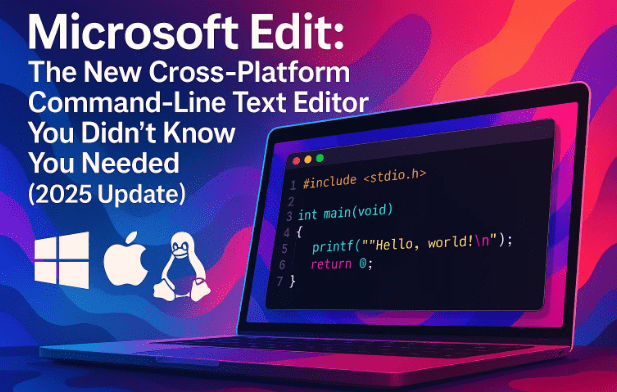
💡 1. What Is Microsoft Edit?
Microsoft Edit is a new command-line text editor that comes pre-installed starting with the Windows 11 25H2 update.
If you’re running an older version of Windows or even Linux, don’t worry — it’s open-source and available on Microsoft’s official GitHub repository, where you can directly download the single executable file (edit.exe for Windows or binaries for Linux).
👉 Official GitHub: https://github.com/microsoft/edit
Despite being command-line based, Edit is refreshingly intuitive. It combines the simplicity of Notepad with the accessibility of classic terminal editors like Nano — but with a modern twist:
- Full mouse support, even on older
conhostwindows. - Familiar File, Edit, and View menus at the top.
- Standard Ctrl + C / Ctrl + V shortcuts instead of cryptic key combinations.
This means beginners can feel comfortable, and advanced users can appreciate the lightweight flexibility.
⚙️ 2. How to Install Microsoft Edit on Windows and Linux
Let’s move to the next step — getting this editor installed. Fortunately, it’s a simple process, whether you’re on Windows or Linux.
🪟 For Windows Users
If you’re on Windows 11 25H2 or newer, Microsoft Edit is already included by default.
To verify, just open Command Prompt and type:
edit
If the editor launches, you’re good to go.






If it doesn’t, or if you’re on an older Windows build, you can manually install it via Winget, Microsoft’s official package manager.
Simply run this command:
winget install Microsoft.Edit
This command automatically downloads and installs the editor globally, so you can run edit from any folder in the command prompt.
Alternatively, you can download it directly from the GitHub release page and place the executable file anywhere in your system path.
🐧 For Linux Users
Yes, Linux users can join the fun too. Microsoft provides compiled binaries for various distributions.
You can either:
- Clone the GitHub repository and compile it manually, or
- Download the pre-built
.tar.gzarchive, extract it, and run./editfrom the terminal.
It works on any terminal emulator with ANSI support.
🧠 3. Why You Might Want to Use a Command-Line Text Editor
Now you might ask: Why use a command-line editor when graphical ones like Notepad++ or VS Code exist?
Here’s the reality — sometimes you just don’t have access to a GUI.
Maybe you’re connected to a remote Linux server through SSH. Maybe you’re fixing a system file from recovery mode. Or maybe you simply want to edit configuration files faster without launching a big IDE.
This is where Edit shines:
- It’s lightweight and starts instantly.
- You can use it over remote sessions like SSH or PowerShell.
- It supports modern editing conveniences — mouse clicks, familiar shortcuts, and multi-file handling.
It’s the perfect middle ground between Nano’s simplicity and Vim’s power, but without the learning curve.
🖱️ 4. First Impressions — Menus, Mouse, and More
When you first open Microsoft Edit, you’ll notice something surprising — it doesn’t look intimidating at all.
At the top, you’ll see the classic menus — File, Edit, and View — just like traditional text editors. Even though this tool runs inside a terminal, you can actually click these menus with your mouse.
You can highlight, drag, and select text exactly as you would in Notepad. The mouse even works inside the old Command Prompt window, not just the new Windows Terminal.
That’s a big plus for people who’ve always found command-line tools uncomfortable.
✍️ 5. Basic Usage: Opening and Saving Files
So far, so good. Now let’s explore how to open and save files using Edit.
You can open a file directly from the terminal using:
edit filename.txt
- If the file already exists, it opens immediately.
- If it doesn’t, Edit creates a new file with that name once you save it.
If you just type edit without any filename, it opens a blank file titled Untitled-1.txt, allowing you to assign a name when saving.
When you hit Ctrl + S, you’ll be prompted to confirm the name and location if it’s new.
You can also open multiple files at once, which we’ll discuss later — another feature rarely found in basic terminal editors.
🔍 6. Exploring the Edit Menu: Find, Replace, and Keyboard Shortcuts
Let’s move to the next important part — editing tools.
Under the Edit menu, you’ll find a familiar and surprisingly rich set of features:
- Find (Ctrl + F)
- Replace (Ctrl + H)
- Select All (Ctrl + A)
- Undo / Redo (Ctrl + Z / Ctrl + Y)
These are simple yet powerful, especially because they follow standard Windows shortcuts (not cryptic Vim keys).
🔹 Find and Replace
When you use Find, Edit immediately starts highlighting results in real time as you type.
You can press Enter or F3 to cycle through matches.
There are also advanced options for:
- Match Case
- Match Whole Word
- Use Regular Expressions (Regex)
These can be toggled with checkboxes — either by clicking with the mouse or using the Tab key to navigate and Space to toggle.
The Replace feature works similarly, with separate “Find” and “Replace” fields.
If you press F3 even while in the Replace field, it will cycle through matches without replacing — a subtle but handy shortcut.
⚙️ 7. Customizing Tabs, Spaces, and Encoding
After mastering the basics, let’s explore customization options hidden in the status bar at the bottom.
This area may look simple, but it’s quite powerful.
🔸 Tabs and Spaces
By default, Microsoft Edit converts all tabs into spaces — a common convention for clean formatting.
However, you can toggle this behavior:
- Click the Tab option in the status bar to switch between “spaces” and “true tabs.”
- You can also adjust the tab width (number of spaces) easily.
Interestingly, if your file already uses tabs, Edit automatically detects it and adjusts accordingly — though the width resets to 4 spaces each time.
🔸 Line Endings and Encoding
From the same bar, you can change:
- Line endings (Windows CRLF or Unix LF)
- Encoding methods (UTF-8, ANSI, etc.)
This is extremely useful when transferring files between Windows and Linux systems, ensuring compatibility.
🔸 Status Indicators
At the bottom-right corner, you’ll always see:
- The current file name or its placeholder.
- An asterisk (*) when there are unsaved changes.
- The line and column numbers for your cursor position.
📂 8. Working with Multiple Files Simultaneously
So far we’ve done a great job understanding basic editing, but let’s step it up.
One of the most underrated features in Microsoft Edit is its ability to open multiple files at once — something rare for command-line editors.
You can create new files directly inside the editor via File → New File.
At the bottom-right corner, you’ll notice file indicators like:
Untitled-1.txt +1
Clicking this opens the Go To File menu — essentially a mini “tab switcher.” You can select which file you want to make active.
Each file maintains its own unsaved status (indicated by a small asterisk). However, since Edit runs inside the terminal, closing the terminal will force-quit everything, so remember to save your work.
This feature makes Edit feel less like a basic tool and more like a compact, tabbed workspace for quick edits across multiple documents.
🧩 9. Hidden Features and Command-Line Tricks
If you’re an advanced user, you’ll enjoy some of the hidden capabilities available through command-line arguments.
Here are a few useful tricks:
🔹 Open a File to a Specific Line and Column
You can directly jump to a line and column using:
edit myfile.txt:10:5
This opens the file and places your cursor on line 10, column 5.
If you only provide one number (like :10), it simply jumps to that line.
🔹 Use “–help” for Arguments
Running:
edit --help
will display all supported arguments and flags.
🔹 Pipe Output from Other Commands
Here’s a clever trick — you can pipe the output of another command into Edit as a new file. For example:
dir | edit
The vertical bar (|) takes the output of the dir command (directory listing) and loads it directly into Edit. You can then modify or save it as a text file.
🔹 Upcoming Feature — Directory Launch
Microsoft is working on a new feature (already visible in GitHub commits) that allows you to open a directory directly, which will then display a file picker to choose from.
This isn’t live yet but will make navigation even smoother.
🧰 10. Who Should Use Microsoft Edit?
By now, it’s clear that Edit is not just for one type of user. Its audience spans from beginners to system administrators.
Here’s a quick overview:
| User Type | Why It’s Useful |
|---|---|
| System Administrators | Lightweight editor for remote sessions (SSH/PowerShell). |
| Developers | Quick edits to config or log files without opening an IDE. |
| Students / Learners | Safe way to learn command-line editing without dealing with Vim or Nano syntax. |
| Writers / Note-Takers | Simple environment to focus on pure text writing, with mouse and keyboard comfort. |
| Linux Users | A friendly alternative to Nano, available across platforms. |
❓ 11. FAQs — Common Questions About Microsoft Edit
Q1: Is Microsoft Edit free and open-source?
Yes. Microsoft Edit is fully open-source and available for free under a permissive license. You can find the source code and releases on GitHub.
Q2: Does it replace Notepad?
Not exactly. Edit is meant for command-line use, while Notepad remains a GUI application. They complement each other rather than compete.
Q3: Can I use it on macOS?
Currently, no official macOS binary is released, but since it’s open-source, you could compile it yourself using .NET SDK.
Q4: Is mouse support available on Linux too?
Yes. The Linux builds support mouse input if your terminal emulator allows it (such as GNOME Terminal or Konsole).
Q5: Are unsaved files automatically recovered?
No. Since it runs in a terminal session, closing the terminal will terminate the program immediately. Always save your files manually.
Q6: Does it support syntax highlighting?
Not yet. The current version is focused on lightweight text editing. Syntax highlighting might be added later.
🌍 12. Final Thoughts
Microsoft Edit might not make headlines like Windows Copilot or AI integration tools, but it represents something equally important — a return to simplicity.
It’s proof that even in the age of cloud-connected AI assistants, there’s still room for a small, fast, reliable text editor that “just works.”
Whether you’re tweaking configuration files on a server, editing notes over SSH, or simply exploring the terminal for the first time, Edit feels like the perfect balance between the old and the new.
By keeping it open-source and cross-platform, Microsoft has opened the door for developers and enthusiasts everywhere to contribute, customize, and perhaps finally standardize a universal terminal editor.
It’s minimal, efficient, and—most importantly—practical. And in today’s bloated software world, that’s worth celebrating.
⚠️ Disclaimer
The information in this article is based on Microsoft’s documentation and early testing of Windows 11 version 25H2. Features and behavior may vary depending on updates or future releases. Always refer to the official Microsoft GitHub repository for the latest details and builds.
Tags:
Microsoft Edit, Windows 11 25H2, Command Line Editor, Linux Tools, Winget, Open Source, Text Editor, Microsoft Utilities, Terminal Tools
Hashtags:
#MicrosoftEdit #Windows11 #LinuxTools #CommandLine #TextEditor #Winget #OpenSource #TerminalEditor #MicrosoftUtilities








