If you’re still using Windows 10 in 2025, it’s time to face the music—things are about to change, fast.
Microsoft is officially pulling the plug on Windows 10 updates in October 2025. That means we’re down to just three months before the world’s most-used desktop operating system becomes vulnerable, unsupported, and potentially unsafe. But that’s not all. In a significant shift, Microsoft is also cracking down on unsupported PCs running Windows 11. So, if you’ve bypassed official requirements till now, your luck may be running out.
In this blog, let’s break down everything happening, why it matters, and what real-world solutions you have—step by step, without shortcuts. Whether you’re a student, gamer, office user, or tech enthusiast, by the end of this guide, you’ll have a clear direction.
What Happens After Windows 10 Support Ends?
Once support officially ends in October 2025, here’s what you need to be prepared for:
- No More Security Updates: Your system becomes more vulnerable to malware, ransomware, and zero-day threats.
- No Bug Fixes: Any existing system glitches will remain, possibly worsening with newer apps or drivers.
- Software Compatibility Risks: Over time, newer apps (especially browsers, games, and productivity tools) may stop supporting Windows 10 altogether.
- No Official Support: If anything breaks—be it a Windows service, your login, or your activation—Microsoft won’t help.
And most importantly, with over 1 billion+ users still on Windows 10, this change affects a massive portion of the global population.
Unsupported PCs? Microsoft Says No to Windows 11 Bypass Now
Previously, Microsoft allowed a semi-official way to install Windows 11 on unsupported PCs. But now, in 2025, that backdoor is being closed:
- They’ve removed the official bypass guidance from their blogs.
- Internal updates now detect unsupported hardware more aggressively.
- Future updates or features may break installations or disable unsupported systems silently.
⚠️ In short, if your PC doesn’t meet official requirements (TPM 2.0, Secure Boot, supported CPU), you’re playing a risky game installing Windows 11 now.
Why Continuing With Windows 10 Is Risky
Still tempted to hold on to your beloved Windows 10?
Let’s quickly talk about vulnerabilities.
Modern operating systems are constantly under attack—from web browsers (like Chrome) that get patched multiple times a week to background services like Windows Update itself. Without Microsoft support, Windows 10 will become a playground for malware authors.
Remember Windows 7? After support ended, even its source code leaked, leading to numerous exploits. Expect a similar fate for Windows 10.






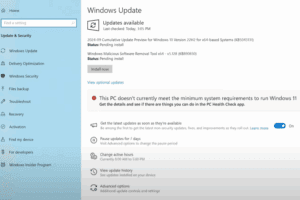


So What Are the Real Options?
Let’s move to the core of this article: what can you actually do now?
You have 3 major pathways:
🛡 Option 1: Pay for Extended Security Updates (ESU)
If you love Windows 10 and can’t let go, Microsoft offers Extended Security Updates for enterprise and some home users.
How this works:
- Pay a fee (not cheap).
- In return, you get updates for a few more years.
- Mostly targeted at business clients, but advanced users can try to enroll.
✅ Pros: You stay secure, no need to switch.
❌ Cons: It’s costly, not always available for everyone, and involves licensing headaches.
🖥 Option 2: Switch to Windows 10 LTSC (Long-Term Servicing Channel)
If you’re a bit more technical or don’t mind going slightly off the mainstream path, LTSC is an interesting option.
What is Windows 10 LTSC?
It’s a special version of Windows designed for businesses, hospitals, ATMs, and kiosks. It doesn’t get feature updates—only security patches—and can stay valid up to 2027 or even 2032, depending on the version.
Key Highlights:
- No Cortana, Edge, or Windows Store bloat.
- Runs faster, lighter, and cleaner than regular editions.
- Ideal for older or low-spec PCs.
But here’s the catch:
- LTSC licenses are meant for business users.
- Activation keys might be harder to obtain legally for home users.
- Some apps (e.g. Microsoft Store apps or Xbox services) won’t work.
✅ Pros: No forced updates, lightweight, secure for longer.
❌ Cons: Licensing restrictions, not ideal for gaming or Microsoft Store apps.
Still, it’s one of the most recommended choices for users who want to continue using Windows 10 but in a more stable, clean environment.
🧠 Option 3: Consider Linux (Zorin OS, Ubuntu, Linux Mint)
If your PC doesn’t support Windows 11 and you don’t want to deal with licensing issues, it might be time to explore something new: Linux.
Let’s be honest—switching to Linux sounds scary for most Windows users. But hear us out.
One of the most user-friendly and Windows-like Linux distributions is Zorin OS.
Why Zorin OS?
- Windows-like interface (very beginner-friendly)
- Built-in Wine support to run many Windows apps
- Free and paid versions available
- Great for general tasks: web, docs, media, basic editing
🔗 Zorin OS Website: https://zorin.com/os
Other alternatives include:
- Linux Mint – Great for general users, very stable.
- Ubuntu – A balanced all-rounder, lots of community support.
- Kali Linux – For cybersecurity or ethical hacking enthusiasts.
✅ Pros: Free, secure, fast, customizable.
❌ Cons: Compatibility issues with some Windows-only software/games.
🔄 Bonus Tip: Dual Boot to Get the Best of Both Worlds
Not ready to ditch Windows 10 completely? That’s okay.
You can dual boot Linux with your current Windows setup. That way:
- You can test Linux without removing anything.
- If one OS fails or becomes risky, you have a backup.
- You can learn Linux gradually while keeping access to your current tools.
Many Linux installers (including Zorin OS) help set up dual booting automatically if you follow the on-screen wizard.
💡 How to Check If Your PC Can Run Windows 11?
Before deciding, check your compatibility with Windows 11 the right way.
You can do it in 2 steps:
Step 1: Check CPU support
Visit Microsoft’s official processor compatibility lists:
- 🔗 Intel CPUs: https://learn.microsoft.com/en-us/windows-hardware/design/minimum/supported/windows-11-supported-intel-processors
- 🔗 AMD CPUs: https://learn.microsoft.com/en-us/windows-hardware/design/minimum/supported/windows-11-supported-amd-processors
Step 2: Use CPU-Z
Download CPU-Z and check for the following features:
- For Intel CPUs: SSE 4.2
- For AMD CPUs: SSE4a
- Also make sure POPCNT (Population Count) is supported.
These features are required internally by Windows 11—even if your CPU is listed as compatible.
If all match, you’re good to upgrade.
FAQ: Let’s Answer Some Common Questions
Q1: Can I keep using Windows 10 after October 2025?
Yes, but you’ll no longer receive updates or security patches. It’s not recommended unless it’s isolated from the internet.
Q2: Is installing LTSC legal for home users?
Officially, no. It’s for enterprise use. But many tech-savvy users deploy it on home PCs with custom activation methods (at their own risk).
Q3: Will Linux support all my games and apps?
Not all. Some games and apps (especially Adobe and Microsoft Office) may have issues. However, many alternatives and compatibility layers like Wine or Proton exist.
Q4: Should I move to Windows 11 on an unsupported PC?
Not anymore. Microsoft is making it harder and riskier with each update. Long-term, it’s not sustainable.
Final Thoughts: What Should You Do Now?
We’re at a crossroad. Windows 10’s end-of-life is more than a warning—it’s a transition point.
Here’s a quick decision guide:
| Situation | Best Option |
|---|---|
| Your PC supports Windows 11 | Upgrade now while you can safely |
| You want to stay on Windows 10 legally | Consider paying for ESUs |
| You want stability without updates | Try Windows 10 LTSC |
| Your PC doesn’t support 11 + you want safety | Try Zorin OS or Linux Mint |
| You’re not ready to commit | Dual boot Linux with Windows 10 |
Whatever you choose, don’t wait till October. Use the remaining time wisely—backup your data, explore new systems, and plan your transition.
Tags and Hashtags
Tags: windows 10 end of support, windows 11 compatibility, windows 10 LTSC, linux alternative to windows, windows 10 esu, upgrade from windows 10, zorin os for beginners, cpu compatibility windows 11, linux dual boot, windows 10 expiry
Hashtags:
#Windows10 #Windows11 #LinuxAlternative #ZorinOS #LTSC #MicrosoftUpdates #EndOfSupport #UpgradeTips #TechGuide #Cybersecurity








