Microsoft just surprised the tech community with a new feature in Windows 11 version 25H2 that many users — especially IT admins — have been requesting for years. They’ve finally introduced an official way to remove what most people call bloatware from the operating system.
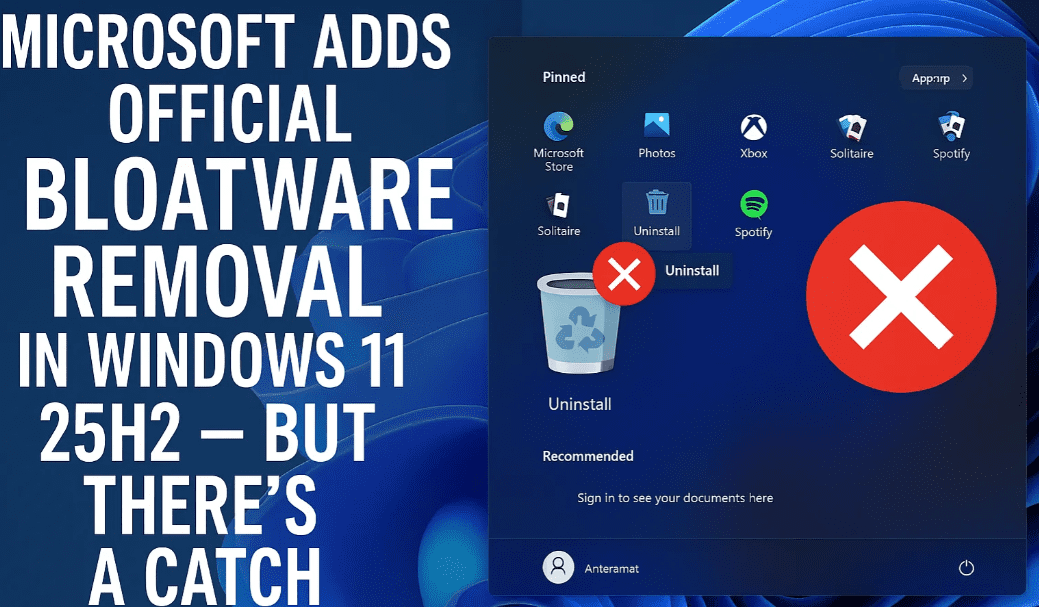
But before you celebrate too much, let’s break it all down — including the fine print and limitations.
🎯 What’s New: Group Policy to Remove Store Apps
In the latest Windows 11 Insider builds (Dev and Beta channels), Microsoft added a new Group Policy setting called:
Remove Default Windows Store Packages from System
You can find it here:
Computer Configuration > Administrative Templates > Windows Components > App Package Deployment
This policy allows you to select from a curated list of built-in Microsoft Store apps. These apps will then be automatically removed whenever a new user profile is created on the system.
📦 Apps You Can Remove
The default list includes several familiar Microsoft apps such as:
- Clipchamp
- Windows Media Player
- Windows Terminal
- Notepad
- Paint
- Quick Assist
- Some Xbox-related apps
This is particularly useful for admins or users who prefer a minimalist Windows setup without all the extra apps cluttering the Start Menu.
🚧 The Catch: Limited Editions Only
Now here’s the downside:
This feature is only available on:
- Windows 11 Pro
- Windows 11 Education
- Windows 11 Enterprise
💡 Windows 11 Home users are left out — at least officially. The Home edition doesn’t have access to the Group Policy Editor by default.
While tools like Policy Plus can enable group policy options in Windows Home, this feature doesn’t yet appear in those tools — but that might change in the future.


🗂️ How It Works Behind the Scenes
When you enable the policy, Windows creates registry keys under:
HKEY_LOCAL_MACHINE\SOFTWARE\Microsoft\Windows\CurrentVersion\Appx\PackageRemoval
Each app you choose to remove is recorded using its Package Family Name (PFN) as a subkey. This ensures those apps are excluded from any new user accounts created afterward.
But remember — this doesn’t affect existing user profiles.
🔍 Insider-Only for Now
This feature is currently exclusive to the Windows Insider Program, specifically:
- Dev Channel Build: 26200.5670 or later
- Beta Channel: A similar build with early feature access
If you’re not running these builds, you won’t see the option just yet.
🔧 Why This Matters for IT Admins
Previously, removing built-in apps required using PowerShell scripts, which could be unreliable or break features during Windows setup — especially in automated deployments or Windows Autopilot setups.
Now, with this official method, admins can have more control with fewer risks, simplifying enterprise deployment.
⚠️ Limitations You Should Know
- This policy only targets Microsoft’s built-in apps — not third-party apps like:
- Spotify (trial version)
- OEM software preloaded by PC manufacturers
- Some app shortcuts may still appear in the Start Menu even after removal. Clicking them won’t do anything, but the visual clutter remains.
- As of now, this isn’t a complete solution — more polish is needed before it’s “user-ready.”
🧪 Registry Hacking Possibilities
Interestingly, since the policy works by referencing registry keys, some users have discovered that you could manually add package family names of apps not listed in the policy. That means you could potentially remove:
- Copilot
- Bing integration
- Other hidden bloat
…if you know what you’re doing and have the correct PFNs. But be cautious — this is untested territory.
🕐 When Will It Be Available for Everyone?
Microsoft hasn’t shared an exact timeline for when this feature will hit the stable release. But since it’s already live in the Dev and Beta channels, there’s a good chance it will launch with the final release of Windows 11 25H2, expected later this year.
✅ Final Thoughts
So, is Microsoft finally giving us the bloatware-free Windows we’ve always wanted?
Yes — but only partially.
- ✔️ It’s official
- ✔️ It works for new users
- ❌ Only for Pro, Education, and Enterprise
- ❌ Doesn’t cover third-party bloatware
- ❌ Not ready for existing profiles
If you’re on Windows 11 Home, you’ll still need to rely on manual methods or third-party tools like O&O AppBuster, BloatyNosy, or custom PowerShell scripts.
📌 Frequently Asked Questions (FAQ)
❓ Does this remove third-party apps like Spotify?
No. It only removes Microsoft’s built-in apps available through the Microsoft Store.
❓ Will this clean up existing user accounts?
No. This policy only affects new user profiles created after it is enabled.
❓ Can Windows 11 Home users use this feature?
Not officially. But third-party tools or registry hacks may offer workarounds in the future.
❓ Can I use this to remove Copilot?
Possibly — but only by editing the registry manually and knowing the correct Package Family Name.
🧰 Useful Tools for Home Users
If you’re on Windows 11 Home and still want to remove bloatware, try these tools:
- 🔧 O&O AppBuster
- 🧼 BloatyNosy
- 📜 Custom PowerShell scripts
🔗 Official Documentation
- Patch My PC Article – Covers policy details and use cases
- Microsoft Group Policy Reference
🔖 Tags
Windows 11, bloatware removal, group policy, Windows 11 Pro, IT admin tools, appx package removal, Windows 11 25H2, registry tweak, Insider Preview, PowerShell
📢 Hashtags
#Windows11 #Bloatware #MicrosoftUpdate #WindowsTips #GroupPolicy #ITAdmin #WindowsPro #Windows25H2 #WindowsInsider #AppRemoval
📌 Disclaimer
Disclaimer: This article is for educational purposes only. Registry edits or advanced Group Policy changes can affect system stability if not done carefully. Proceed at your own risk, and always create backups before modifying system settings.








