When setting up a new Windows 11 PC, one of the very first decisions you’ll face is whether to use a Microsoft account or a local account. While it may seem like a small choice, this decision can significantly affect your privacy, features, access to cloud services, and even your system’s security.
In this article, we’ll walk you through both options in detail—the pros, cons, features, limitations, and use-case scenarios—so you can make an informed decision based on how you use your computer.
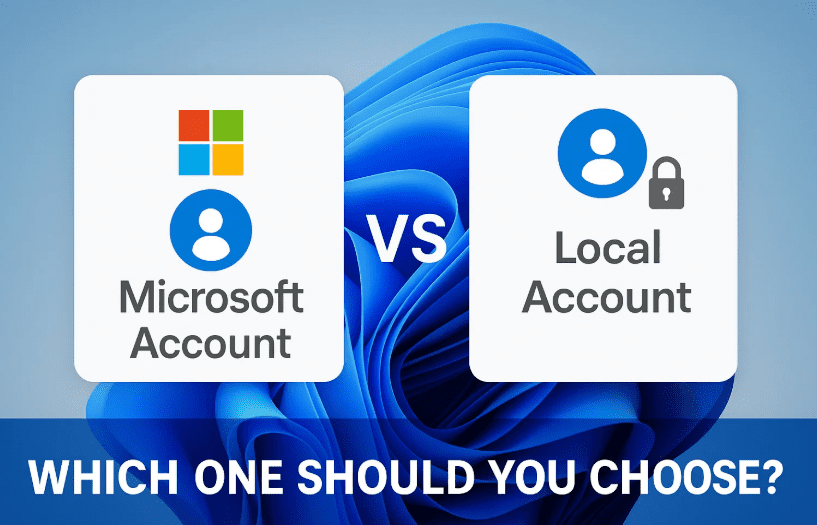
🤔 What’s the Difference Between a Local Account and a Microsoft Account?
Before we dive into comparisons, let’s understand what each account type really is.
🧑💻 Local Account
A local account is a traditional offline user account specific to one device. It’s like the accounts we had back in the Windows 7 days.
- Does not require internet to log in.
- Password and settings are stored locally.
- Cannot sync with other devices.
- Limited or no access to Microsoft services like OneDrive, Microsoft Store, and Xbox Live.
🌐 Microsoft Account
This is a cloud-connected account that links your Windows device to Microsoft’s ecosystem of services.
- Requires internet for setup and syncing.
- Stores settings, preferences, and passwords in the cloud.
- Syncs data across devices.
- Provides access to OneDrive, Microsoft Store, Xbox, Office 365, and more.
- Adds extra layers of security like two-factor authentication and password recovery options.
🧭 Let’s Explore the Local Account – Is Simplicity Better?
If you’re someone who prefers to keep things simple and private, then a local account might feel like a comfortable choice.
But before jumping to that conclusion, here’s what a local account does and doesn’t offer:
✅ Advantages of a Local Account:
- Works completely offline.
- Doesn’t require any Microsoft login.
- Offers more privacy—no syncing of personal data to Microsoft.
- Great for standalone setups like public kiosks, offline workstations, or gaming PCs with no online services.
❌ Limitations of a Local Account:
- No access to Microsoft services like OneDrive, Store, or Office 365.
- Can’t sync settings, themes, or passwords across devices.
- No built-in password recovery—if you forget your login password, recovery options are limited.
- Lacks advanced security like two-factor authentication and BitLocker key sync.
- No support for Family Safety, parental controls, or device tracking.
⚠️ Tip: If you use features like BitLocker encryption, password recovery, Microsoft Teams, or Windows Hello, a local account may limit functionality.
☁️ Now Let’s Explore Microsoft Accounts – Connected, Secure, and Cloud-Ready
If you’re someone who wants seamless access to cloud storage, Office tools, gaming features, and enhanced security, then a Microsoft account is practically a must.
✅ Benefits of a Microsoft Account:
- Access to Microsoft services like:
- OneDrive (cloud storage)
- Microsoft Store (apps and games)
- Xbox Live
- Outlook/Calendar
- Microsoft Teams
- Office 365
- Syncs your data and settings across all your devices.
- Enables Windows Hello for biometric sign-ins (face, fingerprint, PIN).
- Stores BitLocker recovery keys securely in your account.
- Offers password recovery via email/SMS.
- Supports 2FA (Two-Factor Authentication).
- Required for Copilot+ PC features and AI integration.
💡 If you use multiple Windows devices, a Microsoft account makes switching between them seamless—all your data follows you.
🔄 Can You Switch Between Local and Microsoft Accounts?
Absolutely!



- You can start with a local account and switch to a Microsoft account later.
- Or begin with a Microsoft account and switch back to a local account if needed.
Windows provides a simple toggle for this under:
Settings > Accounts > Your Info > Sign in with a local/Microsoft account instead
📊 Feature Comparison Table
Let’s simplify everything into a comparison table to make your decision easier:
| Feature | Local Account | Microsoft Account |
|---|---|---|
| Internet Required | ❌ No | ✅ Yes (initial setup + syncing) |
| Device Syncing | ❌ No | ✅ Yes |
| OneDrive Access | ❌ No | ✅ Yes |
| Microsoft Store Access | ❌ Manual login | ✅ Auto login |
| Password Recovery | ❌ Manual / limited | ✅ Email / phone reset |
| Family & Parental Controls | ❌ Not supported | ✅ Fully supported |
| Two-Factor Authentication | ❌ No | ✅ Yes |
| Security | Basic | Enhanced (2FA, BitLocker key backup) |
| Personalization | Per-device only | Cross-device syncing |
🔐 What About Security?
Let’s be real—security is a growing concern. Here’s how Microsoft accounts level up your protection:
- BitLocker Key Backup: If your device is stolen, data is protected via encryption.
- Account Lock: Microsoft can remotely block access.
- 2FA: Even if someone steals your password, they can’t log in without the second factor.
- Windows Hello: Secure, fast logins using biometrics.
A local account just can’t offer this level of protection. If your local device is lost, and you’ve not encrypted the drive, all your data is vulnerable.
🤷♂️ So, Which One Should You Choose?
Here’s a quick decision guide:
Choose a Local Account if:
- You don’t use Microsoft services like OneDrive or Office 365.
- You prioritize privacy and don’t want cloud syncing.
- You work offline or use Windows minimally (e.g., for single-use PCs or labs).
Choose a Microsoft Account if:
- You want to sync settings, apps, and files across devices.
- You use Microsoft services like OneDrive, Outlook, Teams, Xbox, or Office.
- You want better security, easier recovery, and backup options.
- You own a Copilot+ PC or plan to in the future.
❓ Frequently Asked Questions (FAQs)
Q: Can I use a Microsoft account with a third-party email like Gmail?
Yes, as long as you register it with Microsoft at https://account.microsoft.com
Q: Is it possible to switch back to a local account later?
Yes! Go to Settings > Accounts > Your Info and switch to a local account anytime.
Q: Is a Microsoft account more secure?
Yes. It offers 2FA, BitLocker key backup, password recovery, and biometric logins.
Q: Will my local account stop working in the future?
There are rumors Microsoft may phase it out, but currently, it’s still available with some workarounds.
⚠️ Disclaimer
This guide is for educational purposes. While Microsoft account offers enhanced security, users should still maintain good password hygiene, regularly back up data, and ensure local accounts are protected with strong passwords if used.
🔚 Final Thoughts
Whether you choose a local account for privacy or a Microsoft account for features and security, the choice ultimately depends on your use-case. Windows 11 gives you both options—for now. But with Microsoft’s cloud-first push, local accounts may become more limited in the future.
So, make your choice wisely. And if you’re a gamer, remote worker, student, or someone who uses more than one device—go with a Microsoft account. If you’re a minimalist or privacy advocate, a local account might still be your go-to.
🔖 Tags:
Windows 11 account setup, Microsoft account vs local account, local user, OneDrive, BitLocker, Windows Hello, data privacy, Windows security, Microsoft services
#Hashtags:
#Windows11 #MicrosoftAccount #LocalAccount #DataPrivacy #OneDrive #BitLocker #PCSecurity #WindowsTips #dtptips
Let us know in the comments which account type you prefer and why!








