Have you ever downloaded a free utility or new software tool and hesitated to install it, wondering if it might corrupt your system or bring along hidden malware? If yes, then this blog post is for you. Today, we’re diving into a powerful, yet underused feature of Windows — Windows Sandbox — a built-in disposable virtual environment that can protect your system while letting you experiment freely.
Whether you’re a developer testing a fresh build, a power user trying new tools, or just someone who wants to avoid system clutter, Windows Sandbox is a game-changer. Let’s explore what it is, why it’s so powerful, and how to set it up properly — step by step.
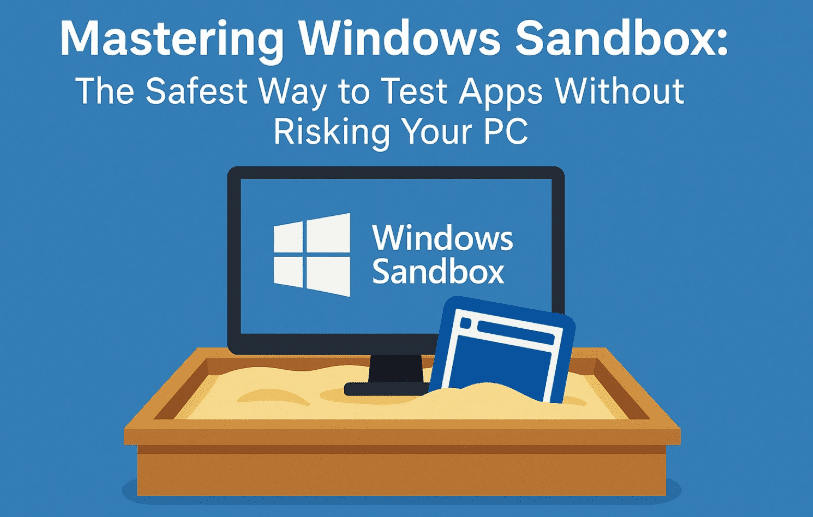
What Is Windows Sandbox?
Let’s begin with the basics before we go hands-on.
Windows Sandbox is a lightweight, temporary virtual environment that allows you to run untrusted software in isolation from your actual system. Think of it as a fresh Windows installation that launches within a window — like a hotel room for apps. You can test, explore, or even make a mess… and once you close the Sandbox, everything is wiped clean. No traces, no risks.
Key Benefits:
- Temporary and disposable
- Built into Windows 10/11 Pro, Enterprise, and Education editions
- Runs using virtualization (Hyper-V)
- Isolated from host system
- Automatically resets on close
Why Should You Use Windows Sandbox?
Before we dive into the technical steps, let’s understand why this tool is a must-have in your workflow.
Protection from Sketchy Apps and Malware
Many times, you come across free tools or open-source software from lesser-known developers. While they may be genuine, there’s always a risk — malware, bloatware, or buggy code that can ruin your system. With Sandbox, you can run these safely, and if something goes wrong — just close the window.
Avoiding System “Thrash”
Repeated installations and uninstalls can cause:
- Registry bloating
- Temp file accumulation
- Slower boot times
- Fragmented disks
Using Sandbox means you test everything in a vacuum. No mess is left on your system.
Peace of Mind for Developers and Gamers
- Developers can test builds in clean environments
- Gamers can safely test game mods or third-party launchers
- IT professionals can simulate problems or solutions without affecting the main system
Let’s Move to the Next Step: System Requirements
Before you begin, make sure your system meets the following conditions:
Minimum Requirements
- Windows 10 (build 18305 or later) or Windows 11
- Edition: Pro, Enterprise, or Education (Home editions are not supported)
- Virtualization must be enabled (BIOS setting)
- CPU with support for virtualization (Intel VT-x or AMD-V)
- At least 4GB RAM (8GB or more recommended)
- 1 GB of free disk space
Step-by-Step: How to Enable and Launch Windows Sandbox
Here comes the part you’ve been waiting for — the actual setup. Let’s take it step by step.




1. Check Virtualization Support
- Restart your PC and enter BIOS/UEFI (usually by pressing Del, F2, or F10 during boot).
- Look for a setting called Intel Virtualization Technology (VT-x) or AMD-V.
- Enable it, save changes, and exit.
2. Enable Sandbox in Windows
- Go to Control Panel → Programs → Turn Windows features on or off
- Scroll down and check the box for Windows Sandbox
- Click OK, let it install the features
- Restart your PC
3. Launch Windows Sandbox
- Press Start and type Windows Sandbox
- Click on the app to launch it
- A fresh Windows desktop will appear inside a window
- You’re now inside a safe, disposable virtual environment
So Far, So Good… Let’s See What You Can Do Inside Sandbox
Here’s what makes Windows Sandbox so useful:
What Works:
- Clipboard sharing (copy-paste text between host and sandbox)
- Internet access through host network
- Installing and running apps
- Testing file behavior
What’s Limited:
- File sharing is restricted (though configurable)
- No access to host drives unless mapped
- Limited GPU acceleration (suitable for light 3D apps only)
- No access to host hardware like printers or cameras
Example: Testing an Untrusted App
Let’s say you downloaded a new PDF or photo editor from a third-party website. You’re unsure if it’s safe. Here’s what to do:
- Launch Windows Sandbox
- Drag the executable file (e.g.,
editor_setup.exe) into the Sandbox window - Install and test the app thoroughly
- Try editing files, applying filters, using all features
- Done testing? Just close the Sandbox window
- Everything is gone — no leftover files, no registry changes
Important Note: Anything saved inside Sandbox is deleted when closed. If you need to save something, move it back to the host before closing (but scan it with antivirus first).
Level Up: Using Configuration Files (.WSB)
Want to make your Sandbox smarter? You can customize its behavior using XML-based configuration files.
How to Create a Custom Sandbox Configuration
- Open Notepad
- Paste the following code:
<Configuration>
  <MappedFolders>
    <MappedFolder>
      <HostFolder>C:\TestFolder</HostFolder>
      <ReadOnly>false</ReadOnly>
    </MappedFolder>
  </MappedFolders>
  <Networking>Enable</Networking>
  <ClipboardRedirection>Enable</ClipboardRedirection>
  <VGpu>Enable</VGpu>
  <LogonCommand>
    <Command>notepad.exe</Command>
  </LogonCommand>
</Configuration>
- Save it as
CustomSandbox.wsb - Double-click to launch a tailored Sandbox with:
- A shared folder (bi-directional file access)
- Network and clipboard enabled
- Virtual GPU support
- A custom startup command
This makes testing faster and automates your workflow.
Bonus Tip: Monitor Sandbox Resource Usage
At idle, Sandbox uses just around 100MB RAM and minimal CPU. However, for heavy tasks:
- Open Task Manager
- Look for WindowsSandbox.exe
- Monitor usage and close if needed
Want stricter control?
- Enable Hyper-V Manager
- Create a custom virtual machine
- Allocate fixed CPU/RAM to prevent high usage
Ideal for developers and IT admins who test resource-heavy apps.
Frequently Asked Questions (FAQ)
Q1. Is Windows Sandbox available on Windows 10 Home?
No. It only works on Pro, Enterprise, and Education editions.
Q2. Can I save files from Sandbox to my main PC?
Yes, but only through mapped folders (configured via .wsb). Always scan these files before opening.
Q3. Can Sandbox run GPU-intensive apps or games?
Basic 3D apps work with virtual GPU enabled, but for serious graphics tasks, use a full VM.
Q4. What if Sandbox fails to start?
- Recheck that Virtualization is enabled in BIOS
- Check Event Viewer logs for clues
- Ensure your Windows build is compatible (18305+ for Windows 10)
Q5. Is Sandbox better than traditional virtual machines?
For quick tests — absolutely. For long-term use with persistence, VMs are still better.
Final Thoughts: A Disposable Shield for Safe Computing
Windows Sandbox isn’t just a developer toy — it’s a powerful line of defense against modern software threats and bloat. From testing sketchy tools to preventing malware infections and avoiding registry damage, it’s an essential part of the modern Windows toolkit.
As technology evolves, disposable environments like Sandbox will likely become standard — just like incognito browsing did a decade ago. Safe computing doesn’t have to be difficult, and now you have the tool to make it effortless.
Tags: windows sandbox, virtual machine, windows 11 pro, how to test apps safely, disposable os, sandbox configuration, safe computing, windows tips, malware protection, sandbox xml
Hashtags:
#WindowsSandbox #SafeComputing #Virtualization #WindowsTips #TestAppsSafely #SandboxConfig #CyberSecurity #Windows11 #Windows10 #MalwareProtection #DeveloperTools
Disclaimer:
This article is for educational purposes only. Always ensure you’re complying with software licenses and do not run pirated, cracked, or illegal programs, even in a sandboxed environment. While Windows Sandbox provides protection, no system is 100% foolproof. Be cautious when transferring files between host and sandbox environments.








