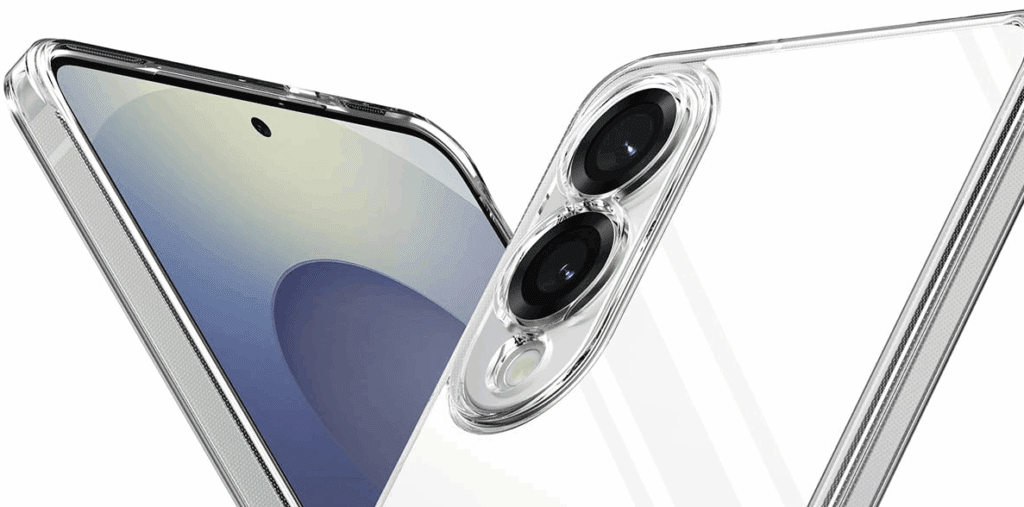
The Samsung Galaxy S25 Edge isn’t just a phone—it’s a tech powerhouse packed with cutting-edge features, AI integration, and one of the most refined Android experiences on the market. If you’ve got this device in your hands, you’re in for a treat. This guide will help you unlock the Galaxy S25 Edge’s full potential through pro tips, app suggestions, camera tricks, battery-saving features, and hidden customizations.
🔹 Customize the Edge Panel Like a Pro
By default, the edge panel shows AI apps many users don’t need. Here’s how to fix that:
- Swipe to open the edge panel.
- Tap the pencil icon at the bottom.
- Tap the three-dot menu and toggle off the unnecessary apps.
- Rearrange or add your frequently used apps for instant access.
✨ Make Your Edge Screen Dance to Music
Install Muiz Edge Music App from the Google Play Store:
- Open the app and enable Music Overlay.
- Tap the Lines menu and choose a visual style.
- Tap Apply.
- Now when you play music in apps like Spotify, your edge screen will light up in sync with the beat.
🔹 Edge Lighting with Fingerprint Unlock
Make your unlock animation more exciting:
- Go to Settings > Modes and Routines > Routines tab.
- Tap the + icon to create a new routine.
- Select the trigger: Unlock with Fingerprint.
- Under “Then”, select Edge Lighting Effect.
- Choose your preferred animation and save it.
Now each time you unlock with your fingerprint, your phone will glow with animated lighting.
🔹 Use Gemini Assistant Like Magic
The Galaxy S25 Edge integrates Google Gemini AI Assistant. Here’s how to use it creatively:
- Hold the power button to activate Gemini.
- Tap the Camera button to ask AI questions with real-world context, like:
- “How do I pair this PS5 controller?”
- “Why is my printer not printing?”
- “What product is this?”
- You can also share your screen live and ask Gemini about on-screen content.
🔹 3 Hidden Gems You’ll Love
- Hide the Status Bar in Screenshots
- Go to Settings > Advanced Features > Screenshots and screen recordings.
- Enable Hide status and navigation bars.
- Auto-Answer Calls with Headphones
- Open Phone App > Settings > Answering and Ending Calls.
- Enable Answer automatically and set a delay (e.g., 20 seconds).
- Retrieve Deleted Messages
- Download Good Lock from the Play Store.
- Open Good Lock > Install and enable Notice Star.
- On your lock screen, swipe the icon to access Notification History, even if a message was deleted.
🔋 Boost Battery Life & Monitor Health
- Enable Adaptive Power Saving
- Go to Battery Settings > Power Saving > Three-dot menu > Adaptive Power Saving.
- Keeps power saving active only when the phone isn’t in use.
- Check Battery Health
- In Battery Info, view your battery’s current lifespan rating. Higher = healthier.
- Enable Low Battery Alert Routine
- Go to Modes and Routines > Discover > Low Battery Alert > Save.
📸 Unlock the Power of the 200MP Camera
- Smooth Zoom for Videos
- Open the camera in Video mode, hit Record, then tap the zoom icon for a buttery-smooth zoom slider.
- Enable Log Mode for Cinematic Videos
- Go to Camera > Settings > Advanced Video Settings > Enable Log.
- Use this for post-edit color grading.
- Macro Mode for Close-Up Shots
- Get close to a subject, wait for the macro icon to appear, and activate it for stunning close-ups.
🎨 AI Photo & Portrait Effects
- Relight Your Face in Portraits
- Open a portrait photo > Swipe up > Tap Backgrounds Effect > Adjust lighting dynamically after the photo is taken.
- Turn Selfies into Artwork
- Open a portrait photo > Tap AI icon > Portrait Studio > Choose 3D cartoon or other styles.
- Erase Background People Automatically
- Open a photo > Use AI Editor > Erase > Auto-select background people > Generate to remove them instantly.
🔊 Smart Audio Tips
- Switch Output from Earphones to Speaker
- Swipe down > Media Output > Switch from Earphones to Speaker.
- Identify Songs Instantly
- Hold down the home button > Circle to Search > Tap Music Icon.
🖼️ Set TikTok Videos as Live Wallpapers
- Install TikTok and search “Live wallpaper 4K”.
- Find a clip > Tap Share > Set as Wallpaper.
Works with nearly any TikTok video!
🖥️ Use Samsung DeX for Desktop Mode
- Get a USB-C to HDMI adapter.
- Connect it to a monitor or TV.
- Swipe down > Tap DeX in Quick Settings.
- You’ll now access a desktop-like environment with multitasking and windowed apps.
📌 FAQ: Samsung Galaxy S25 Edge
Q: Can I use Gemini Assistant without turning on the camera?
A: Yes! You can use screen sharing mode with Gemini instead of the live camera to ask questions about what’s on your screen.
Q: Is the battery good despite its size?
A: Yes. With adaptive power saving, the phone intelligently conserves power, providing up to 20% more battery life.
Q: Can I recover deleted messages?
A: Yes. Using Good Lock’s Notice Star, you can retrieve deleted notifications, including messages.
Q: Does the phone support Samsung DeX out of the box?
A: Yes. You only need a USB-C to HDMI adapter to activate full DeX desktop mode.




Final Thoughts
The Samsung Galaxy S25 Edge brings together futuristic hardware and AI-driven software in a seamless experience. Whether it’s live edge lighting visuals, cinematic camera options, or advanced power management, this phone has a lot more than meets the eye. Use the steps above to customize it to its fullest and enjoy the best Samsung has to offer.
🔖 Tags:
Samsung Galaxy S25 Edge, Galaxy S25 tips and tricks, Samsung customization, Android edge panel, battery saving tips, camera tips, Samsung DeX, Gemini Assistant, AI editing, Galaxy portrait mode, macro photography, live wallpapers Android, Good Lock Samsung, adaptive power saving, music visualization
🔖 Hashtags:
#GalaxyS25Edge #SamsungTips #EdgePanel #BatterySaving #SamsungDeX #GeminiAssistant #SamsungCamera #AndroidCustomization #GoodLock #AndroidTips #LiveWallpaper #MacroPhotography #AIPhotoEditing
🔒 Disclaimer:
The features mentioned may vary slightly based on your region, software version, or carrier restrictions. Some tools such as Muiz or Good Lock are third-party apps or Samsung Labs apps that may not be available on all devices. Always ensure your device is up to date and compatible before installing external apps.








